Enable SSH Service on ESXi hosts using PowerShell

I found myself wanting to enable the SSH service on my ESXi hosts. I could use Host Profiles to enable it but I decided to PowerShell script it! To enable SSH there are three parts to it:

You will need to start the SSH service and set it to Start and Stop with Host:

And you will need to suppress the SSH is enabled warning message:

esxi-hosts-ssh-warning

This script does all of the above to an entire cluster. Let’s see it in action!

######################################################################
# Start SSH Service, change Startup Policy, and Suppress SSH Warning #
######################################################################

#Variables
$vCenter = "LABVC01.virtuallyboring.com"
$Cluster = "Nested ESXi Cluster"

### Start of Script
# Load VMware Cmdlet and connect to vCenter
Add-PSSnapin vmware.vimautomation.core
connect-viserver -server $vCenter

$VMHost = Get-Cluster -Name $Cluster | Get-VMhost

# Start SSH Server on a Cluster
ForEach ($VMhost in $Cluster){
Write-Host -ForegroundColor GREEN "Starting SSH Service on " -NoNewline
Write-Host -ForegroundColor YELLOW "$VMhost"
Get-VMHost | Get-VMHostService | ? {($_.Key -eq "TSM-ssh") -and ($_.Running -eq $False)} | Start-VMHostService
}

# Change Startup Policy
ForEach ($VMhost in $Cluster){
Write-Host -ForegroundColor GREEN "Setting Startup Policy on " -NoNewline
Write-Host -ForegroundColor YELLOW "$VMhost"
Get-VMHost | Get-VMHostService | where { $_.key -eq "TSM-SSH" } | Set-VMHostService -Policy "On" -Confirm:$false -ea 1
}

# Surpress SSH Warning
ForEach ($VMhost in $Cluster){
Write-Host -ForegroundColor GREEN "Setting UserVar to supress Shell warning on " -NoNewline
Write-Host -ForegroundColor YELLOW "$VMhost"
Get-VMhost | Get-AdvancedSetting | Where {$_.Name -eq "UserVars.SuppressShellWarning"} | Set-AdvancedSetting -Value "1" -Confirm:$false
}
### End of Script

Read more…

vSphere Thick Client End of Life – A Look at the HTML 5 Client Fling

On May 18th VMware announced the end of the road for the C# vSphere Thick Client. The next version of vSphere the thick client will not be available. VMware has been building up to this moment and previously announced they wanted to move to a web based client to have maximum compatibility and mobility. The current versions of the vSphere thick client will remain supported (5.5, 6.0) until their end of life cycle. So what does the future look like for the vSphere Client? VMware will keep the existing Flash web client and introduce the HTML5 based vSphere Client. The Flash web client will remain so third party developers can migrate their plugins over to the long term HTML5 client.

The HTML 5 Web Client Fling is available to download and install. It gives a fantastic view of how VMware envisions the new HTML 5 client. There are quite a few limitations in the current form but VMware will have the kinks worked out before it becomes the primary client. Below is how to deploy the v1.6 HTML 5 Client Fling and link to a VCSA:

Full installation instructions can be found here

Deploying the OVA:

Once the OVA is downloaded from the Fling website, login to your vSphere Web Client, right click on the Data Center, then click Deploy OVF Template:

1 HTML Fling - Deploy OVA

Read more…

Operation Jumbo Frames – MTU 9000 for VMware Networking

Wanted to make a quick post about enabling Jumbo Frames in my VMware environment! My switches (Cisco SG-200 & SG-500) support Jumbo Frames so I thought why not? It would surely help push more data through the network for faster for VSAN and vMotions. I’ll do some speed tests later to compare!

Hardware Requirements:

Before you start out on this quest ensure your physical switch support jumbo frames. When enabling it on my Cisco switches a switch reboot was required:

1 Cisco SG Series - Jumbo Frames

The next step is to ensure the NICs in your servers support jumbo frames. If they are server NICs then they should. My Dell T620/R520 both have Broadcom NetXtreme 5709 which in fact support Jumbo Frames.

2 Dell T620 Physical Network Adapters

Read more…

Deploy and Configure WSUS on Server 2012 R2

Windows Server Update Service [WSUS] is a server role that serves as a repository for Microsoft product updates on your network. Instead of every computer on your network downloading updates directly from Microsoft you can deploy a WSUS server so the updates are downloaded once and distributed to your environment from the WSUS server.

In this post I will be deploying WSUS Server 2012 R2 in a domain environment, using the Windows Internal Database (WID), and using Group Policy to have my computers connect to WSUS instead of Microsoft Updates.

Single WSUS Server

Read more…

Deploying the VMware I/O Analyzer Fling

VMware I/O Analyzer is a virtual appliance designed to provide storage performance in a virtual environment. It is offered as a SUSE appliance that provides a web GUI to interact with.

I deployed I/O Analyzer in my vSphere 6.0 environment to see the performance of VSAN 6 compared to my Synology NAS. With this post you should be able to deploy I/O Analyzer in its simplest form and perform performance testing on your storage.

Read more…

Add Virtual Machines (.VMX) to Inventory using PowerShell

There are quite a few clicks to add a virtual machine from a datastore to inventory. If you were to consolidate an environment and had to add multiple virtual machines this would be quite a manual task. Easier solution? Script it! The below script makes scanning a datastore and registering all virtual machines with vCenter a breeze.

You must have VMware PowerCLI installed in order to have the cmdlets required for PowerShell to run the script.

Add VMX (Virtual Machines) to Inventory from a Datastore:

#####################################################################
# Load VMware Plugins and vCenter Connect #
#####################################################################

Add-PSSnapin vmware.vimautomation.core

connect-viserver -server ENTER VCENTER FQDN HERE
#####################################################################
# Add .VMX (Virtual Machines) to Inventory from Datastore #
#####################################################################

# Variables: Update these to the match the environment
$Cluster = "ENTER CLUSTER NAME HERE"
$Datastore = "ENTER DATASTORE NAME HERE"
$VMFolder = "ENTER FOLDER NAME HERE"
$ESXHost = Get-Cluster $Cluster | Get-VMHost | select -First 1

foreach($Datastore in $Datastore) {
# Searches for .VMX Files in datastore variable
$ds = Get-Datastore -Name $Datastore | %{Get-View $_.Id}
$SearchSpec = New-Object VMware.Vim.HostDatastoreBrowserSearchSpec
$SearchSpec.matchpattern = "*.vmx"
$dsBrowser = Get-View $ds.browser
$DatastorePath = "[" + $ds.Summary.Name + "]"

# Find all .VMX file paths in Datastore variable and filters out .snapshot
$SearchResult = $dsBrowser.SearchDatastoreSubFolders($DatastorePath, $SearchSpec) | where {$_.FolderPath -notmatch ".snapshot"} | %{$_.FolderPath + ($_.File | select Path).Path}

# Register all .VMX files with vCenter
foreach($VMXFile in $SearchResult) {
New-VM -VMFilePath $VMXFile -VMHost $ESXHost -Location $VMFolder -RunAsync
}
}

Let’s see it in action!

Read more…

VMUG Advantage Subscription – VMware License Keys for your Lab

New to this years 2015 VMUG Advantage subscription is an addition called EVALExperience . It gives subscribers 365 day license keys for the majority of VMware products. It is perfect for running these solutions in your home lab without a 90 day trial period. EVALExperience is on top of the discounts you receive as a VMUG Advantage member. Current pricing is $200 a year. Check it out! Here are the products you get keys for: VMware vCenter Server Standard for vSphere 6 VMware vSphere® with Operations Management™ Enterprise Plus VMware vCloud Suite® Standard VMware vRealize™ Operations Insight™ VMware vRealize Operations™ VMware vRealize Log Insight™ VMware vRealize Operations for Horizon® VMware Horizon® Advanced Edition VMware Virtual SAN™ VMware Virtual SAN™All Flash Add On Here is what the portal looks like, this is where you download media and keys:   Edit 6/8/2015: Updated product list above. Additional Reading: VMUG Advantage Discounts and Perks: http://www.vmug.com/p/cm/ld/fid=6238

Disable ‘SSH for the host has been enabled’ message in vSphere 5

I always forget where to turn off the SSH for the host has been enabled warning message so i’m posting it here for safe keeping. 🙂 To turn this message off click on the host, go to the Configuration tab, then click on Advanced Settings. Scroll down to the UserVars section. The last field is called UserVars.SupressShellWarning, change the value from a 0 to a 1. The message will now be gone! Resources: http://kb.vmware.com/selfservice/microsites/search.do?language=en_US&cmd=displayKC&externalId=2003637

Citrix PVS – Use VMware Workstation to Upgrade VMTools

If you are running Citrix PVS in a VMware vSphere environment you know what a headache it is to update VMtools on your image. Citrix uses the Virtual Hard Disk (VHD) format for its vDisk and sadly VMware doesn’t like VHD’s. Instead of using Citrix XenConvert or StarWind V2V Converter, VMware Workstation should make this process much easier for you! VMware Workstation started supporting the VHD format with version 10 and makes upgrading VMtools a pretty simple task.   I will be using VMware Workstation 11 and will show you how to open your PVS VHD image and update tools without the need to reverse image it. Citrix VHD Preparation: First you need to merge your vDisk versions to a single base. In the Provisioning Service Console under vDisk Pool, right click the name of your vDisk and click Versions. Click the newest version of your vDisk and click Merge. You want to create a new Merged Base and make this Maintenance so not to interfere with your current environment. Click Ok. This can take quite a while if you haven’t made a merged base in a while. Once complete you will have a new merged base version. Click Done. Now browse to your Citrix vDisk directory and copy the VHD file created above to your desktop, this will be the file we work with in VMware Workstation. VMware Workstation: It is time …

Read more…

Multi-NIC vMotion

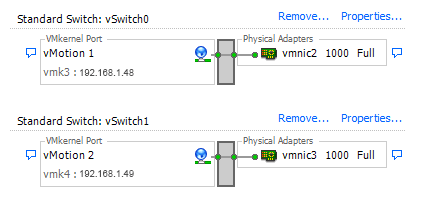
In vSphere 5 a new feature was added that many people may be overlooking. It is called Multi-NIC vMotion. If you have a environment where you have 2 or more dedicated uplinks reserved for vMotion you can double the total bandwidth available by using this option. Do I have your attention? 🙂 Normally you would have 1 port group with both of your vMotion uplinks set to active like this: What if I told you when you are vMotioning a VM, the VMkernal is picking one of those uplinks and basicly ignoring the other? According to the VMware KB article 2010877, “The VMkernel TCP/IP stack uses a single routing table to route traffic. If you have multiple VMkernel network interfaces (vmknics) that belong to the same IP subnet, the VMkernel TCP/IP stack picks one of the interfaces for all outgoing traffic on that subnet as dictated by the routing table.” If you want to use both uplinks for vMotion traffic and double your total bandwidth you have to create two vMotion VMkernals and assign each one a uplink. There was some issues with multi-NIC vMotions if you were running ESXi version before 5.0U2. As always try this out in your test enviroments first 🙂 Here is VMware KB2007467 walking you through these steps that compliment my steps below. First we will create a new port group and rename …

Read more…