
Entra Cloud Sync + Hybrid Join: A Step-by-Step Guide

I run a little Active Directory domain in my home lab, and for the longest time it lived completely on its own island. Local logins, local DNS, local everything. Meanwhile every cloud thing I touched — Microsoft 365, Azure, random SaaS apps — wanted me to log in with a different identity. Two usernames, two passwords, two worlds. That’s the exact problem Microsoft built hybrid identity to solve, and I wanted to actually understand how it works instead of just reading about it.

So I built it. This post is the result: what Entra Connect actually is, the difference between the two sync engines Microsoft gives you, what Hybrid Join means, and a full best-practices walkthrough of deploying Entra Cloud Sync and then Hybrid Join on top of it. (There’s a twist on the Hybrid Join side for Cloud Sync setups — I’ll get to it.) I’ll link the Microsoft Learn docs at every step so you’re never taking my word for it.

If you’ve got an on-prem domain and a Microsoft tenant and you want them to feel like one thing — this is the post.

Read more…

WS-Management: Configuration Refresh Failed — Fixing the MaxEnvelopeSizekb Limit
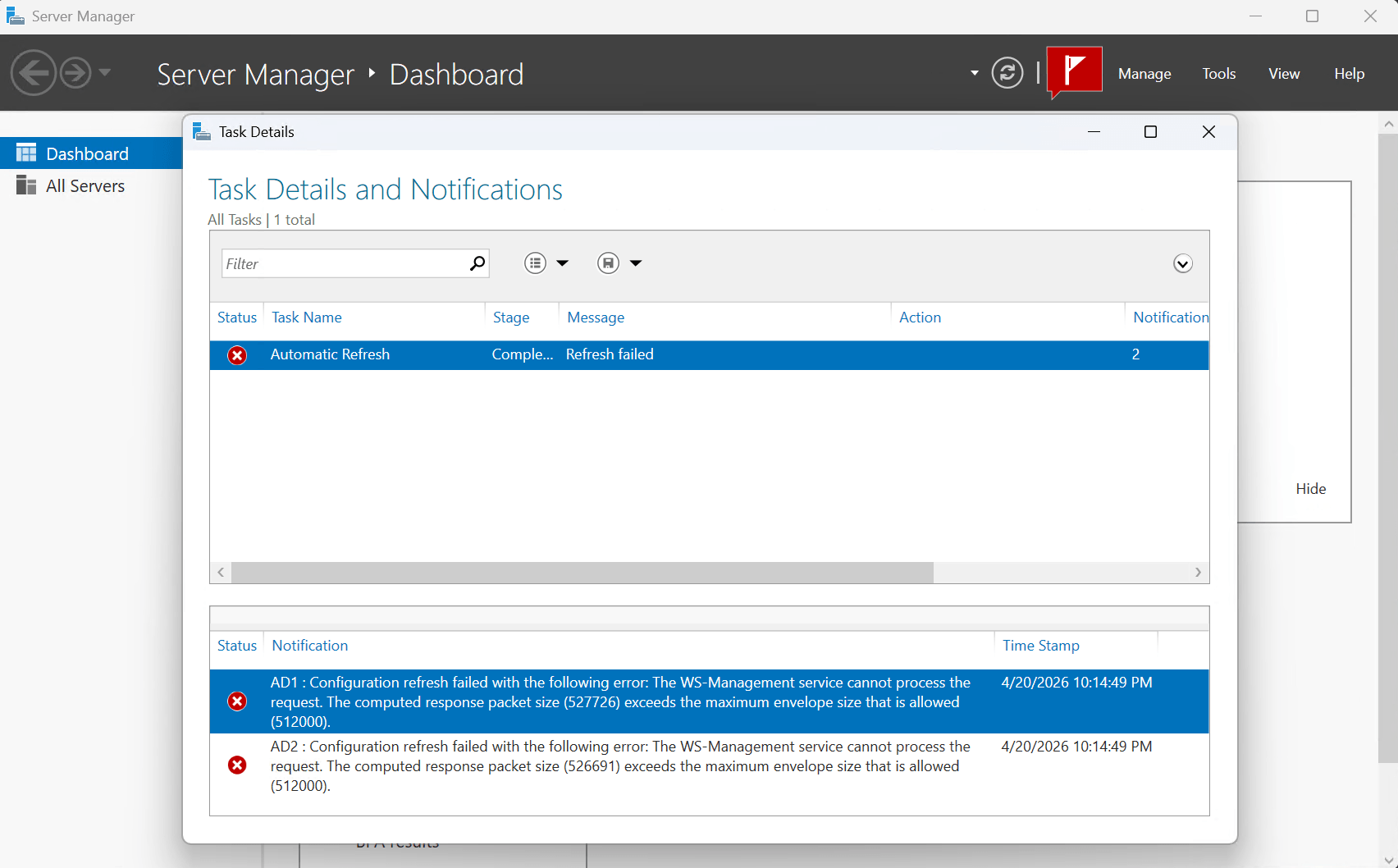
I installed Server Manager on my laptop to make it easier to manage my Active Directory Domain Controllers remotely. When I added two of my domain controllers I got the following error message:

After some searching I discovered that the response the server tried to send back was bigger than WinRM was allowed to carry. The management tool asked for a configuration refresh, the server started building the response, and WinRM threw it in the trash before it ever arrived.


Why It’s Happening

WS-Management (WinRM) communicates using SOAP over HTTP — basically XML envelopes sent back and forth. There’s a setting called MaxEnvelopeSizekb that caps how large any single response envelope can be. Out of the box, that limit is 512 KB (512,000 bytes).

The problem is that as your environment grows — more AD objects, more roles, more configuration data — the payload for a full configuration refresh eventually exceeds that cap. The two domain controllers I added were returning 527 KB and 526 KB respectively. Close, but just over the line, and WinRM doesn’t negotiate. It just refuses.

This is especially common on Domain Controllers with large Active Directory configurations, or any server that has accumulated a lot of roles, features, and policies over time.

Read more…

Deploying Azure Virtual Network Gateway Basic: A How-To Guide

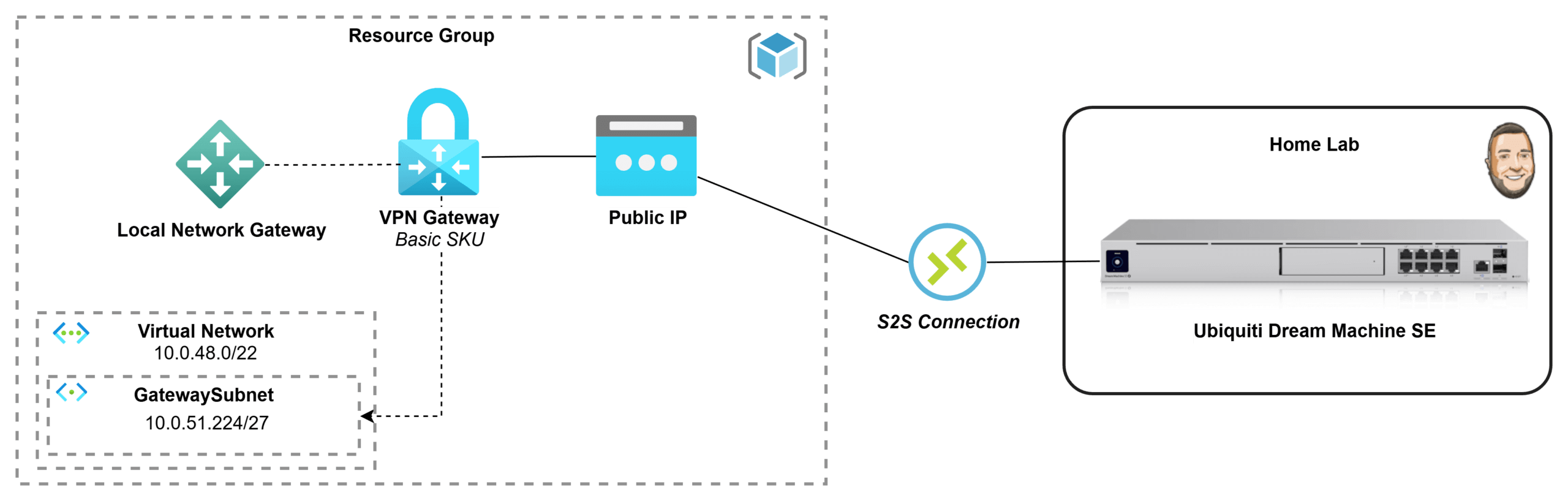
If you’ve got an Azure subscription through Visual Studio Enterprise, you’ve basically been handed the perfect playground for testing and learning in the cloud. But once you start building resources inside a private Azure network, you quickly hit the next challenge: how do you securely connect it back to your home lab without exposing everything to the internet? In this post, I’m going to go through the process of how I deployed a Basic Azure Virtual Network Gateway and connected it to my Ubiquiti Dream Machine, creating a secure site-to-site VPN tunnel between my Azure VNet and my home network. I wanted to document what that process looked like for me and share it in case it helps someone else doing the same thing.

What is a Virtual Network Gateway?

TL;DR: A managed VPN concentrator and router for your Azure VNet!

An Azure Virtual Network Gateway is used when you need secure, private connectivity into an Azure Virtual Network without exposing resources to the public internet. It acts like a managed VPN router inside your VNet, enabling encrypted connections such as site-to-site VPNs (linking your on-premises network to Azure), point-to-site VPNs (allowing individual users to securely connect to Azure), or VNet-to-VNet connections (linking multiple Azure networks). It’s most valuable for hybrid cloud scenarios, remote administration, and keeping systems reachable over private IP addresses while maintaining strong network security and controlled access. Azure supports a few common VPN connection models, each designed for a specific access pattern:

  • Site-to-Site (S2S) VPN: Creates an always-on encrypted tunnel between an on-premises network (office/data center) and an Azure VNet, making it ideal for hybrid connectivity where entire networks need to communicate over private IPs.
  • Point-to-Site (P2S) VPN: Connects individual users/devices directly into an Azure VNet, which is perfect for remote admin access, developer labs, or secure access to private Azure resources without exposing them publicly.
  • VNet-to-VNet: Connects two Azure VNets using VPN tunnels, typically used when networks must remain isolated (different environments/regions/subscriptions) but still require secure private communication—though VNet peering is often simpler for Azure-to-Azure connectivity.

Read more…