vCenter Server Appliance Upgrade from 5.x to 6.0

The upgrade process of vCenter Server Appliance (vCSA) version 5.x to 6.0 isn’t truly a upgrade but more of a migration. You are basically deploying a second vCSA that will migrate the hosts/inventory/IP address from the old to the new. You can only upgrade vCSA versions 5.1U3 and 5.5. The 6.0 vCSA is still based on SUSE Linux Enterprise 11 and now has the the same mins/max as the Windows installed version.

vCenter 6 Appliance vs Windows

Before You Start:

There is some prep work you need to perform before doing the migration:

  • Pick a host and ensure it has a standard switch with a vmnic uplink. Because Distributed Switches is a vCenter function it wants to perform the upgrade on a standard switch.
  • Rename your current vCenter VM in the inventory so the new VM can be created as the same name. Otherwise the vCSA folders on the LUNs will not match.
  • Have at least two available LUNs, one for your current vCSA and one for the new vCSA. Since you will want to deploy the new one with the same name they have to be on different LUNs
  • The installation media is a .ISO instead of a .OVA. You will need to burn it to a disc, extract it, or mount it.

Read more…

vCenter Server Appliance 6.0 – A Fresh Install

The VMware vCenter Server Appliance (vCSA) is a security hardened SUSE Enterprise 11 operating system baked with the vCenter server function. With vSphere 6.0 the appliance now has the same mins/max as the Windows installed version. This makes it very appealing to move over to the appliance! Before You Start: Pick a host and ensure it has a standard switch with a vmnic uplink. Because Distributed Switches is a vCenter function it wants to perform the upgrade on a standard switch. The installation media is a .ISO instead of a .OVA. You will need to burn it to a disc, extract it, or mount it. If you want to upgrade your environment instead of fresh deployment, check out my posts Upgrading Windows based vCenter 5.x to 6 and vCenter Server Appliance Upgrade from 5.x to 6.0 PluralSight: PluralSight has amazing video courses on VMware vSphere. If you haven’t checked out PluralSight it’s an amazing service! Highly recommended! What’s New in VMware vSphere 6 vSphere 6 Foundations: Install and Configure vCenter and ESXi vSphere 6 Foundations: Configure vSphere Storage Installation: The VCSA is no longer a .OVA but instead a .ISO image so burn/extract/mount it on your computer. First we need to install the VMware Client Integration 6.0 Plugin. In the vcsa folder there is the executable named VMware-ClientIntegrationPlugin-6.0.0.exe.  The installation is simple, once installed proceed to the next …

Read more…

StarWind Virtual SAN: A Storage Solution for your virtual environment

One important thing you need for your virtual environment is storage. If you have a single ESXi host then using local storage is just fine but if you have multiple hosts and want to use features such as vMotion, High Availability (HA) , and DRS you need shared storage. In my quest to find a storage solution I started out using my Synology DS411slim. It works fantastically but I am very limited with speed and drive size due to the 2.5″ drive limitation. With the cost very high for a new Synology unit it left me seeking an alternative solution, that is where StarWind Virtual SAN steps in. StarWind Virtual SAN presents a servers local storage as a iSCSI LUN and even performs VMware VAAI functions. There is a free edition StarWind offers that is perfect for home labs, test and dev environments. You can download and receive your license key here: http://www.starwindsoftware.com/starwind-virtual-san-free Prerequisites: At a minimum all you need is some local storage and a network connection as you will be presenting it out as iSCSI. Luckily I have a Dell PowerEdge R520 that will become my virtual SAN server. For better performance, you should have storage running on a RAID (5,10, etc) and multiple network connection that will be dedicated for iSCSI traffic. I have eight 300GB 10k SAS drives using RAID 5, I carved 300GB for my boot drive which left …

Read more…

VMware – Don’t Miss Event – February 2nd

VMware announced an online event “that should not be missed” scheduled on February 2nd. There are many rumors floating around the net but I personally feel vSphere 6.0 will be announced.  Excited to see what is announced!! Register Here! This event is so BIG that we’re offering broadcasts around the globe the entire week of February 2…and continuing the excitement throughout February. All event registrants will automatically receive access to additional content, engagement, and activities via our online event platform. Event Times: AMERICAS Date: February 2, 2015 Time: 1:00 – 2:00 PM PST / 4:00 – 5:00 PM EST EMEA Date: February 3, 2015 Time: 9:00 – 10:00 AM GMT / 10:00 – 11:00 AM CET ASIA PACIFIC – ASEAN, Western Australia, Hong Kong Date: February 5, 2015 Time: 10:00 – 11:00 AM SGT ASIA PACIFIC – Sydney, Australia Date: February 5, 2015 Time: 10:00 – 11:00 AM AEDT ASIA PACIFIC – Mumbai, India Date: February 5, 2015 Time: 10:30 – 11:30 AM IST

Guest customization runs on every boot

In our vSphere 5.1 update 2 environment we found that some of our Windows virtual machines were running guest customization every time they boot. This was causing them to loose their static IP address and take an additional 5 minutes to boot. To fix this issue, boot to Windows and open regedit. Navigate to to the following location: HKLM\System\CurrentControlSet\Control\Session Manager\ Edit the BootExecute key and remove all sysprepDecrypter.exe lines. We had some VMs with up to 10 entries! Your key should now look like this: Click OK. Now the VM will not perform the guest customization on every boot. To prevent future VMs you deploy from gaining this issue update your vSphere environment to at least 5.1 Update 5.

Authorize Exception Error when logging into vCenter

If you get the following error when logging into vCenter(5.1U5): “A general system error occurred: Authorize Exception”   Restarting the Single Sign On service on your vCenter should resolve the issue. In my case the cause of this was due to the LDAP connection pool being exhausted. To confirm this check the ssoAdminServer.log found here: C:\Program Files\VMware\Infrastructure\SSOServer\log Do a search for the following error: No ManagedConnections available within configured blocking timeout If you find that around the time when you was logging in then your LDAP connection pool was exhausted. This issue is resolved in vSphere 5.5. The VMware KB article for this issue 2055448: http://kb.vmware.com/selfservice/microsites/search.do?language=en_US&cmd=displayKC&externalId=2055448  

The VMRC console has disconnected…attempting to reconnect

This morning I received an error I haven’t seen before when trying to open the console of a VM in our ESXi 5.5 environment….  “The VMRC console has disconnected…attempting to reconnect.” There are two ways to fix this. The easy way is to reboot your computer 🙂 If you would want to avoid a reboot you can do the following: Close out all of your VMware vSphere Clients and open Task Manager. You will want to make sure all processes named “vmware-vmrc.exe“, “vmware-remotemks.exe“, and “vpxclient.exe” are not running. If they are go ahead and end all those processes.   Now open up the vSphere Client, console should now work:   Comment below and let me know what worked for you!  

Multi-NIC vMotion

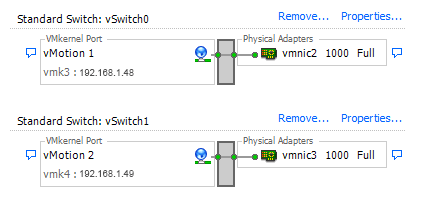
In vSphere 5 a new feature was added that many people may be overlooking. It is called Multi-NIC vMotion. If you have a environment where you have 2 or more dedicated uplinks reserved for vMotion you can double the total bandwidth available by using this option. Do I have your attention? 🙂 Normally you would have 1 port group with both of your vMotion uplinks set to active like this: What if I told you when you are vMotioning a VM, the VMkernal is picking one of those uplinks and basicly ignoring the other? According to the VMware KB article 2010877, “The VMkernel TCP/IP stack uses a single routing table to route traffic. If you have multiple VMkernel network interfaces (vmknics) that belong to the same IP subnet, the VMkernel TCP/IP stack picks one of the interfaces for all outgoing traffic on that subnet as dictated by the routing table.” If you want to use both uplinks for vMotion traffic and double your total bandwidth you have to create two vMotion VMkernals and assign each one a uplink. There was some issues with multi-NIC vMotions if you were running ESXi version before 5.0U2. As always try this out in your test enviroments first 🙂 Here is VMware KB2007467 walking you through these steps that compliment my steps below. First we will create a new port group and rename …

Read more…

Installing VMware ESXi and vCenter 5.5 [Part 1]

Installing VMware vSphere 5.5 Series: In this series I will be installing ESXi and vCenter using Microsoft Server 2012 R2 virtual machines. Part 1: Introduction and ESXi Installation Part 2: Microsoft SQL 2012 Installation Part 3: Creating the vCenter Database & ODBC Setup Part 4: vCenter 5.5 Installation Part 5: Initial Setup (Accessing vCenter, Configure Basic Permissions, Add Host) Downloading ESXi: If you will be running ESXi from a physical server you will want to use the ESXi image provider by the hardware manufacture such as Dell, HP, Cisco. Their ESXi image has the drivers and software specific for the hardware. If you will be running ESXi in a nested environment, then the ESXi image from VMware is what you want. Here are the download links for each manufacturer: HP: http://h18004.www1.hp.com/products/servers/software/vmware/esxi-image.html Dell: http://www.dell.com/support/home/us/en/19/Drivers/DriversDetails?driverid=5YC4T Cisco: http://www.cisco.com/c/en/us/td/docs/unified_computing/ucs/release/notes/OL_26617.html VMware: http://www.vmware.com/go/download-vspherehypervisor ESXi Installation: First boot your server from the ESXi ISO. Depending on your hardware you should mount the ISO using iLo/iDRAC/etc. Another nice way is to boot it from a USB thumb drive. You can make your USB bootable by using this tool: http://rufus.akeo.ie/ . Of course you can do it the old fashion way and burn the ISO to a disc. The first screen that pops up should look like this. It has a timer that will count down and automatically take you into the installer unless you hit a button …

Read more…

Installing VMware ESXi and vCenter 5.5 [Part 2]

Installing VMware vSphere 5.5 Series: Part 1: Introduction and ESXi Installation Part 2: Microsoft SQL 2012 Installation Part 3: Creating the vCenter Database & ODBC Setup Part 4: vCenter 5.5 Installation Part 5: Initial Setup (Accessing vCenter, Configure Basic Permissions, Add Host) I am installing Microsoft SQL 2012 on a Microsoft Server 2012 R2 virtual machine. In this walk through I am installing SQL and vCenter on separate virtual machines. Microsoft SQL 2012 Installation: 1. Go to the Installation tab and click on the New SQL Server stand-alone installation: 2. Setup Support Rules – It will run a quick preinstall scan. Click Next: 3. Product Key – You can proceed with an 180 day Evaluation, Express or enter your product key, click Next with your selection: 4. License Terms – Check the box to accept the license terms, check the box if you want to send usage data to Microsoft (who wouldn’t? 🙂 ) now click Next: 5. Product Updates – Go ahead and install the updates, click Next: 6. Setup Support Rules – It will run another test, click Next: 7. Setup Role – Ensure SQL Server Feature Installation is selected, click Next: 8. Feature Selection – Check the following options:      a. Database Engine Services      b. Client Tools Connectivity      c. Integration Services      d. Management Tools – Basic   …

Read more…