The VMware vCenter Server Appliance (vCSA) is a security hardened SUSE Enterprise 11 operating system baked with the vCenter server function. With vSphere 6.0 the appliance now has the same mins/max as the Windows installed version. This makes it very appealing to move over to the appliance!

Before You Start:
- Pick a host and ensure it has a standard switch with a vmnic uplink. Because Distributed Switches is a vCenter function it wants to perform the upgrade on a standard switch.
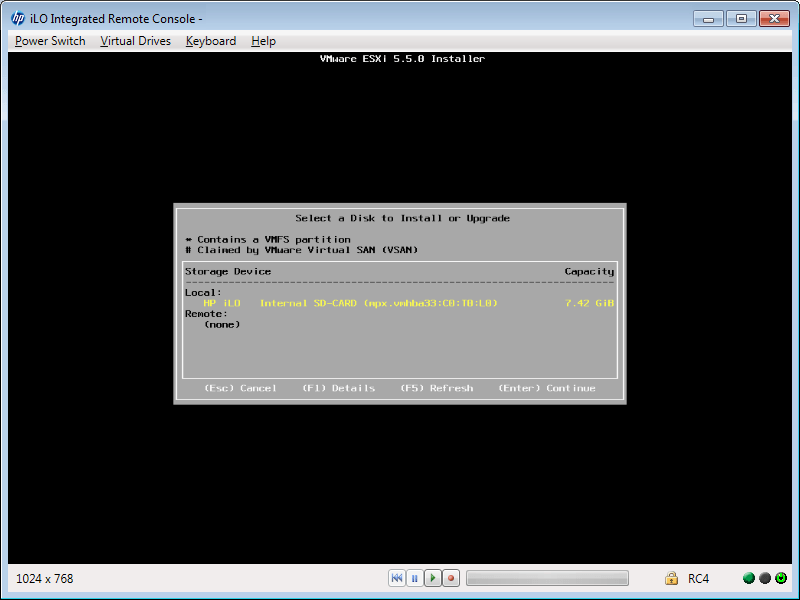
- The installation media is a .ISO instead of a .OVA. You will need to burn it to a disc, extract it, or mount it.
- If you want to upgrade your environment instead of fresh deployment, check out my posts Upgrading Windows based vCenter 5.x to 6 and vCenter Server Appliance Upgrade from 5.x to 6.0
PluralSight:
PluralSight has amazing video courses on VMware vSphere. If you haven’t checked out PluralSight it’s an amazing service! Highly recommended!
Installation:
The VCSA is no longer a .OVA but instead a .ISO image so burn/extract/mount it on your computer. First we need to install the VMware Client Integration 6.0 Plugin. In the vcsa folder there is the executable named VMware-ClientIntegrationPlugin-6.0.0.exe. The installation is simple, once installed proceed to the next step:

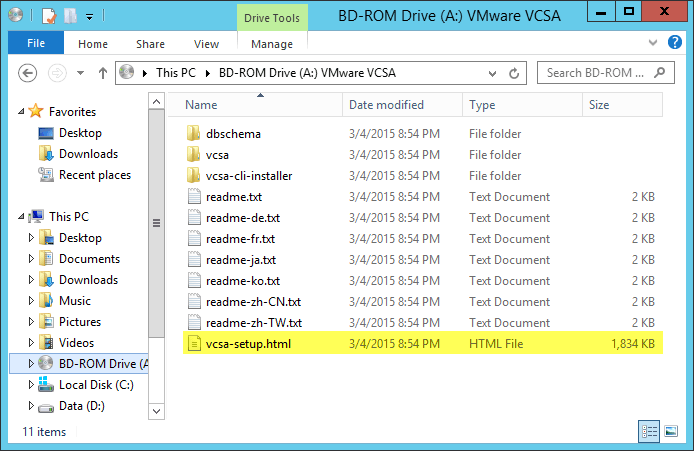
Now the plugin is installed, open the vcsa-setup.html in the root of the ISO. This will launch the vCSA installer splash screen:
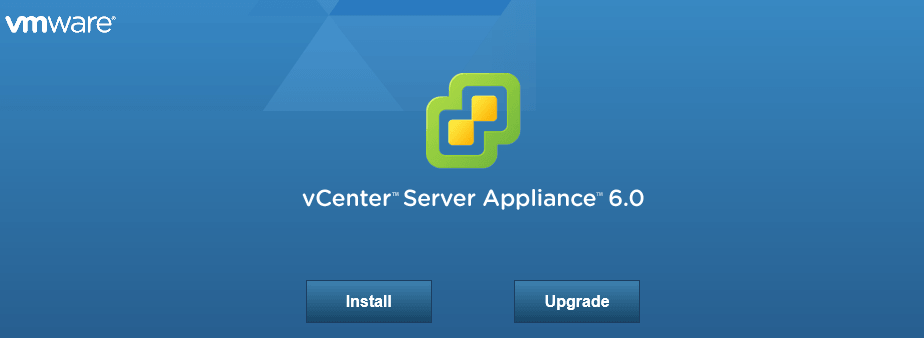
Click Install:
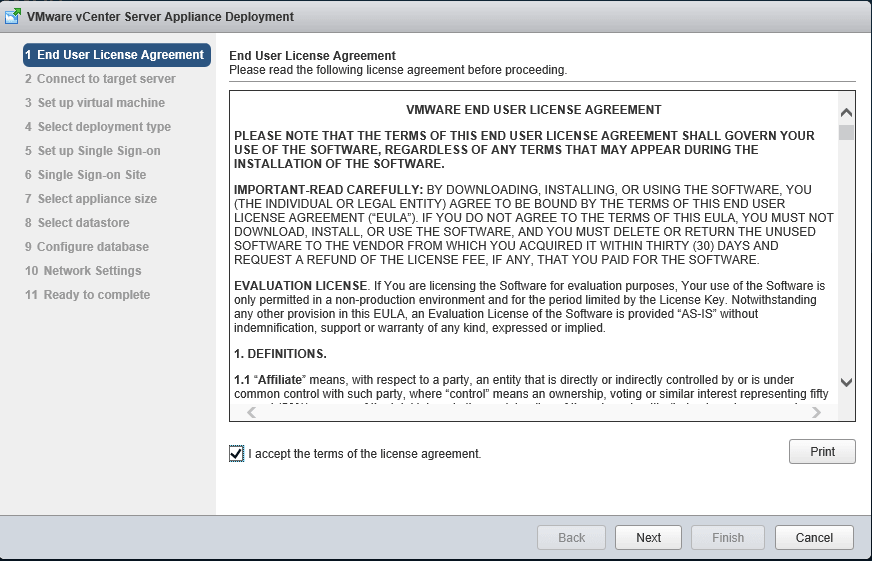
Accept the EULA and click Next:
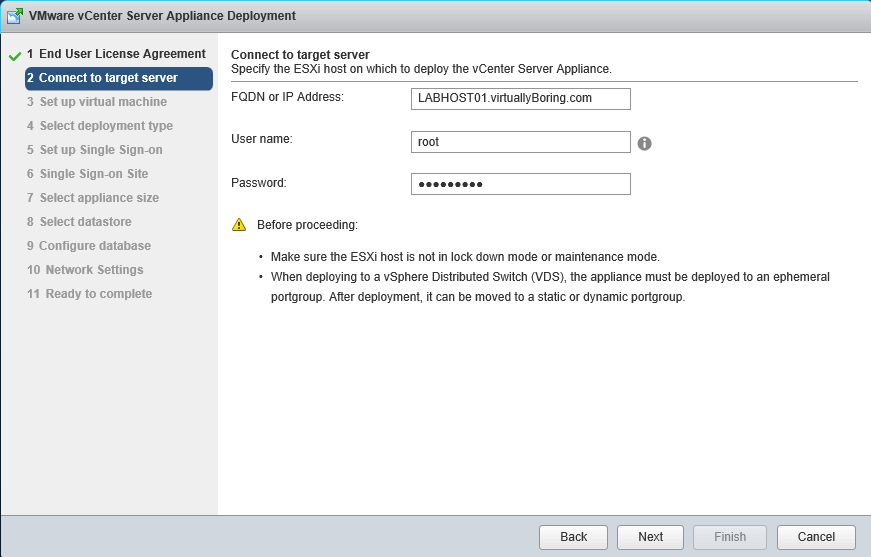
Enter the FQDN or IP address and root credentials of the ESXi host for the VCSA to be deployed on. Click Next:
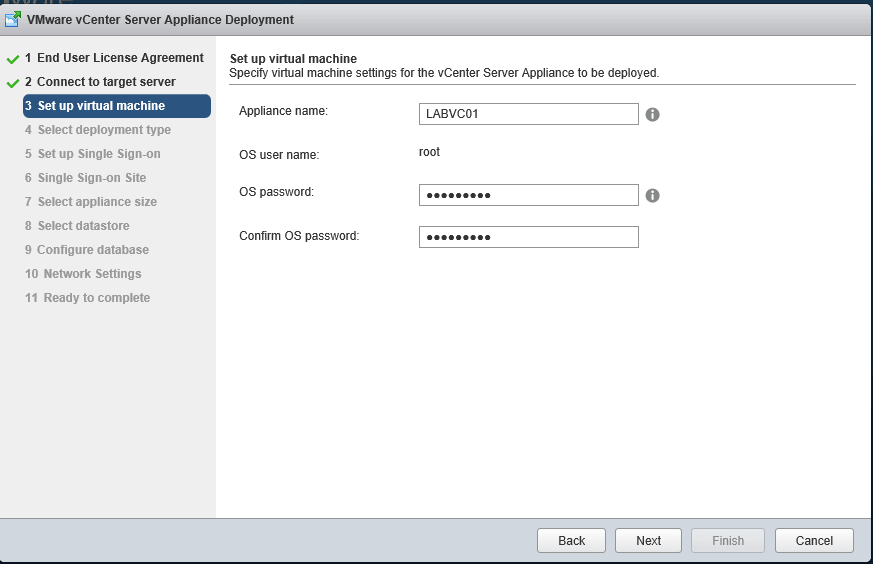
Enter the name that you want to call your appliance and set a root account password. Click Next:
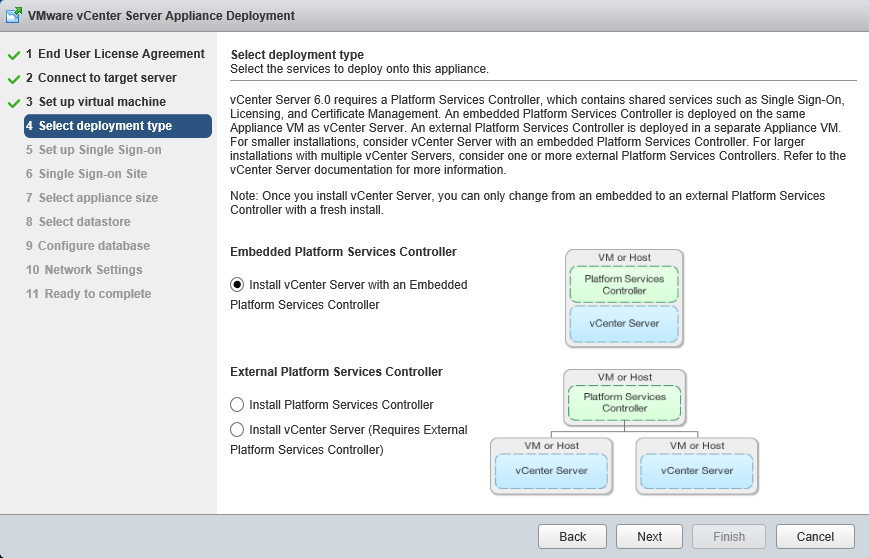
For a small environment/lab, you will want to stay with the embedded platform services controller. If you are in a large environment that has multiple vCenters you may want to separate vCenter from the platform services controller. If you want to read more about separating them read about it in the VMware vCenter Server 6.0 Deployment Guide. Click Next:
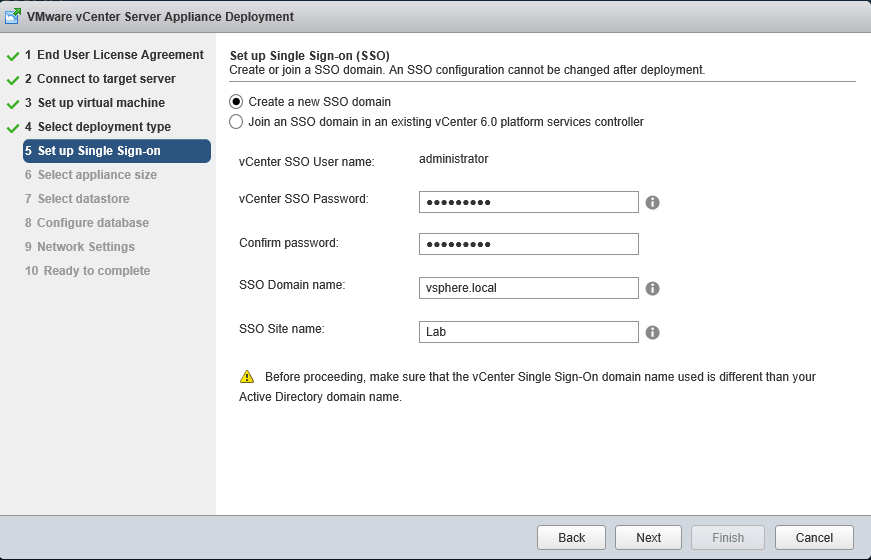
If you have a SSO domain already enter the information below. Otherwise create a new SSO domain. Click Next:
Note: Do not use the same Active Directory domain name as your SSO domain. You will have major issues!
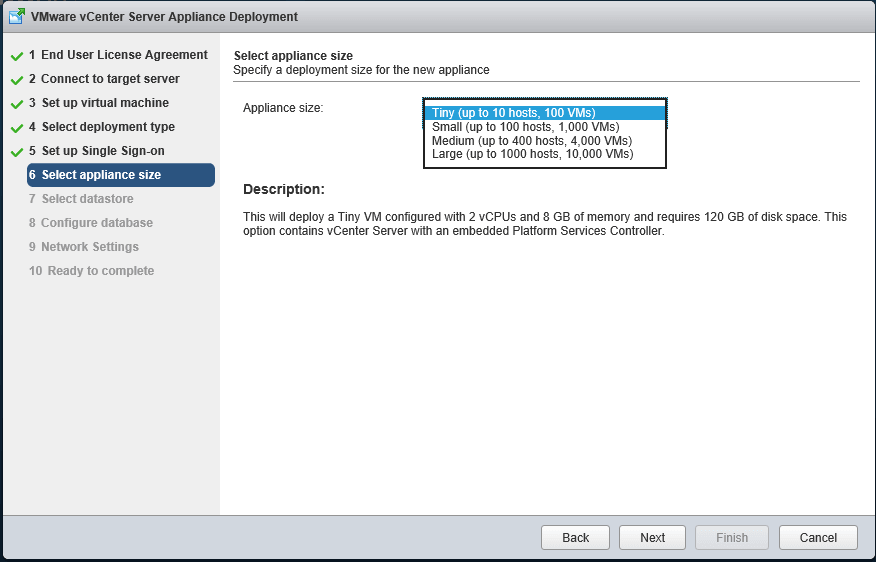
Here you can pick how much resources your vCSA will get.
Tiny: 2 vCPU , 8 GB memory , 120 GB disk space
Small: 4 vCPU , 16 GB memory , 150 GB disk space
Medium: 8 vCPU , 24 GB memory , 300 GB disk space
Large: 16 vCPU , 32 GB memory , 450 GB disk space
Pick your appliance size and click Next:
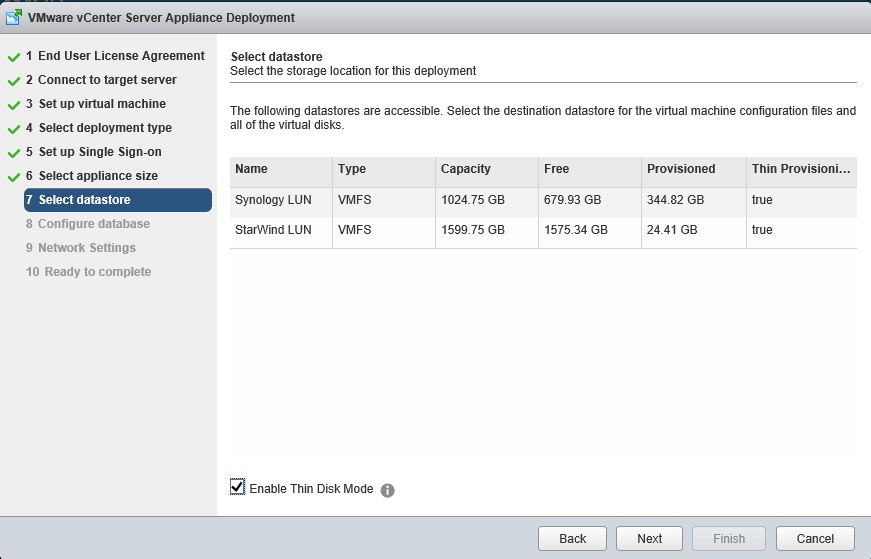
Pick a datastore to deploy the appliance to, click Next:
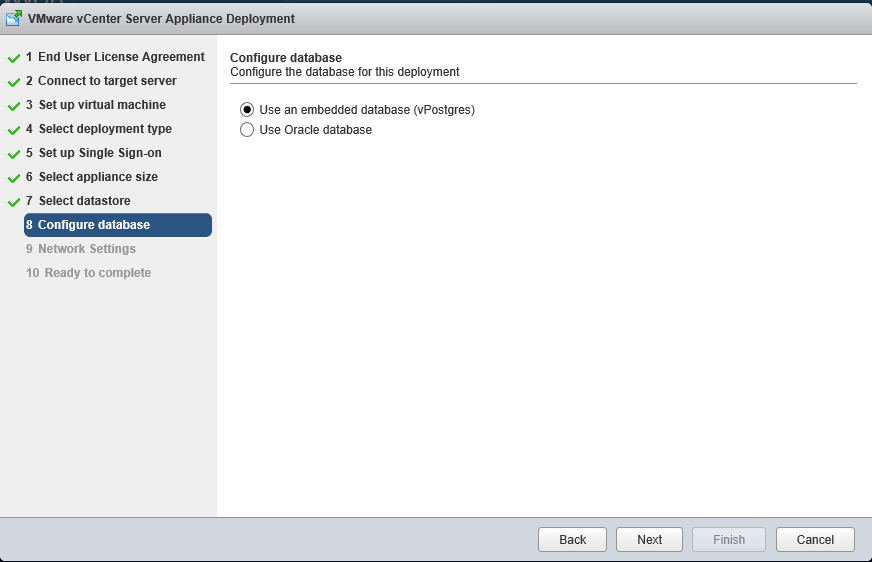
The vCSA supports using a external Oracle database. I want to continue using the embedded Postgres database. Click Next:
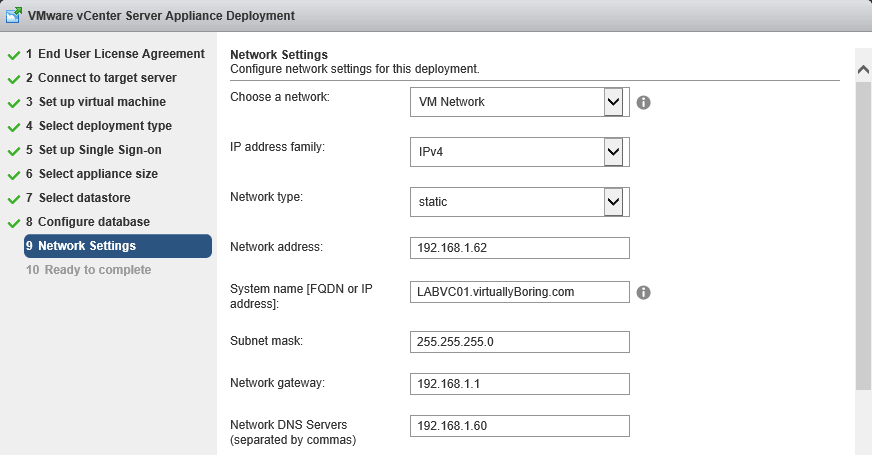
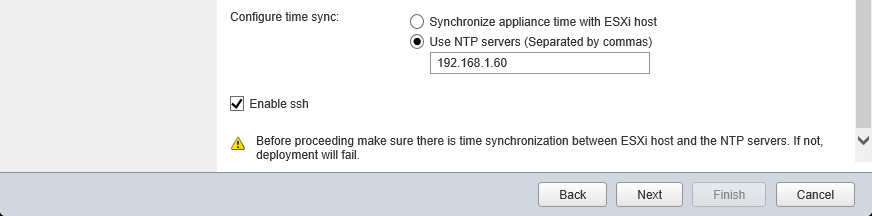
Select the standard switch network you want to use, enter the IP address, FQDN, subnet mask, gateway, and DNS server. Check the box if you want to enable SSH (you can enable this later if you don’t check it now). Click Next:
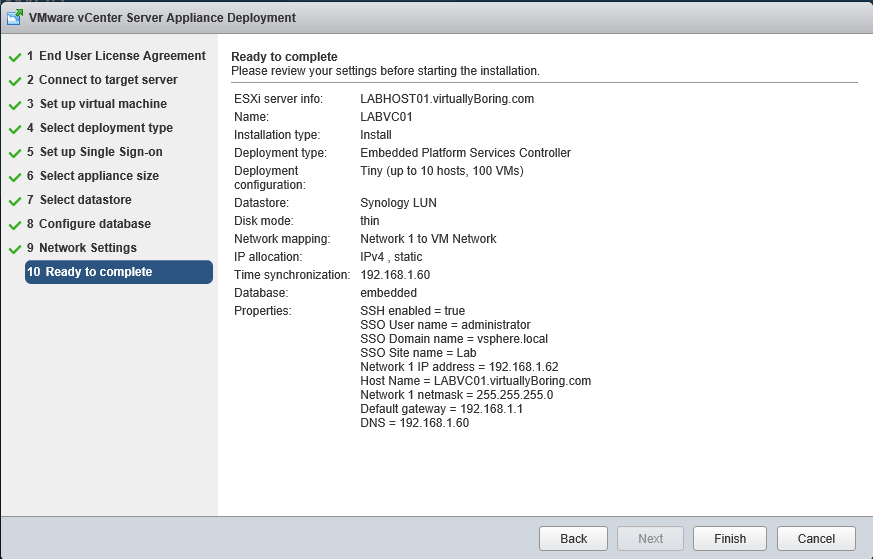
Look over the summary page. If everything looks correct click Finish:
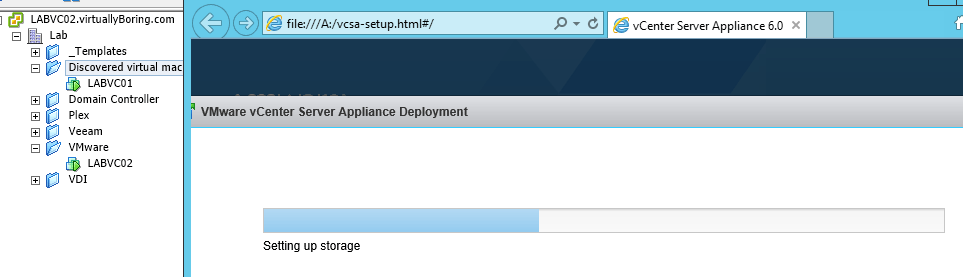
Once the VM is created you can monitor the console while it works. Nothing really happened but was neat comparing the console progress bar with the installation.
And it’s finished! Click Close:
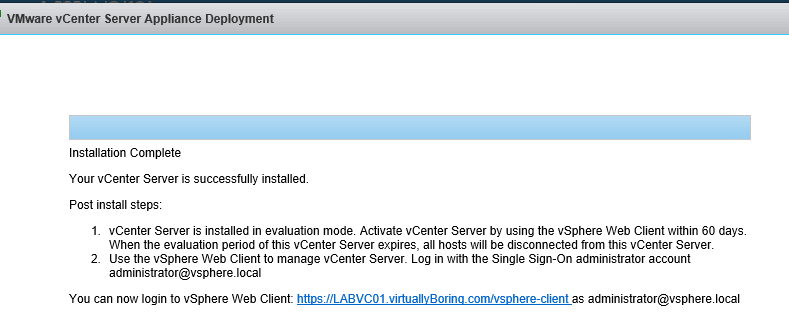
VCSA is ready for configuration!
Configuring the VCSA to use Active Directory:
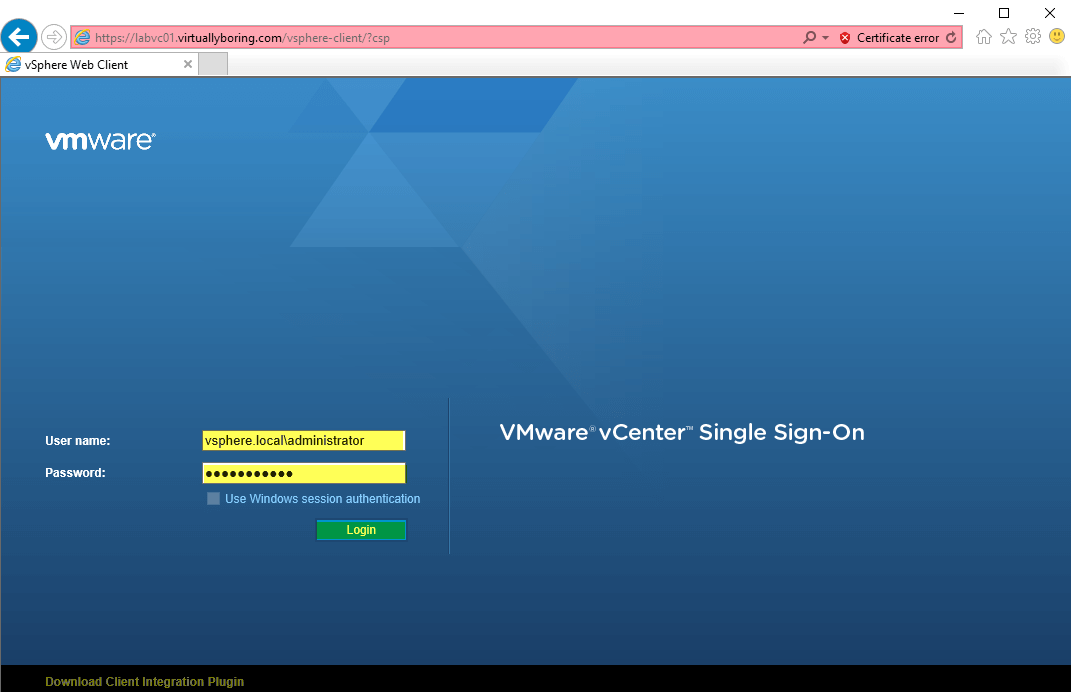
Below is how to configure the VCSA to use Active Directory users and groups. First access the VCSA web client via https://FQDN or IP ADDRESS/vsphere-client/
Log in using the administrator SSO domain you configured above and password.
On the home page click System Configuration

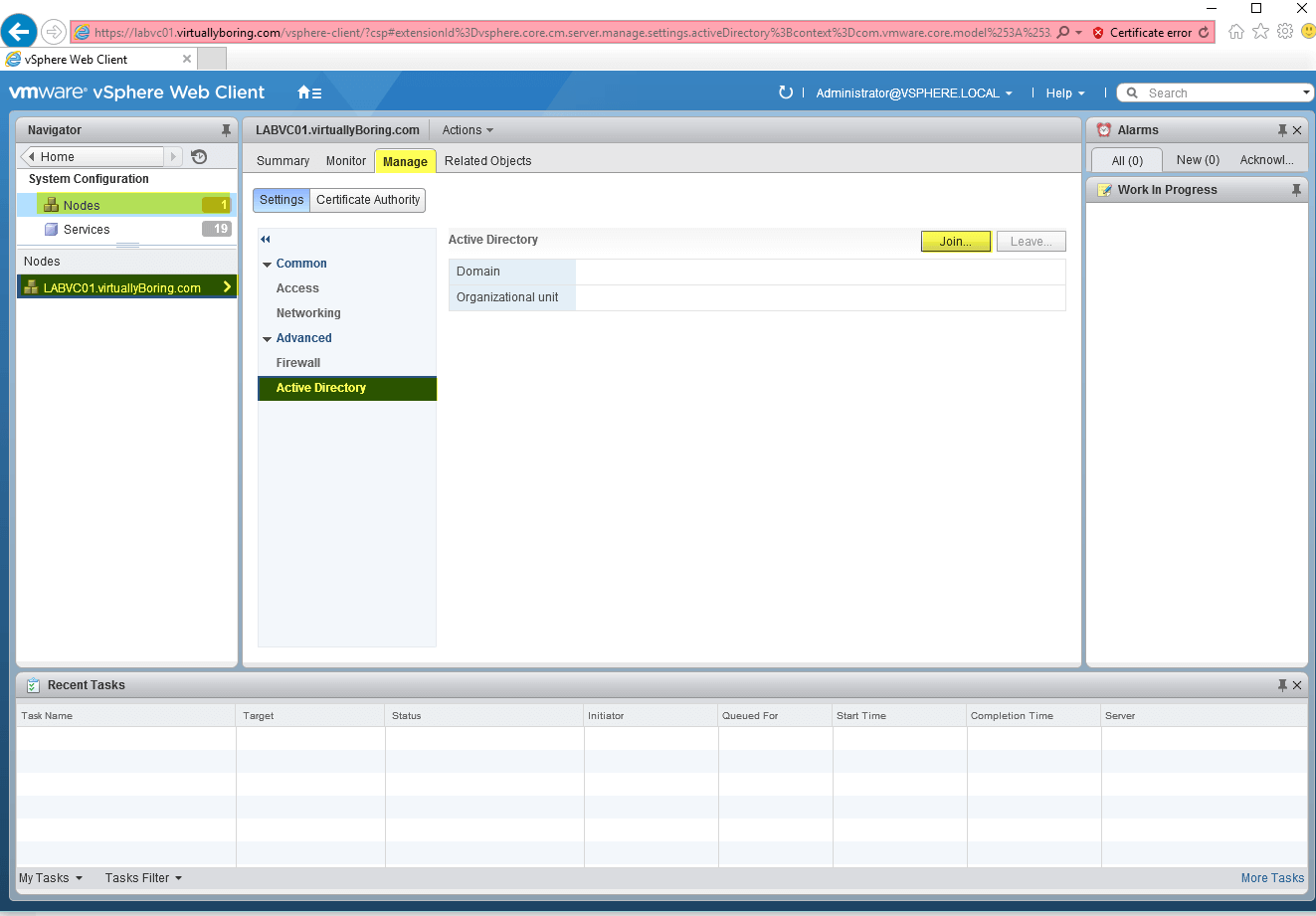
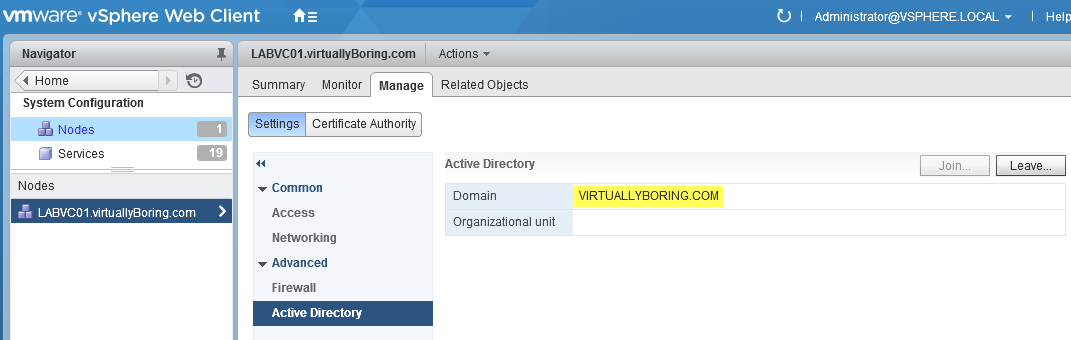
Click Nodes -> Your Node Name (LABVC01.virtuallyBoring.com) -> Manage -> Active Directory -> Join
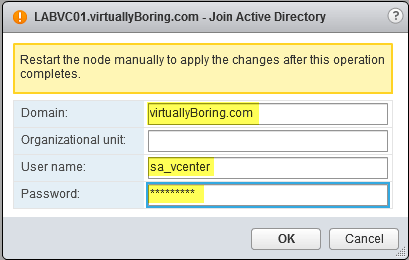
Enter your domain name and a user name/password that has at least SystemConfiguration.Administrators domain permissions
(More information about this step can be found here in the vSphere 6.0 Documentation: https://pubs.vmware.com/vsphere-60/index.jsp?topic=%2Fcom.vmware.vsphere.vcsa.doc%2FGUID-08EA2F92-78A7-4EFF-880E-2B63ACC962F3.html?src=vmw_so_vex_sbori_1079)
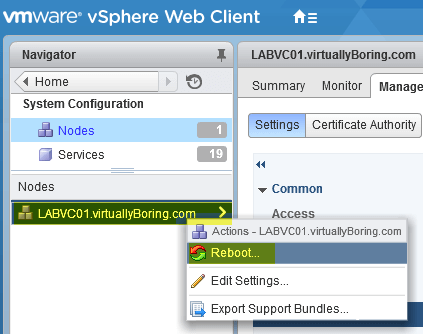
Once you click OK and do not see an error, reboot your VCSA. It will not give you a success message.
To reboot right click your node name and click Reboot
Once reboot log back into the web client. On the left menu click Administration. Now in Active Directory you should see your domain showing up with the Leave button enabled.
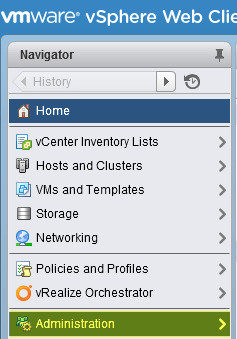
Now the VCSA is talking to the domain we need to configure it as a Identity Source. Click Home then on the left menu click Administration
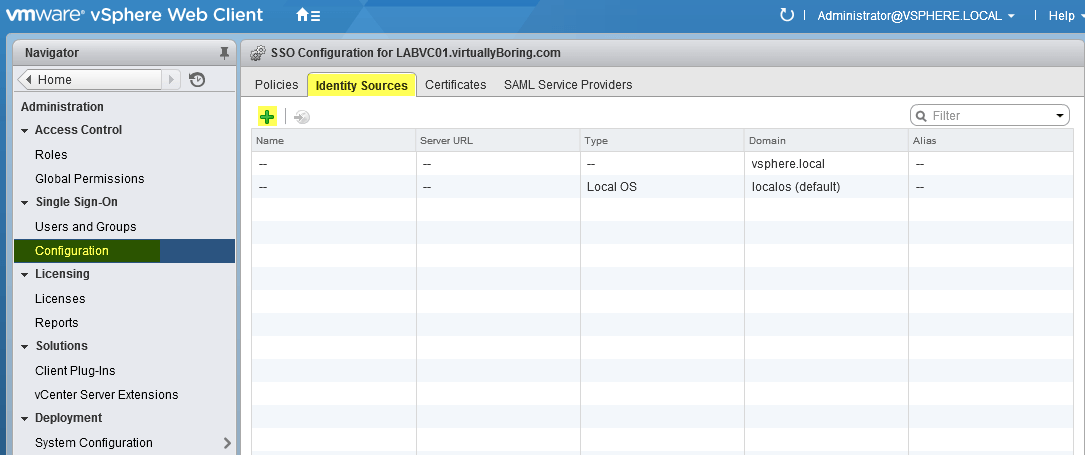
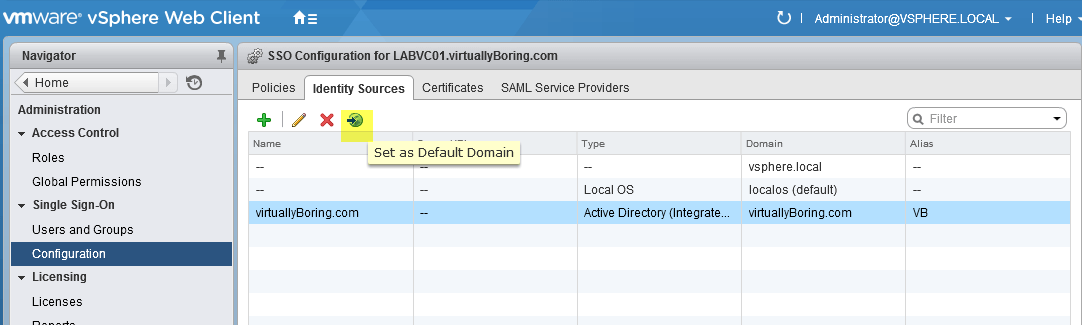
Click Configuration -> Identity Sources -> then the green + sign
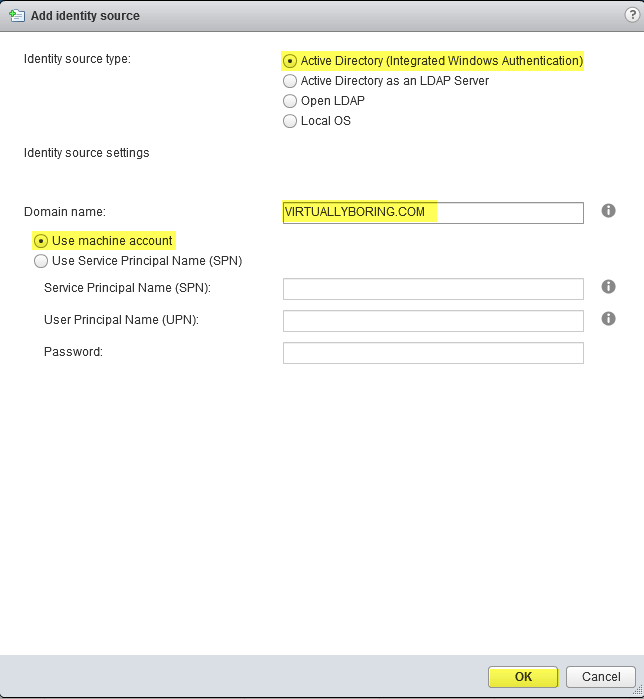
Since we are configured the VCSA for Active Directory use the first option Active Directory (Integrated Windows Authentication)
Enter your domain name
Select Use Machine Account then click Ok
(More information about this step can be found here in the vSphere 6.0 Documentation:https://pubs.vmware.com/vsphere-60/index.jsp?topic=%2Fcom.vmware.vsphere.security.doc%2FGUID-B23B1360-8838-4FF2-B074-71643C4CB040.html?src=vmw_so_vex_sbori_1079)
Select your domain in the list and click Set as Default Domain
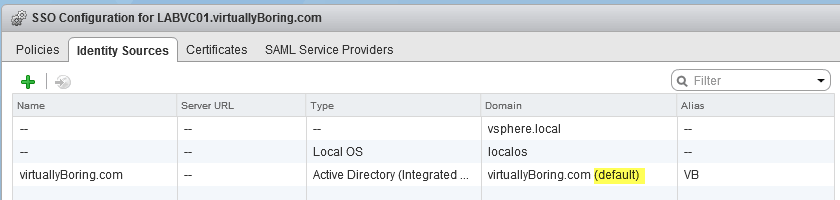
(Default) will show up beside your domain. If your domain isn’t selected as the default I have had issues with the “Use Windows Session Credentials” option.
Now that we have the Identity Source configured we are ready to assign permissions to a domain user.
On the left menu click Global Permissions -> Manage -> click the green + sign
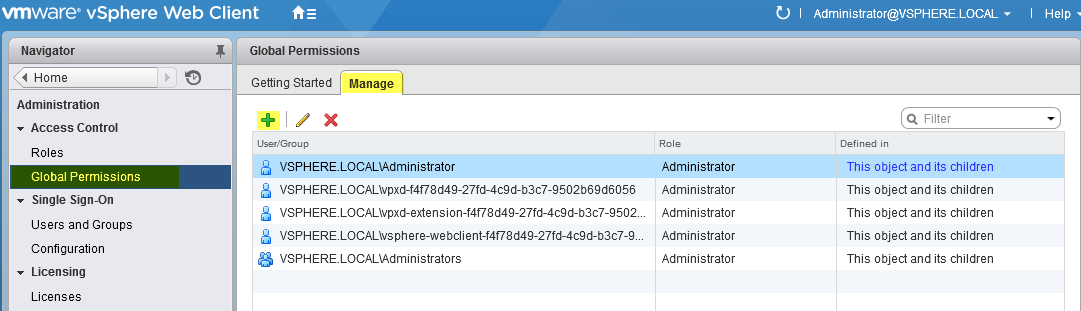
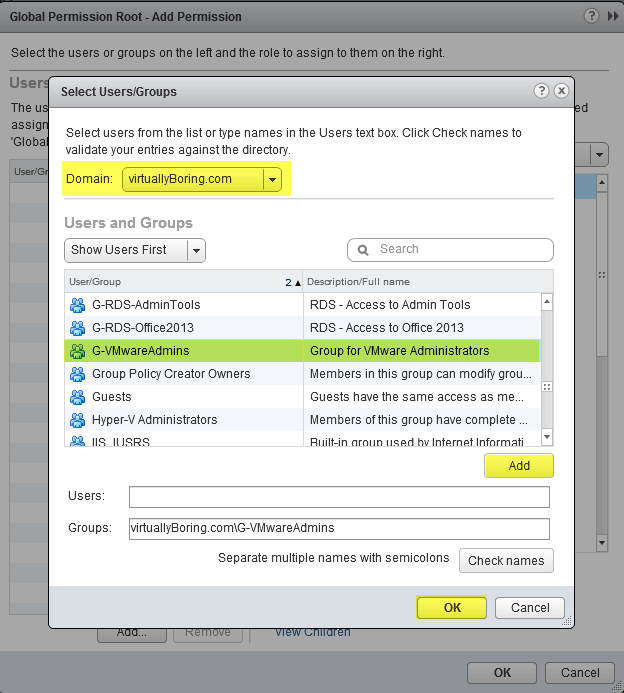
Click the Add button
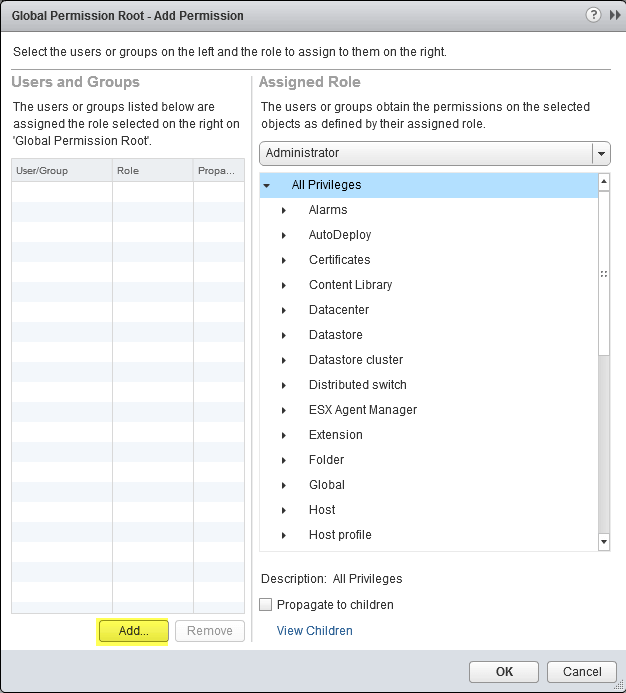
Change the drop down menu to your domain, you can search or browse for users and groups, select them then click Add. Once finished click Ok
On the drop down menu select which role you want to assign the users/groups. Click Ok when finished.
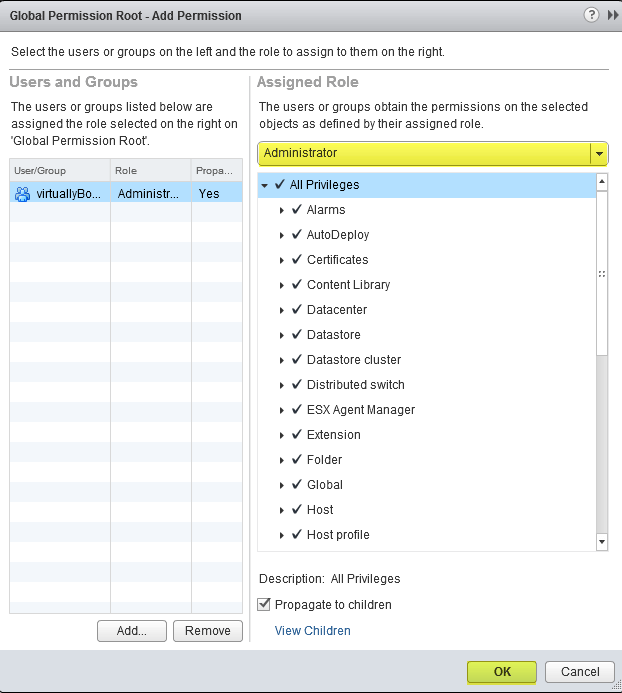
You now have a fresh install of the VCSA and configured it to use Active Directory users and groups for permissions.
If you did not deploy the latest version check out my post on Upgrading to Update 2!
Additional Resources:
VMware vCenter Server 6.0 Deployment Guide: https://www.vmware.com/resources/techresources/10453