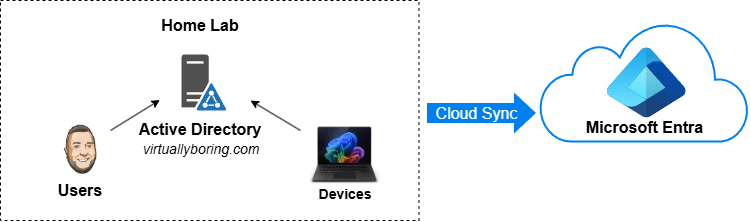
I run a little Active Directory domain in my home lab, and for the longest time it lived completely on its own island. Local logins, local DNS, local everything. Meanwhile every cloud thing I touched — Microsoft 365, Azure, random SaaS apps — wanted me to log in with a different identity. Two usernames, two passwords, two worlds. That’s the exact problem Microsoft built hybrid identity to solve, and I wanted to actually understand how it works instead of just reading about it.
So I built it. This post is the result: what Entra Connect actually is, the difference between the two sync engines Microsoft gives you, what Hybrid Join means, and a full best-practices walkthrough of deploying Entra Cloud Sync and then Hybrid Join on top of it. (There’s a twist on the Hybrid Join side for Cloud Sync setups — I’ll get to it.) I’ll link the Microsoft Learn docs at every step so you’re never taking my word for it.
If you’ve got an on-prem domain and a Microsoft tenant and you want them to feel like one thing — this is the post.
What Is Entra Connect (and Why Two Flavors)?
Quick grounding, because the names are a mess and Microsoft keeps renaming things.
Active Directory (AD) is your on-prem directory — the domain controller that holds your users, groups, and computers. Microsoft Entra ID is the cloud directory (you knew it as Azure AD until Microsoft renamed it in 2023). They’re two separate databases that don’t know about each other by default.
Microsoft Entra Connect is the umbrella name for the technology that bridges them — it copies (synchronizes) your on-prem identities up into Entra ID so a user is the same person in both places. The magic feature most people want is password hash sync (PHS) : a securely hashed version of the on-prem password gets synced to the cloud, so users log into Microsoft 365 with the exact same password they use to log into their work PC. One identity, one password.
Here’s the part that trips people up. There are two different engines that do this sync, and you pick one:
Entra Connect Sync (the original, formerly “Azure AD Connect”) — a heavyweight application you install on a dedicated Windows Server. It runs a local SQL database, supports complex custom sync rules, device writeback, group writeback, and Exchange hybrid attributes. Powerful, but it’s a server you have to babysit, patch, and back up.
Entra Cloud Sync (the newer one) — a lightweight agent you drop onto a domain-joined server. The sync logic and configuration all live in the cloud; the agent just provides line-of-sight to your AD. No SQL database, no heavy server, and you get high availability for free by installing multiple agents.
TL;DR: Cloud Sync is the lightweight, cloud-managed agent. Connect Sync is the heavyweight on-prem application. For most new deployments — and almost every home lab — Microsoft recommends Cloud Sync. (What is Entra Cloud Sync?)
The trade-off: Cloud Sync intentionally drops the advanced stuff. It does not support device writeback, group writeback, Exchange hybrid attributes, or advanced custom sync rules. For a lab — and for a surprising number of real orgs — none of that matters, so Cloud Sync wins — and that’s what I went with.
Syncing users is half the story. The other half is devices.
Microsoft Entra Hybrid Join (formerly Hybrid Azure AD Join) takes a PC that’s joined to your on-prem AD domain and also registers it with Entra ID — so the same machine is known to both directories at once. The on-prem domain join still works exactly as before (Group Policy, file shares, the works), but now the device also has a cloud identity.
Why you’d want that:
Single sign-on (SSO) to cloud apps from a domain-joined PC, no extra prompts.
Conditional Access policies that can require a device to be hybrid-joined (and therefore managed and trusted) before it touches your data.
A stepping stone toward Intune co-management without ripping out your existing AD setup.
The thing to understand up front: there are now two different Hybrid Join paths. The classic path uses Entra Connect Sync to synchronize and correlate computer objects, and its setup wizard lives inside Entra Connect Sync — not Cloud Sync. The Cloud Sync-native path uses Microsoft Entra Kerberos Hybrid Join , which Microsoft documents for Cloud Sync customers who want Hybrid Join behavior without AD FS or Entra Connect Sync. That newer path is still preview , so for production I would treat classic Hybrid Join as the conservative default; for this lab, the Cloud Sync-native path is exactly what I want to understand.
r production I would treat classic Hybrid Join as the conservative default; for this lab, the Cloud Sync-native path is exactly what I want to understand.
Hybrid Identity Administrator or Global Administrator role to run the setup.
Microsoft Entra ID P1 license — Cloud Sync’s group provisioning and writeback features require P1. (Easy to forget; the wizard won’t always stop you.)
Create a cloud-only break-glass admin account (a Hybrid Identity Administrator that lives only in Entra, not synced from AD). If your on-prem side ever dies, this is how you avoid locking yourself out of your own tenant. Microsoft flags this as critical. Manage emergency access admin accounts – Microsoft Entra ID | Microsoft Learn – (I should probably do a blog post about this in the future…)
On-prem Active Directory
Windows Server 2016 or later domain controllers; forest/domain functional level 2012 R2+ recommended.
The AD schema needs the msDS-ExternalDirectoryObjectId attribute (present in Server 2016+).
Clean up your directory first. The proper tool for this is Microsoft’s free IdFix tool , which scans for duplicate or malformed attributes that will break sync. Run it before you sync a single object.
Service accounts: none to set up by hand. Cloud Sync creates and manages its own gMSA (group managed service account). You just need Domain Admin or Enterprise Admin credentials at install time so the wizard can create it. (gMSA overview)
Agent host server
You need at least one Windows Server to host the agent. You can install the agent on multiple servers for redundancy — I’ll show that below.
Requirement
Value
OS
Windows Server 2016 / 2019 / 2022 (2022 recommended)
Role
Member server preferred; DC supported but not recommended
CPU
2+ cores
RAM
4 GB minimum, 8 GB recommended
Disk
~6 GB free
.NET
.NET Framework 4.7.1 or later
TLS
TLS 1.2 must be enabled before install
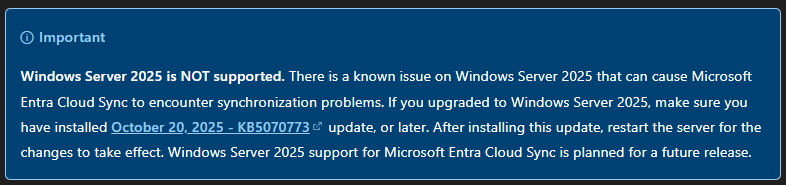
Windows Server 2025 is NOT supported as of this writing — there’s a known sync bug, and you’d need a specific patch (KB5070773 or later) even to limp along. Stick to 2022. This actually blows my mind for it being June 2026… I will use Server 2025 since it’s my lab, but just a call out for real production, better install it on 2022. In my lab the agent actually rides on my Server 2025 DC, since the Kerberos path needs a 2025 DC anyway — but that’s an unsupported combo for the agent, so don’t do it in production.
.NET 4.7.1+ and TLS 1.2 enforcement are hard requirements the original list skipped. Set the TLS 1.2 registry keys and reboot before running the installer, or the agent install can fail.
One more best-practice note Microsoft is emphatic about: treat the agent host as a Control Plane (Tier 0) asset — same security tier as a domain controller — because anything that can manipulate identities is a top-value target. Lock down admin access, enforce MFA on admins, and don’t browse the web from it. (Harden the provisioning agent server)
Cloud Sync-native Hybrid Join prerequisites
This is where the device side adds a few newer requirements. Microsoft Entra Kerberos Hybrid Join is currently a preview feature, and Microsoft documents it separately from classic Hybrid Join. For this path, you need:
AD permissions: an on-prem account that is a member of Domain Admins and Enterprise Admins.
Entra permissions:Hybrid Identity Administrator for the Entra Kerberos trusted domain setup, and Application Administrator to update the Microsoft Entra Device Registration Service principal.
A Windows Server 2025 domain controller running build 26100.6905 or later in each AD domain where you want to use this join method.
Windows 11 clients running build 26100.6584 or later.
Unimpeded connectivity from the client to the Windows Server 2025 domain controller during join.
Important distinction: this does not mean I want the Cloud Sync agent on Windows Server 2025. The Cloud Sync agent host and the domain controller are different roles. I still want the Cloud Sync agent on a supported 2016/2019/2022 member server; the Windows Server 2025 requirement is specifically for the Entra Kerberos Hybrid Join preview path. Source: Microsoft Entra hybrid join using Microsoft Entra Kerberos prerequisites.
Network & firewall
Cloud Sync uses outbound-only HTTPS — no inbound rules, which is lovely. But it’s not only port 443. The full list from Microsoft:
TCP 443 — all outbound communication with the service (the big one).
TCP 80 — downloading certificate revocation lists (CRLs) to validate TLS certs. Don’t forget this one.
TCP 8080(optional) — agents report status every 10 minutes over 8080 if 443 is unavailable.
TCP 389 (LDAP) and TCP 3268 (Global Catalog) — from the agent to your domain controllers, for directory lookups.
Allow outbound to these suffixes: *.msappproxy.net, *.servicebus.windows.net, *.microsoftonline.com, *.microsoft.com, plus the registration and CRL endpoints listed in the firewall requirements. System-level WinHTTP proxy is supported.
Pre-install sanity checks
Before opening the portal:
Confirm Entra Connect Sync is NOT already managing the same objects. Cloud Sync and Connect Sync must never manage the same users — pick one per object. (You can run both side by side for a phased migration, but that needs custom rules — out of scope here.)
Verify DNS resolves externally from the agent server.
Decide your scope. Which OUs sync? Start with a small pilot OU , not your whole directory. This is the single best way to avoid a bad first sync.
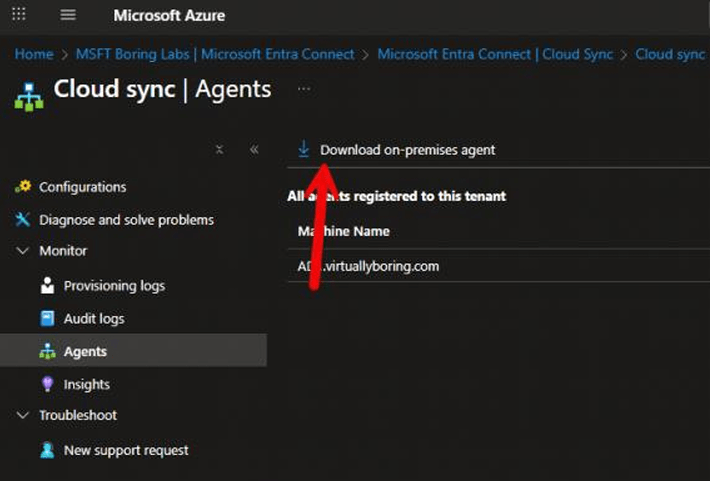
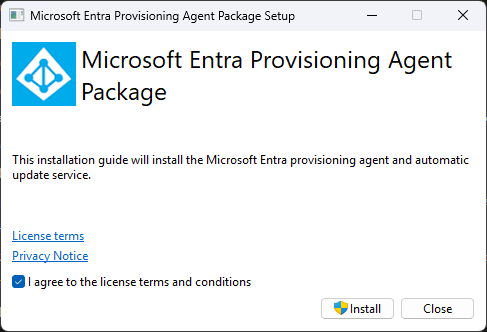
You will have to accept the terms in order to download. The installer is small — about 24 MB. Get it onto your chosen agent server and run it. Lab note : I’m installing mine directly on my domain controller because it’s my home lab and the DC has line-of-sight to AD. In production you’d put it on a separate domain-joined member server for role separation and stability — keep DCs focused on domain services.
Accept the license terms and click Install.
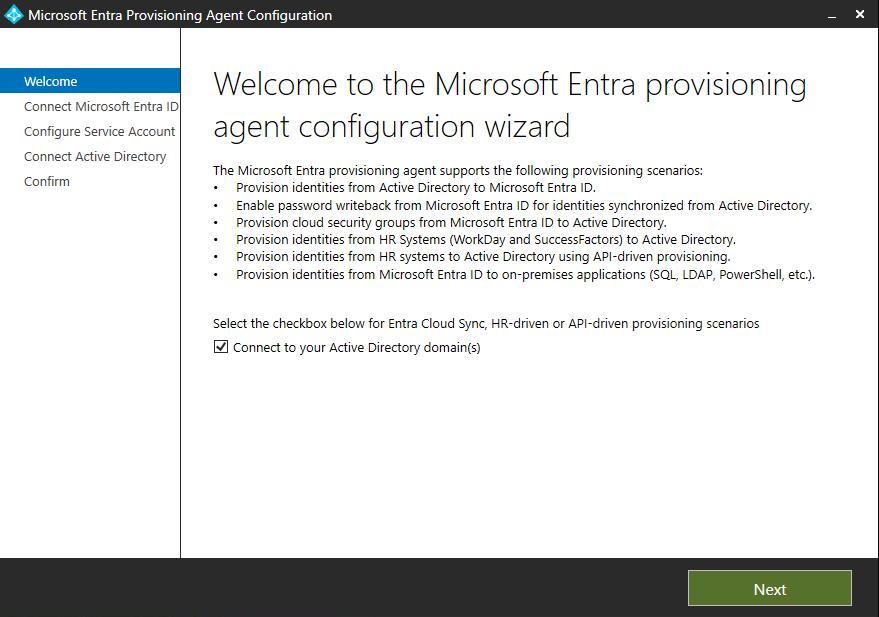
Leave the “Configure now” box ticked and click Next.
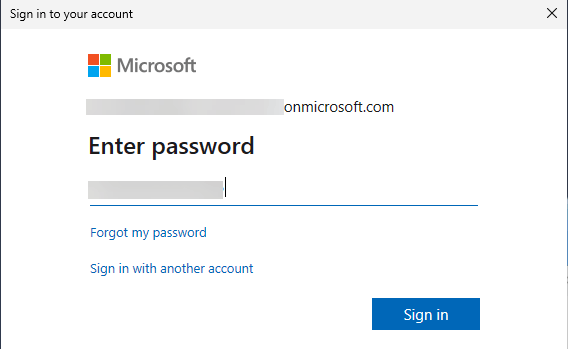
An authentication window pops up. Enter your Hybrid Identity Administrator (or Global Admin) account, sign in, and complete MFA.
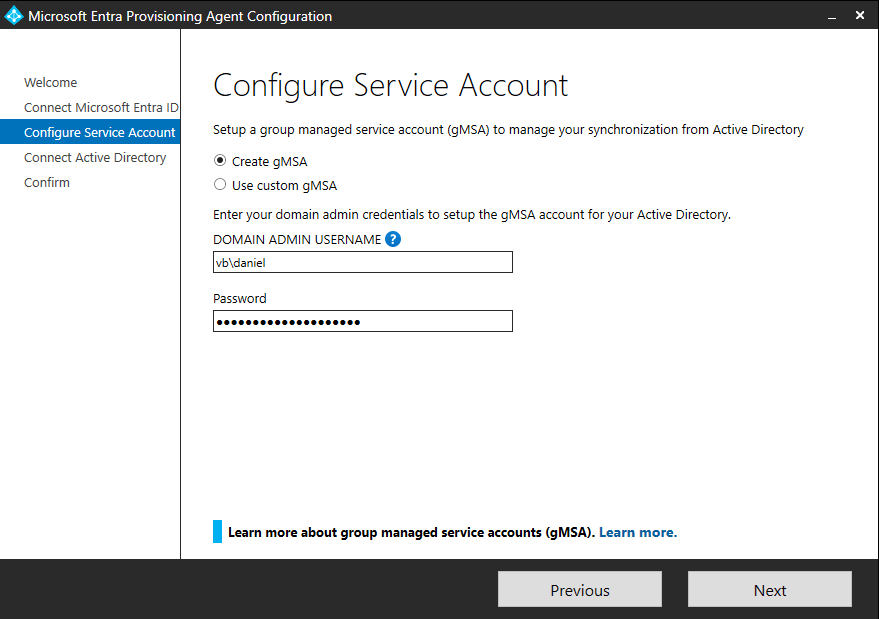
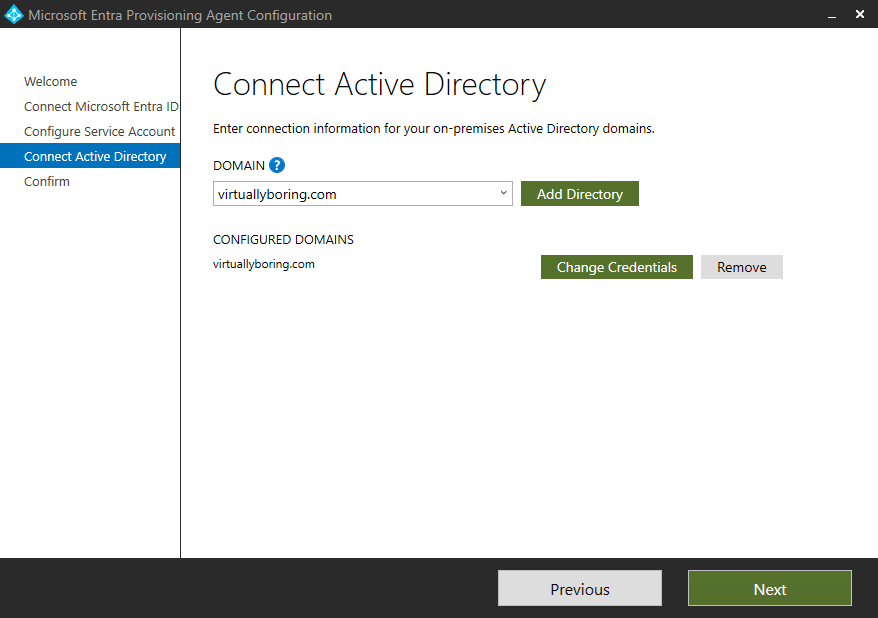
Choose to let the wizard create the gMSA (recommended) or use an existing one. Let it create the account — that’s the path of least resistance. Enter your Domain Admin / Enterprise Admin credentials and click Next. (To bring your own gMSA, see the prerequisites doc.)
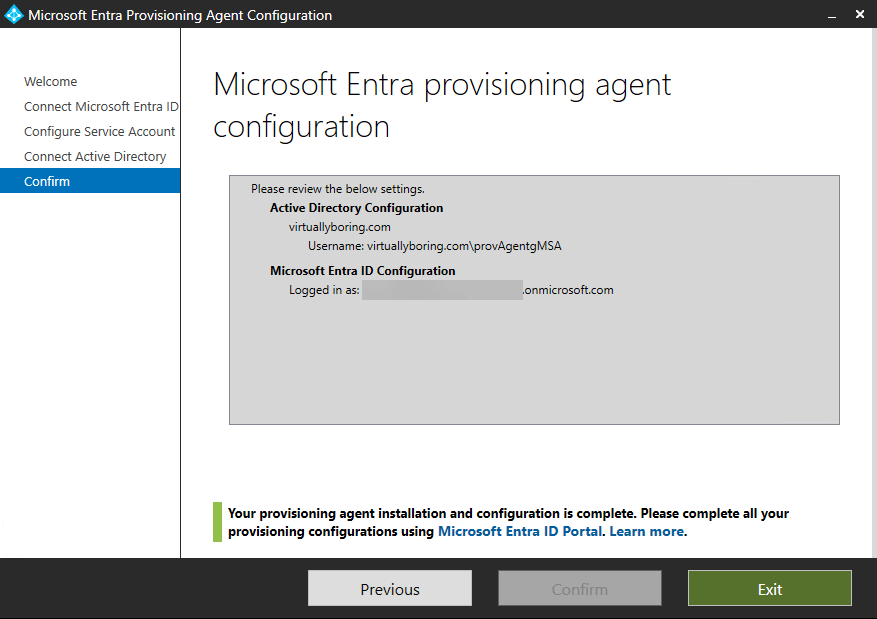
Validate the domain is correct, click Next, validate again, and click Confirm.
Done — the agent installs. Click through to finish.
Verify the install
A clean install isn’t “it didn’t error” — it’s “the right things are running.” Check all three:
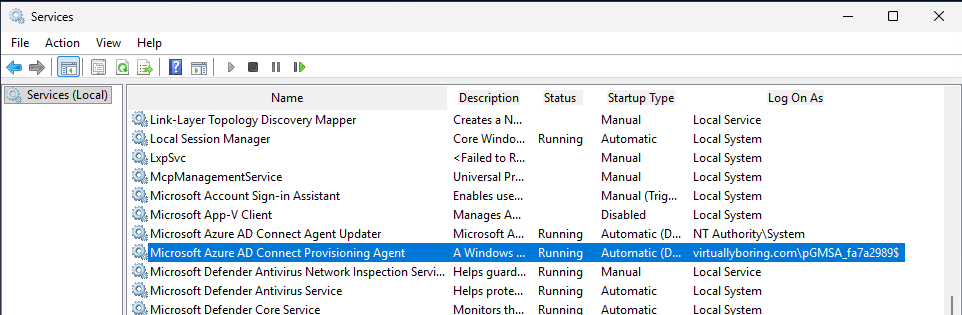
services.msc on the agent server should show Microsoft Azure AD Connect Agent Updater and Microsoft Azure AD Connect Provisioning Agent running. One of them runs as the gMSA account.
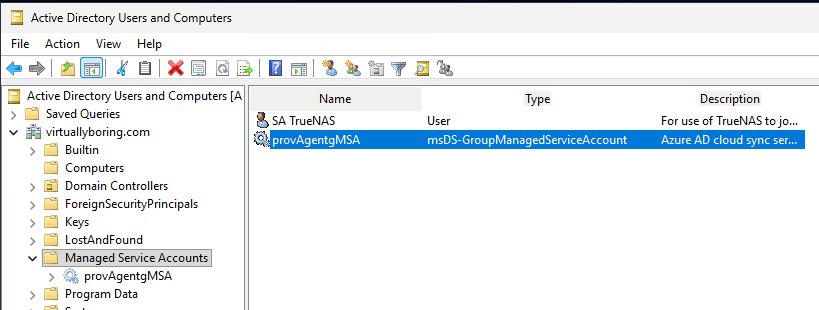
AD Users and Computers → Managed Service Accounts should show the new gMSA object.
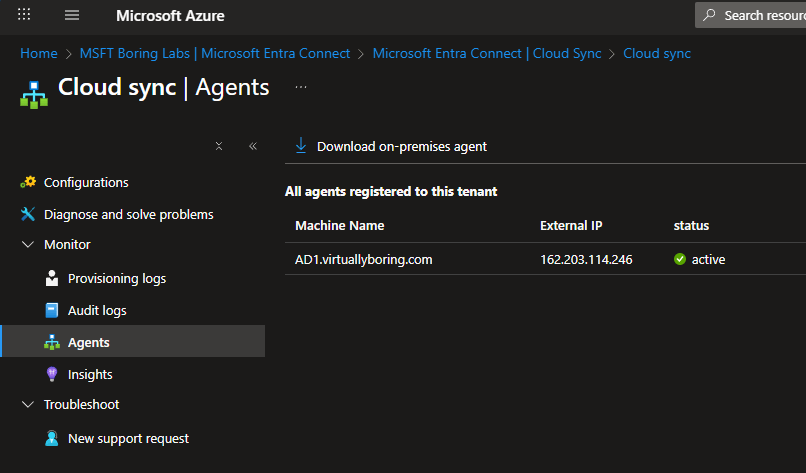
Back in the portal, Entra ID → Entra Connect → Cloud Sync → Agents should list your agent as Active.
Agent’s in. Now we configure what actually syncs.
Configuration
Enable password writeback (optional but recommended)
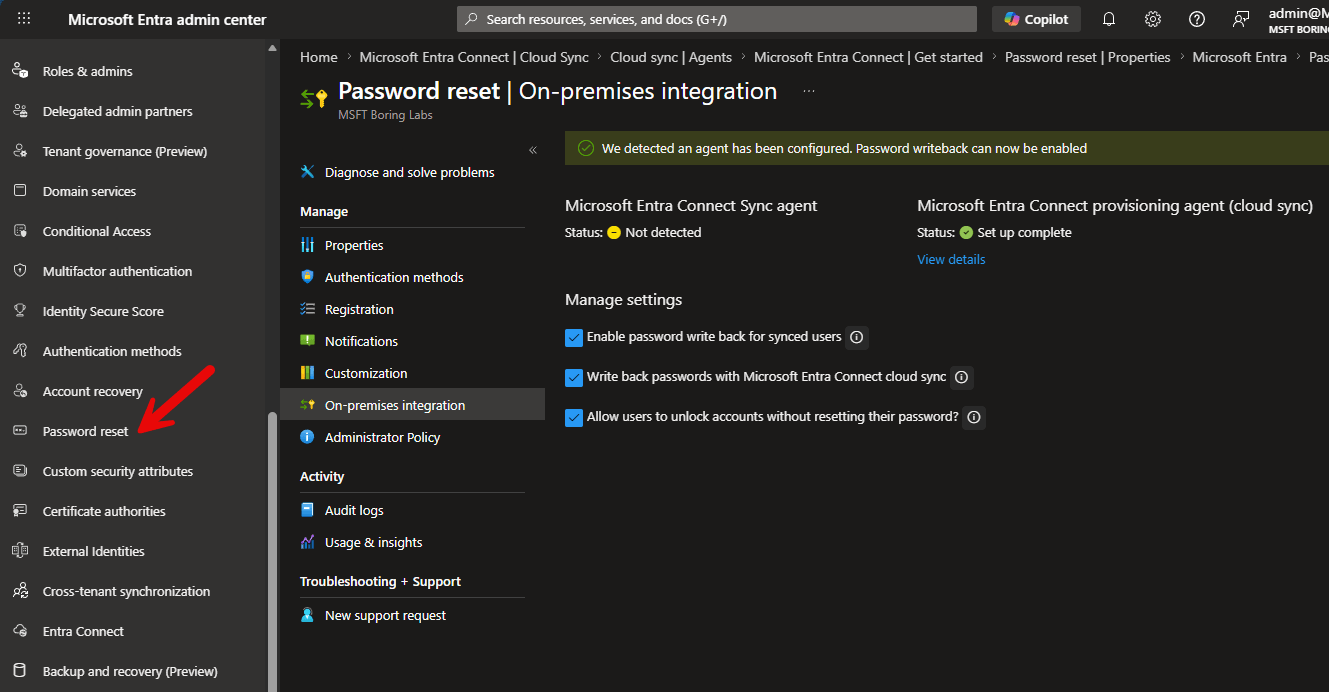
If you want self-service password reset (SSPR) to write password changes back to on-prem AD, turn this on now. Source: Enable password writeback in Cloud Sync.
In the Entra admin center, go to Entra ID → Password reset → On-premises integration.
Check Enable password write back for synced users.
Set Allow users to unlock accounts without resetting their password to Yes.
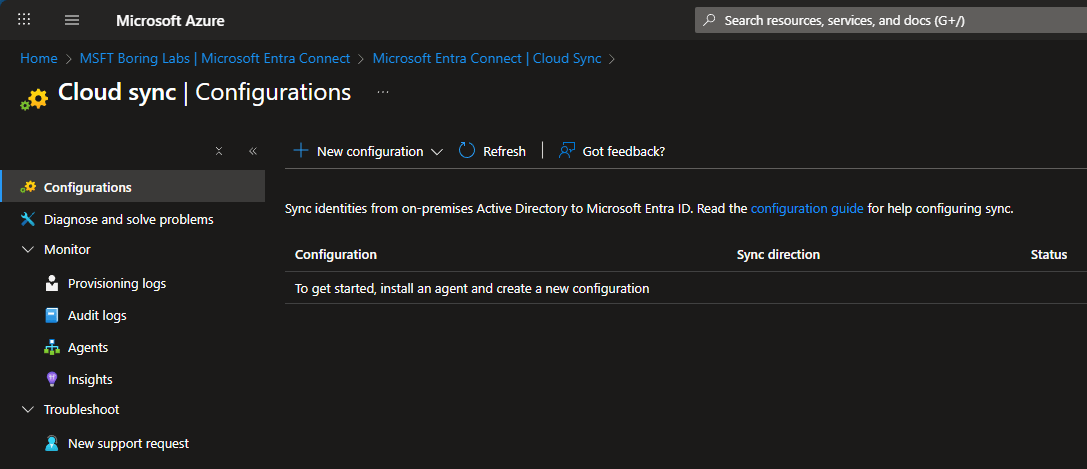
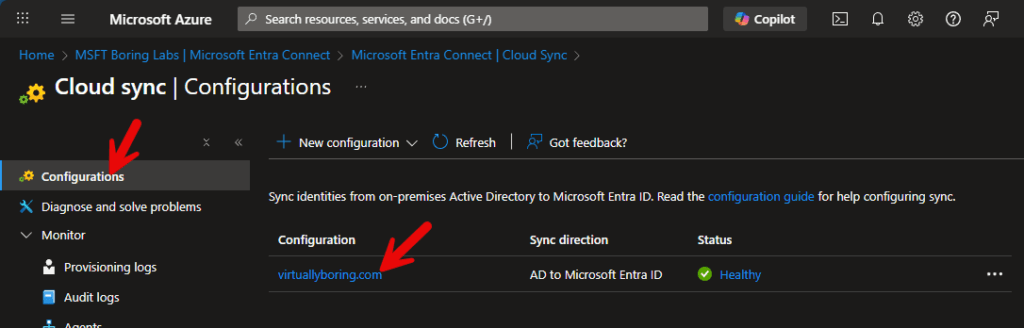
Go to Entra ID → Entra Connect → Cloud Sync → Configuration.
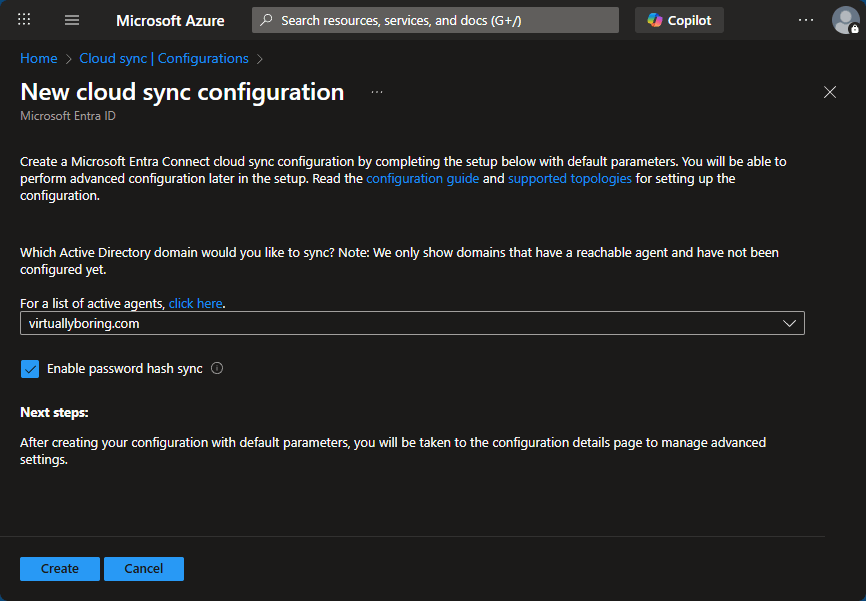
On New configuration, select AD to Microsoft Entra ID sync.
Select your domain from the agent list (there’s a 1-to-1 mapping of domains to configurations). Leave password hash sync checked — you can disable it later if needed — and click Create.
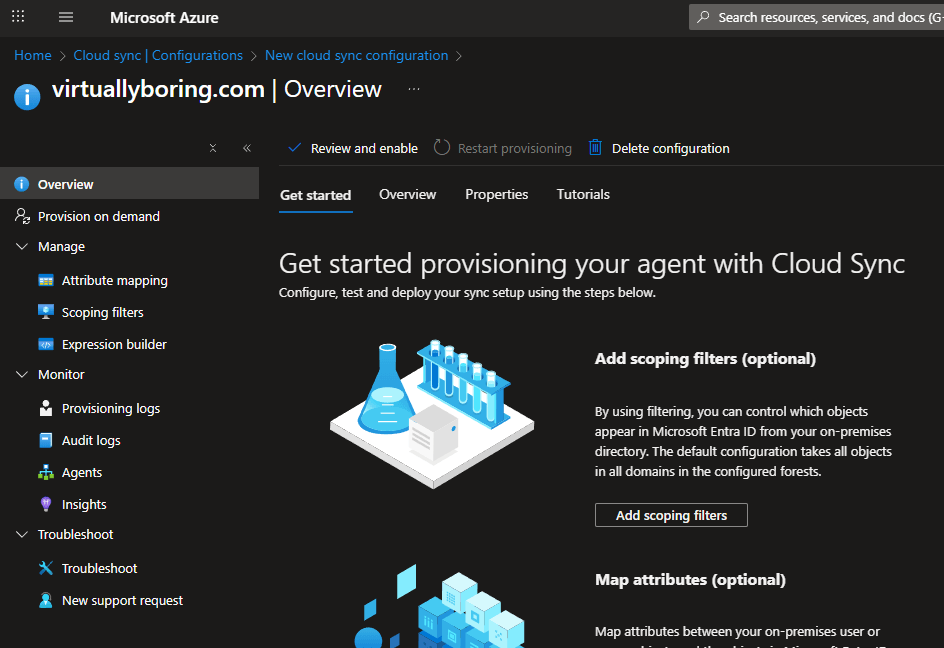
You land on the Overview / Get started page. The config has five parts: scoping filters, attribute mapping, test, properties, and enable.
Scope it (start small)
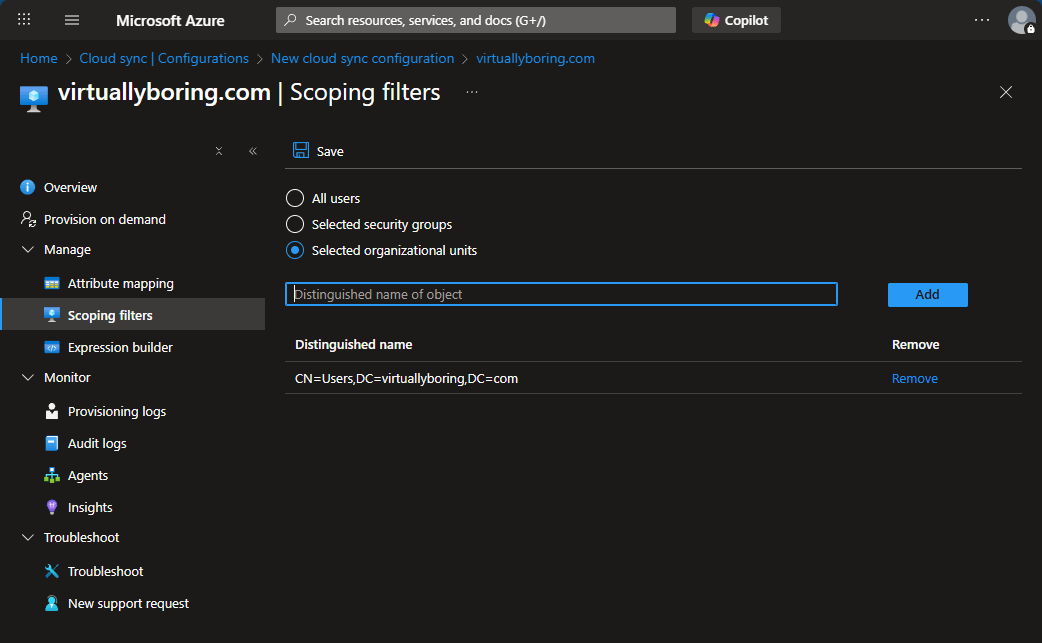
Click Scoping filters. By default, everything syncs — you don’t want that on day one. Microsoft recommends scoping by OU rather than security group, because group-based scoping has known limits with very large groups (50k+ members). See known limitations.
Enter the Distinguished Name of each OU you want to include (e.g. OU=PilotUsers,DC=yourdomain,DC=com). No limit on the number of OUs.
Click Save.
Attribute mapping
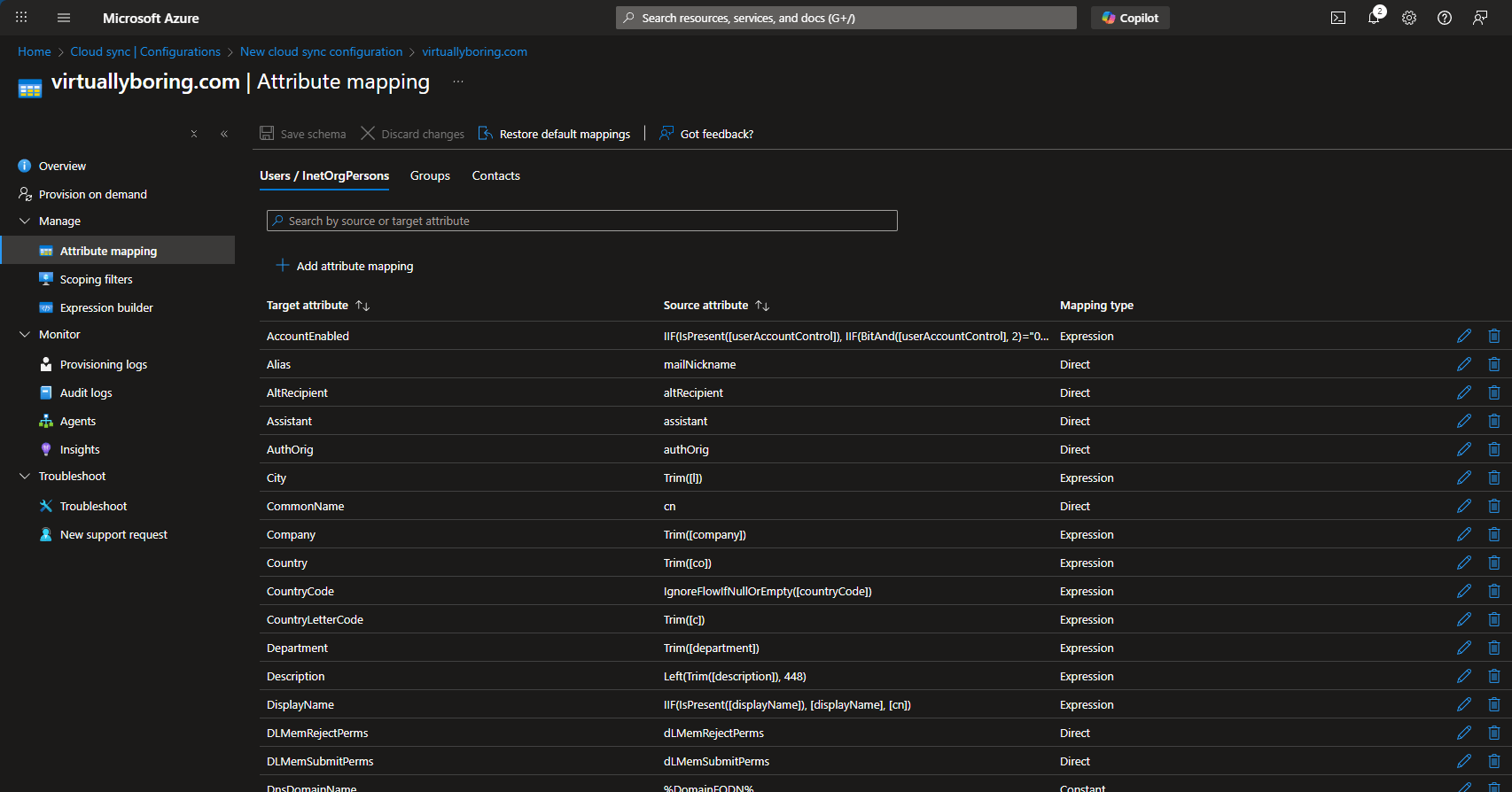
Click Attribute mapping. This maps/transforms values from AD (Source) to Entra (Target). For basic setups the defaults are fine — I left mine as-is. Only touch this if you have a specific attribute transform you need.
Test before you enable
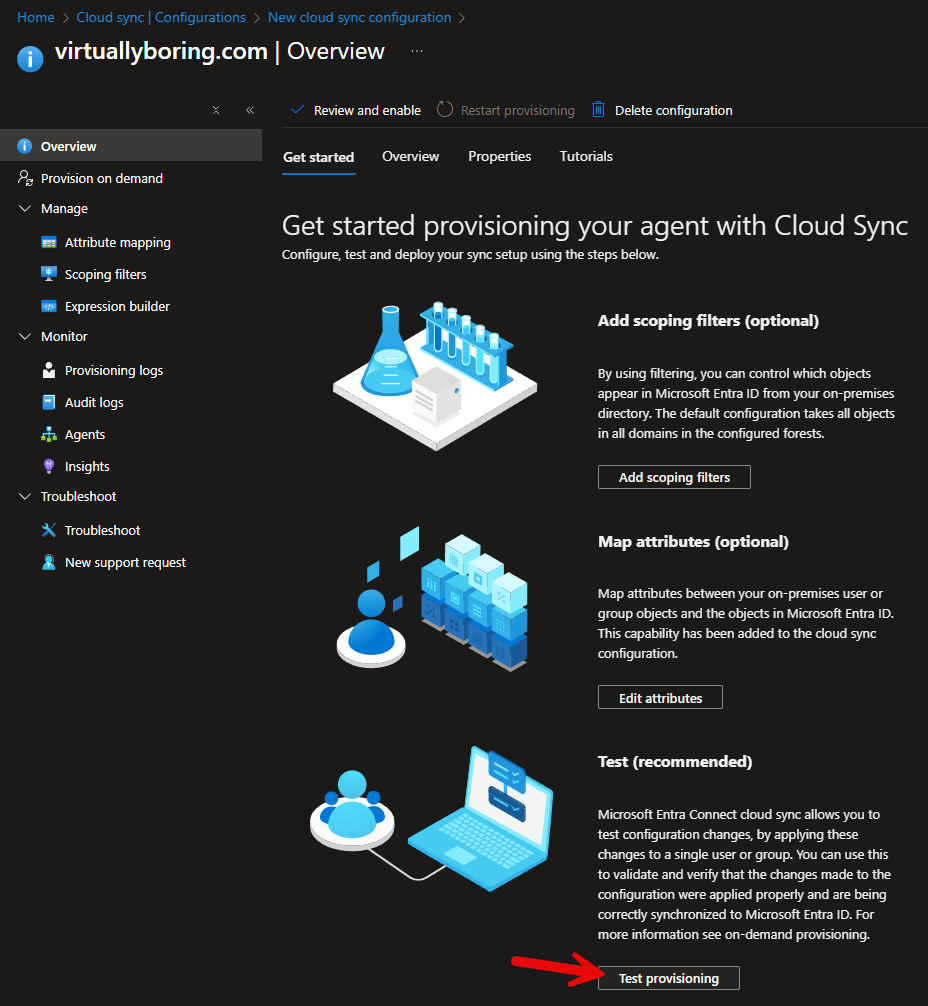
Test provisioning before going live. On the Overview → Get started section, click Test provisioning , enter the Distinguished Name of a user that’s inside your scope filter, and click Provision. A green success result means your mapping and scope are correct.
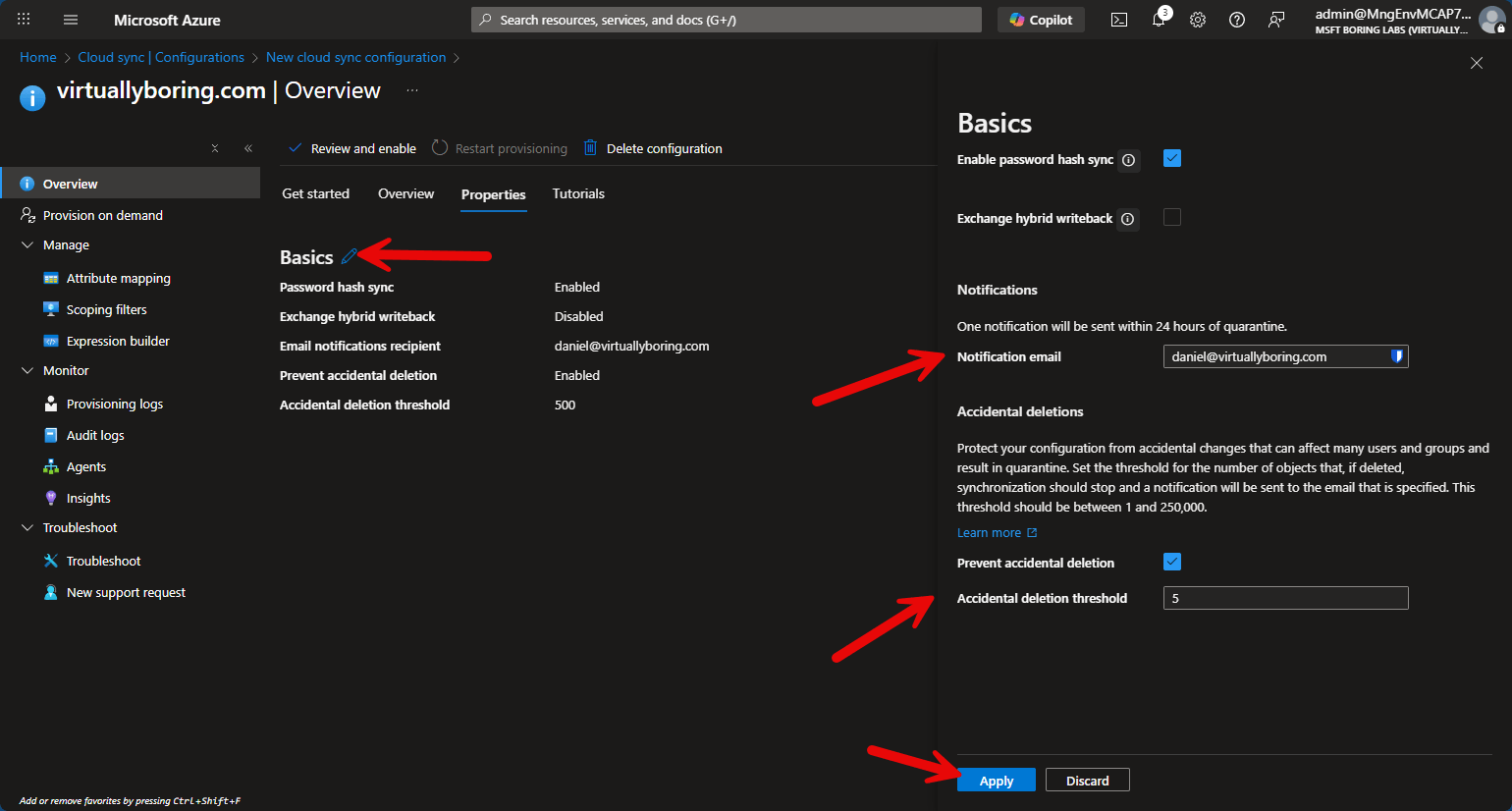
On Overview → Properties → Edit (Basics) , add a notification email so you get alerted to provisioning errors. While you’re there, set the accidental deletion threshold — if a change would delete more than N objects at once, Cloud Sync halts instead of nuking your directory. The default is 500 ; for my lab I dropped it to 5. Scale this to your org. Click Apply.
Enable it
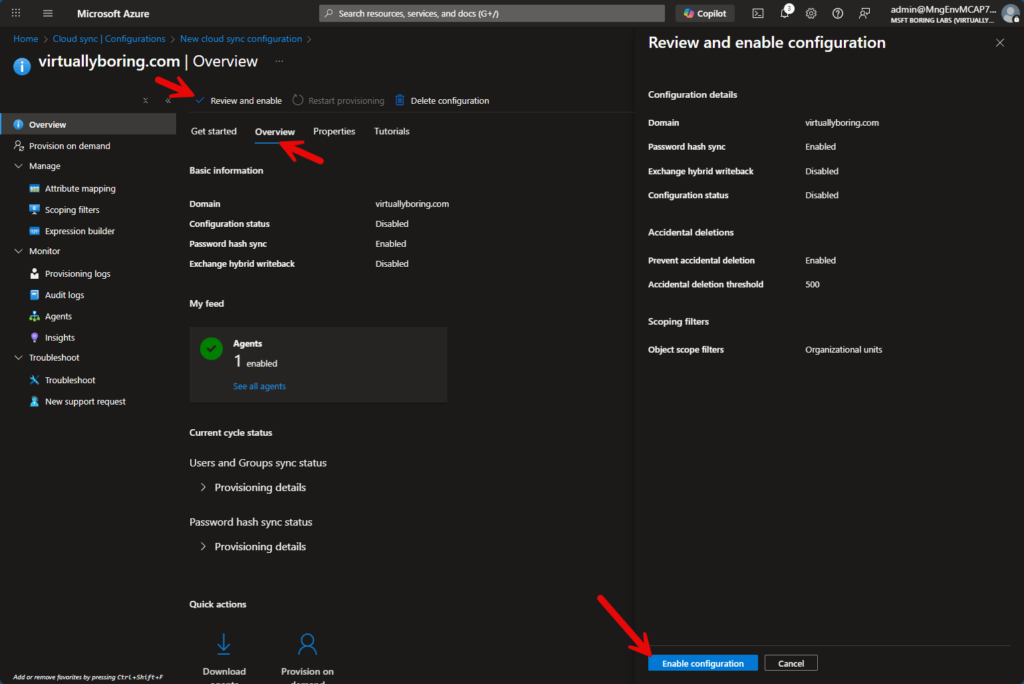
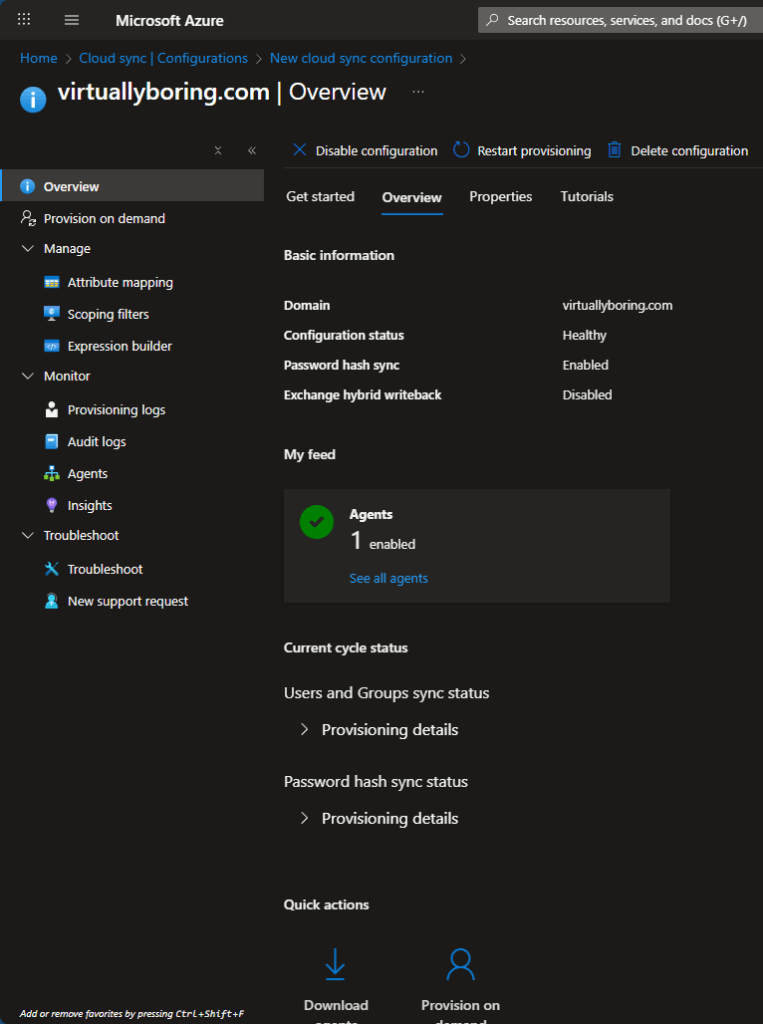
On the Overview tab, click Review and enable , confirm everything looks right, and click Enable configuration. Sync starts — initial provisioning can take a bit, then it runs every couple of minutes.
That’s it — users in your scoped OU now appear in Entra ID, and PHS means they log in with the same password. Verify under Entra ID → Users , then test a login at myapps.microsoft.com.
High Availability: Add a Second Agent
One agent is a single point of failure. Microsoft recommends running three active agents for high availability (the PDF said “multiple”/two — three is the official number). The process is nearly identical to the first install.
Run the installer on a second (ideally third) server. On Configure Service Account , choose Create gMSA again. It will not create a second gMSA — it automatically reuses the one from the first agent. There’s a single gMSA per forest , and all agents share it. That shared account is exactly how HA works.
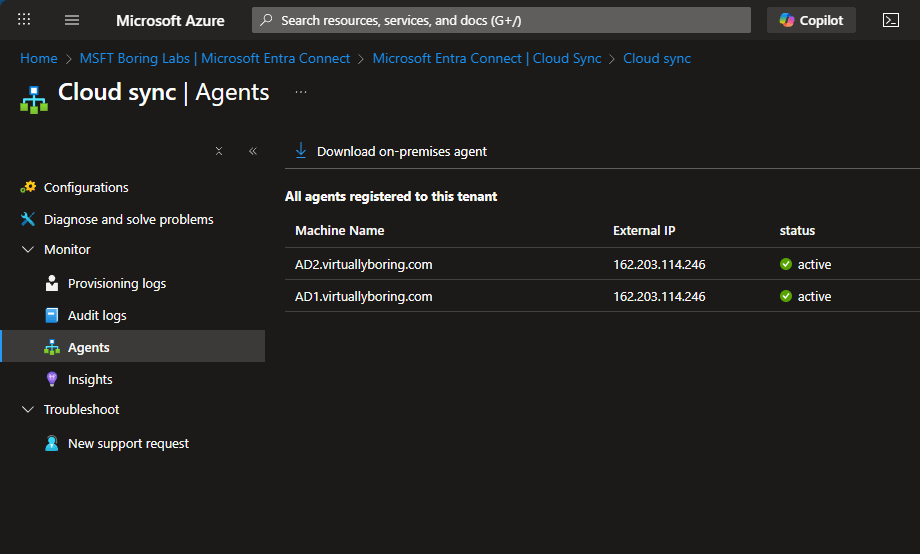
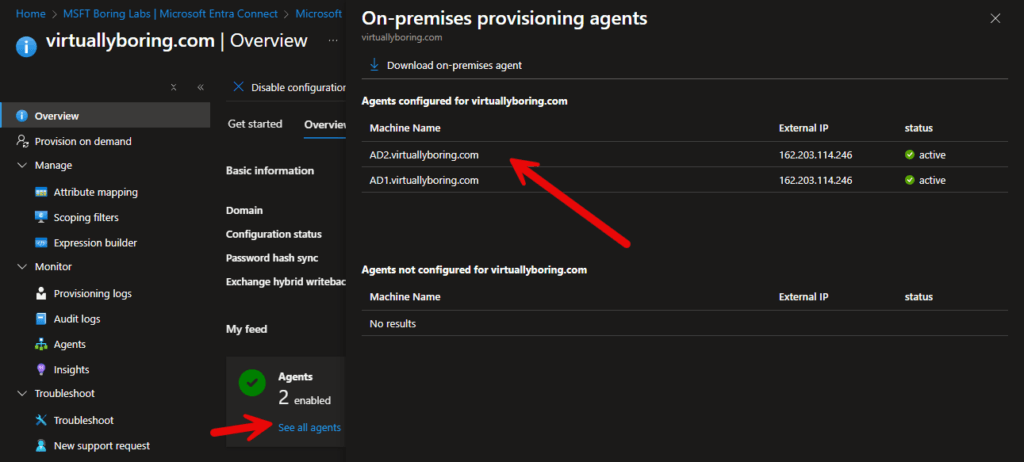
Under Entra ID → Entra Connect → Cloud Sync → Agents , you’ll now see multiple agents registered.
Open Configuration → your domain → Overview and confirm it shows multiple enabled agents. Click see all agents to verify.
If one agent goes down, the others keep syncing. No failover config, no load balancer — just install and forget.
Deploying Cloud Sync-Native Hybrid Join
Here’s where Cloud Sync needs a different device story than most tutorials assume. The classic Hybrid Join wizard lives in Entra Connect Sync, and the classic managed-domain flow depends on Connect Sync for device synchronization. Since this lab is Cloud Sync-native, I’m using Microsoft’s newer Microsoft Entra Kerberos Hybrid Join path instead. Source: Microsoft Entra hybrid join using Microsoft Entra Kerberos.
Production Caveat: this is currently a preview feature. It fits my lab and the goal of staying Cloud Sync-native, but if I were writing the most conservative production recommendation today, I would still point most environments at classic Hybrid Join with Entra Connect Sync.
How Cloud Sync-native Hybrid Join actually works
The Service Connection Point (SCP) still matters: domain-joined devices read it from AD to discover which Entra tenant they should talk to. But SCP is only tenant discovery. The Cloud Sync-native path adds Microsoft Entra Kerberos , which lets the device prove its on-prem AD identity to Microsoft Entra without AD FS and without Entra Connect Sync synchronizing the computer object. The three core pieces are:
SCP in AD — tells devices the tenant ID and verified domain.
Microsoft Entra Kerberos Trusted Domain Object — establishes the Kerberos trust information between AD DS and Entra ID.
Device Registration Service principal configuration — adds the Kerberos SPN and policy tag Azure DRS needs for this flow.
That’s the key difference from the classic path: Cloud Sync handles users and passwords; Entra Kerberos handles the device proof for Hybrid Join.
Configure once — these aren’t per-DC steps. The SCP lives in your forest’s Configuration partition — “there’s only one configuration naming context per forest” (SCP docs) — and Active Directory replicates it to every DC, so you write it once. The Entra Kerberos Trusted Domain Object is a single per-domain trust object and the Device Registration service principal is one object per tenant, so neither gets repeated per DC either. The only genuinely per-DC step is running EnableKerbHaadj.exe and rebooting on every Windows Server 2025 DC — also the one thing Microsoft’s guide states per-DC outright: “on every domain controller that runs Windows Server 2025 within the Active Directory domain, run the tool EnableKerbHaadj.exe and restart” (Entra Kerberos hybrid join).
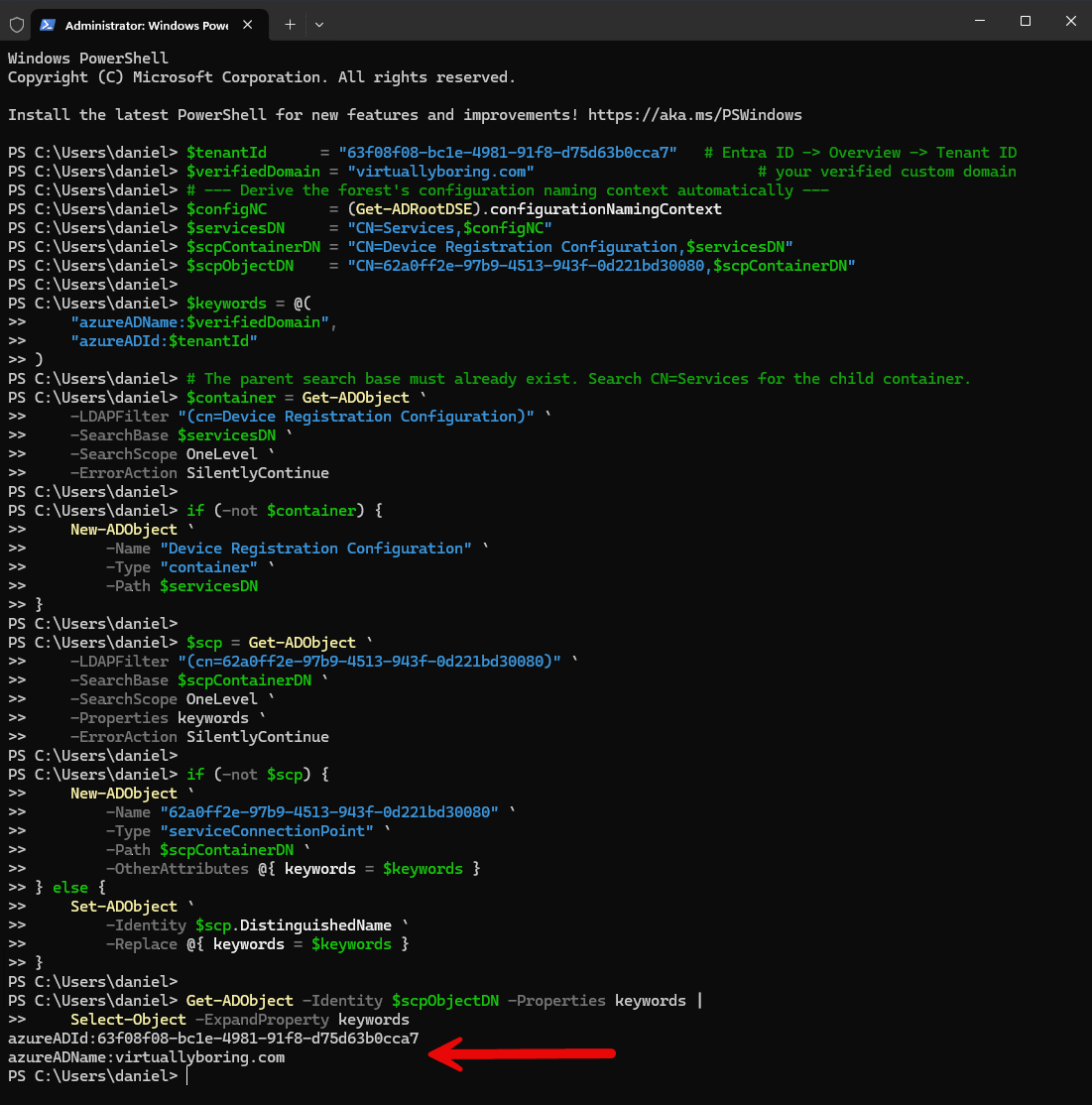
Step 1 — Create or verify the Service Connection Point (SCP)
The SCP lives in your forest’s Configuration partition and holds two keyword values:
tenantId:<your tenant ID> — tells devices which Entra tenant to register against.
verifiedDomain:<your verified domain> — tells devices which verified domain to use for the registration flow.
Microsoft’s manual SCP doc shows how to verify the object, but if you’re Cloud Sync-only, you may need to create it yourself. Run this on a domain controller, or on a domain-joined admin box with the Active Directory PowerShell module, using an account with rights to write the Configuration partition. Source: Configure a service connection point.
The important fix in that script is the search base. If you use the missing SCP container itself as -SearchBase, Get-ADObject throws Directory object not found before your creation logic can run. Search from the existing parent container, CN=Services,$configNC, then create the child if it’s missing.
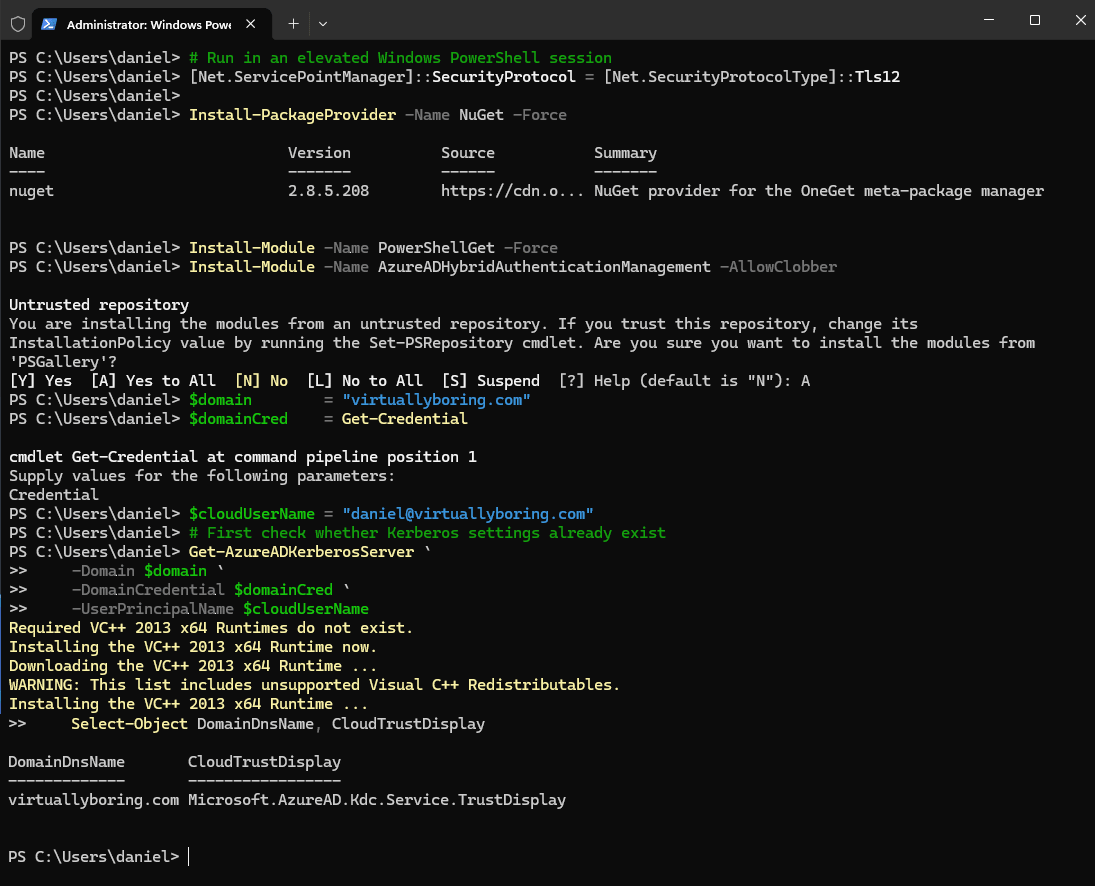
Step 2 — Create the Microsoft Entra Kerberos Trusted Domain Object
Next, create the Microsoft Entra Kerberos Trusted Domain Object. Microsoft documents this under the incoming trust-based flow; the same Kerberos trust setup is linked directly from the Entra Kerberos Hybrid Join preview doc. Source: Create and configure the Microsoft Entra Kerberos Trusted Domain Object.
PowerShell Script
Make sure to update with your $domain and $cloudUserName
# Run in an elevated Windows PowerShell session
[Net.ServicePointManager]::SecurityProtocol = [Net.SecurityProtocolType]::Tls12

Install-PackageProvider -Name NuGet -Force
Install-Module -Name PowerShellGet -Force
Install-Module -Name AzureADHybridAuthenticationManagement -AllowClobber

$domain        = "yourdomain.local" # Set to your on-premises Active Directory domain name.
$domainCred    = Get-Credential
$cloudUserName = "[email protected]"    # Set to a username of a Global Administrator privileged account for Microsoft Entra cloud access.

# First check whether Kerberos settings already exist
Get-AzureADKerberosServer `
    -Domain $domain `
    -DomainCredential $domainCred `
    -UserPrincipalName $cloudUserName

# Create or update the trusted domain object for cloud trust
Set-AzureADKerberosServer `
    -Domain $domain `
    -DomainCredential $domainCred `
    -UserPrincipalName $cloudUserName `
    -SetupCloudTrust

# Verify CloudTrustDisplay is populated
Get-AzureADKerberosServer `
    -Domain $domain `
    -DomainCredential $domainCred `
    -UserPrincipalName $cloudUserName |
    Select-Object DomainDnsName, CloudTrustDisplay
Step 3 — Configure the Microsoft Entra Device Registration Service principal
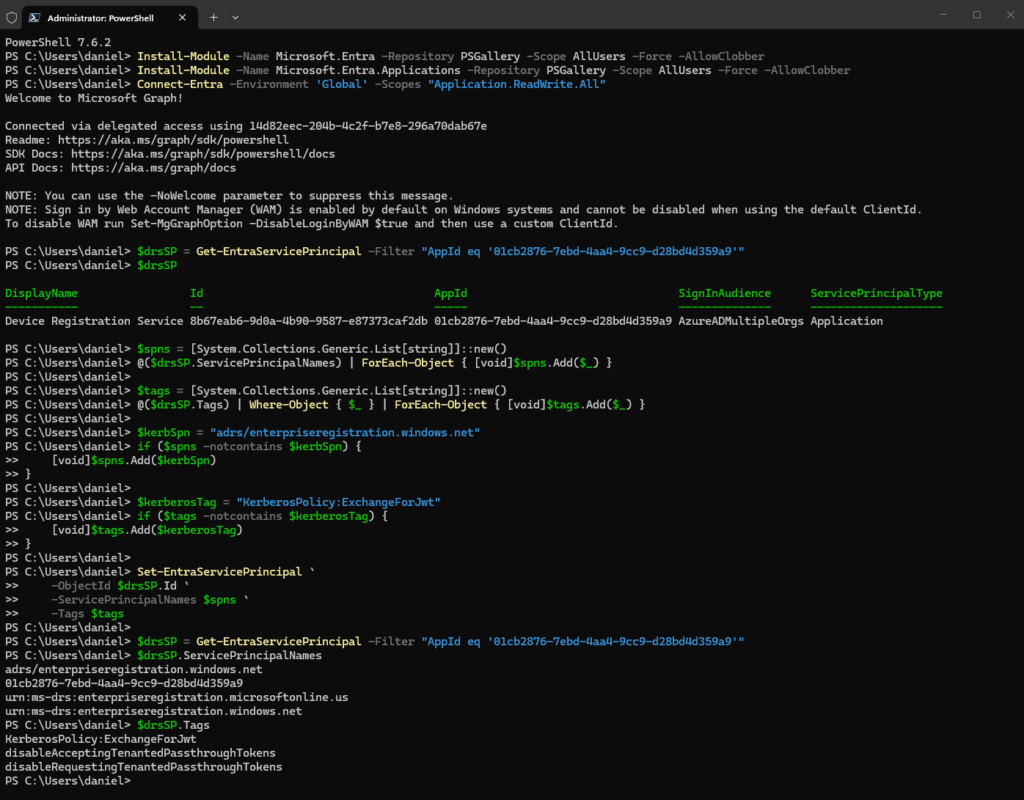
Azure DRS also needs a Kerberos SPN and policy tag. Use an Entra account with the Application Administrator role and the Microsoft Entra PowerShell module.
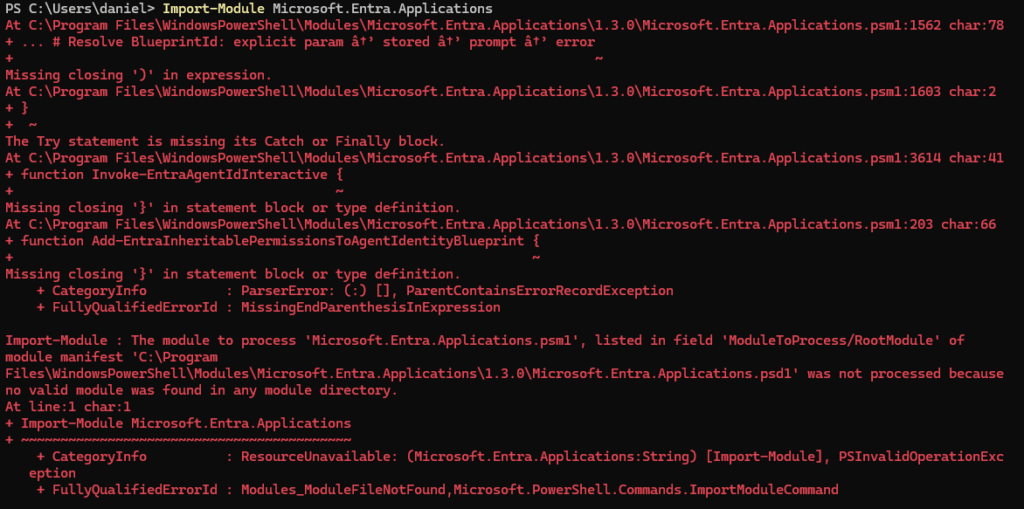
Error Alert: I was getting encoding errors when working on this step. It was because I was using PowerShell 5 instead of PowerShell 7! If you get this error, install PS7 then switch over to an elevated shell of it.
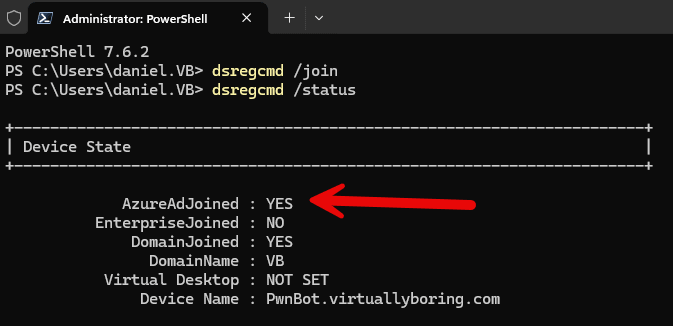
Once the SCP, Entra Kerberos trust, DRS service principal, DC, and client requirements are in place, join or rejoin the Windows 11 client to the AD domain and restart it. The device should register automatically, but for a lab test I like forcing the issue:
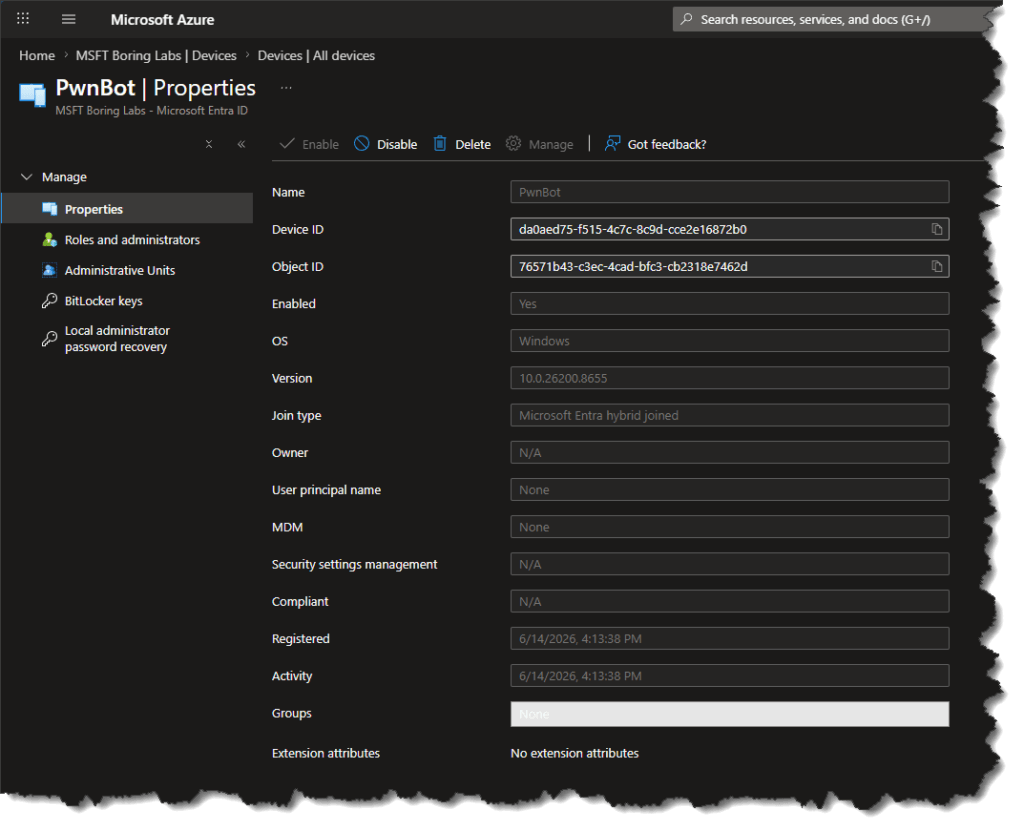
Look for AzureAdJoined : YES and DomainJoined : YES together. Then confirm the device appears in Entra ID → Devices → All devices with a join type of Microsoft Entra hybrid joined.
And I confirmed it’s showing in the Entra Portal!
If it fails, Microsoft’s preview doc has a useful error table. The big ones I would check first:
DSREG_TOKEN_MISSING_ON_PREM_ID — run EnableKerbHaadj.exe on every Windows Server 2025 DC in the domain and restart.
SEC_E_NO_AUTHENTICATING_AUTHORITY — the client cannot reach a functional Windows Server 2025 DC.
SEC_E_LOGON_DENIED / KDC_ERR_NULL_KEY — the DRS service principal is missing the KerberosPolicy:ExchangeForJwt tag.
And that’s the Cloud Sync-native version: Cloud Sync keeps doing the identity synchronization, while Entra Kerberos supplies the device registration path that classic Hybrid Join used to get from Entra Connect Sync.
Wrapping Up – What Was Deployed?
Here’s the whole stack in one place — every component, where it lives, its scope (which is why most of it is one-time setup, not per-DC), and how to confirm it.
Component
What it is
Where it lives
Scope
How to verify
Cloud Sync provisioning agent(s)
Lightweight agent that syncs AD → Entra
Agent host server(s)
Per host (run 2–3 for HA)
services.msc; Agents page shows Active
gMSA
Auto-created account the agent runs as
AD domain → Managed Service Accounts
One per forest (shared by all agents)
Get-ADServiceAccount; ADUC (Advanced Features)
Cloud Sync configuration
AD → Entra sync rules: PHS, OU scoping, deletion threshold
Microsoft Entra (cloud)
One config per domain
Portal config = Healthy; users appear in Entra ID
Password writeback
Lets SSPR write resets back to AD
Microsoft Entra (cloud)
Tenant setting
Password reset → On-premises integration enabled
Service Connection Point (SCP)
Tells devices which tenant to register against
AD Configuration partition
One per forest (AD-replicated to all DCs)
Sites & Services → Show Services Node; keywords
Entra Kerberos Trusted Domain Object
Inbound trust so devices prove AD identity to Entra
Net result: Cloud Sync keeps identities and passwords in sync, and Entra Kerberos handles the device proof — so a domain-joined PC ends up hybrid-joined, with SSO and Conditional Access, and no Entra Connect Sync server or AD FS anywhere in the picture.
So where does that leave the lab? My on-prem AD users now live in Entra ID with the same password, SSPR can write changes back on-prem, the sync survives an agent failure, and my domain-joined machines carry a cloud identity that Conditional Access can reason about. Two worlds, one identity — which is the whole point.
The main takeaways: Cloud Sync handles identity sync; Microsoft Entra Kerberos handles the Cloud Sync-native device join. The SCP still matters, but it’s only tenant discovery. The real trick is not confusing the classic Connect Sync device-synchronization path with the newer Entra Kerberos preview path Microsoft built for Cloud Sync customers.
Thanks for reading!
Questions or a better fix? Drop a comment below or find me on GitHub.
1 thought on “Entra Cloud Sync + Hybrid Join: A Step-by-Step Guide”
So, this does this mean that instead of connecting multiple AD Forests to a single Entra Connect server and deploying Intune Connector for AD in each forest I can just deploy 3 light agents per forest (Entra Cloud Sync) and get all of the capabilities of Traditional Hybrid-joined devices. Is that correct?
Thanks. This was an insightful article. I can’t wait to try this out in my lab.
 Daniel Boring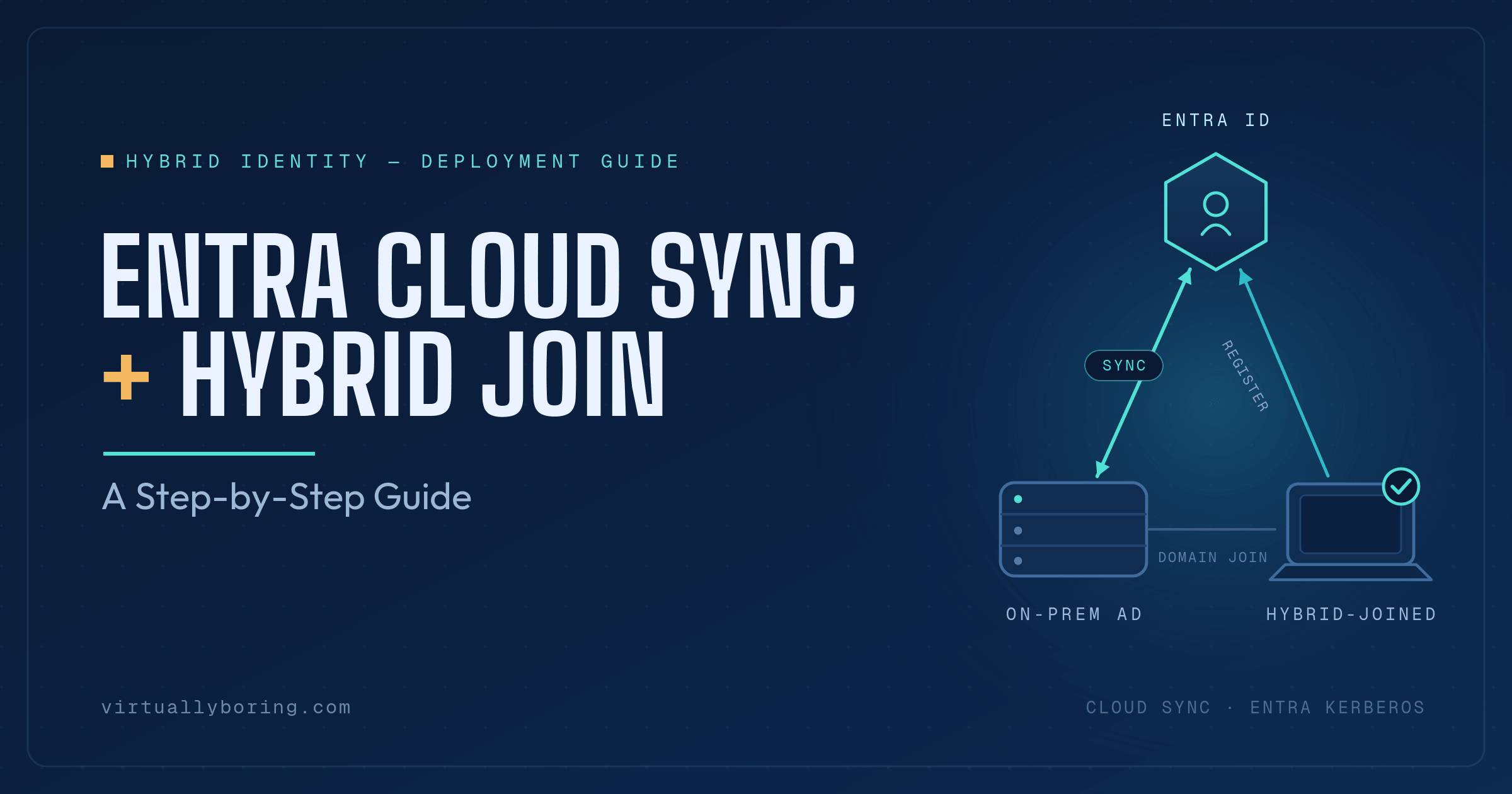

So, this does this mean that instead of connecting multiple AD Forests to a single Entra Connect server and deploying Intune Connector for AD in each forest I can just deploy 3 light agents per forest (Entra Cloud Sync) and get all of the capabilities of Traditional Hybrid-joined devices. Is that correct?
Thanks. This was an insightful article. I can’t wait to try this out in my lab.