
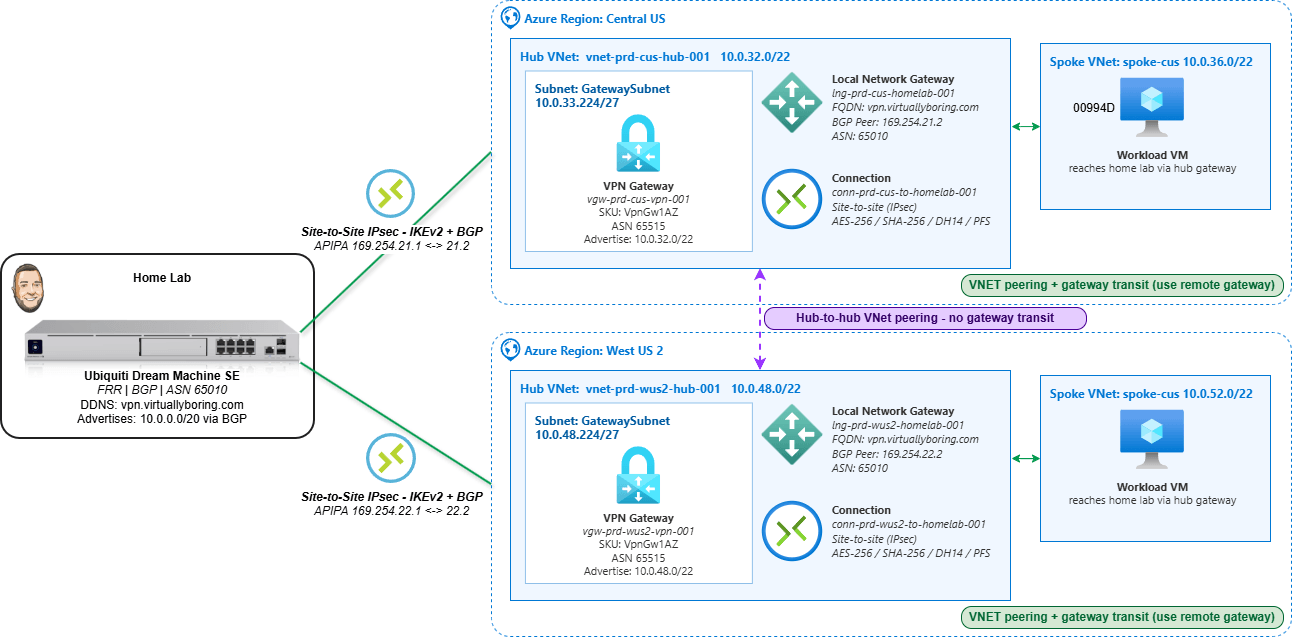
An Azure VPN Gateway is the managed service that terminates encrypted IPsec tunnels between Azure and a network outside it — in this case, a home lab. Deploy a dual-region Azure VPN Gateway — one in each of two Azure regions, pointing both back to the same on-prem device — and you get dual-region Site-to-Site connectivity: two independent encrypted paths from your hub VNets to home. New to VPN gateways? My single-region Azure VPN Gateway how-to walks through the basics first.
The reason to build it this way is resilience and routing. A single-region gateway is one tunnel and one point of failure; a gateway in Central US and West US 2 gives two regional paths. Pair that with BGP and the routing becomes self-healing — each side advertises its prefixes, and if one regional path drops, traffic converges onto the other without anyone editing a static route. That’s the difference between “a VPN that works” and “a VPN that keeps working when something breaks.”
This is a portal-first walkthrough: every gateway, Local Network Gateway, and connection built by hand so the Azure object model is actually visible. I’ll cover all the settings, plus the two spots that trip people up most — pointing both regions at one DDNS name (fine here because my home lab sits behind a single ISP, so everything resolves back to one public IP), and getting BGP to actually come up over APIPA.
Dual-Region VPN Gateway vs. Azure Virtual WAN: which enterprise design fits?
Before you build anything, it’s worth knowing this isn’t the only enterprise-approved design for hybrid connectivity — and neither is “better” in the abstract. Both the dual-region VPN Gateway hub-and-spoke and Azure Virtual WAN are documented reference architectures in Microsoft’s Cloud Adoption Framework. Both eliminate single points of failure, both scale, and both route over the Microsoft backbone. The difference is who manages the hub and how far you need to scale.
What each one actually is:
- Dual-region VPN Gateway (what this post builds): A self-managed hub-and-spoke. You own the hub VNets, the gateways, the peerings, the route tables, and the gateway-transit settings. Redundancy is built in even here — an active-standby gateway is really two instances under the hood, and the zone-redundant
AZSKUs spread those instances across availability zones. Run one per region and a single region (or a single zone) failing doesn’t take you down. - Azure Virtual WAN: A Microsoft-managed hub. Microsoft runs the hub router, the inter-hub mesh, and the peerings for you. Each hub runs two active VPN gateway instances by default, and connecting a spoke automatically gives it transitive any-to-any routing — no manual gateway-transit toggles, no per-VNet peering sprawl.
Here’s the practical split:
| Consideration | Dual-region VPN Gateway (self-managed) | Azure Virtual WAN (managed) |
|---|---|---|
| Hub management | You own it | Microsoft-managed |
| Scale ceiling | Up to 100 tunnels per gateway (SKU-dependent); 500 peerings per VNet | Up to 1,000 VPN connections / 2,000 tunnels per hub, 20 Gbps aggregate, multiple hubs per region |
| Spoke-to-spoke / transit routing | You wire it manually (gateway transit, UDRs) | Built in and automatic |
| Branch / SD-WAN onboarding | Manual per site | Partner CPE auto-provisioning at scale |
| Best at | A handful of regions and spokes you want full control over | Global, many-region, many-branch networks |
| Operational overhead | Higher — every path is yours to configure | Lower — the hub is a service |
When to use the dual-region VPN Gateway: You have a small number of regions and spokes, you want hands-on control of routing and BGP, and the tunnel/peering counts are comfortably within limits. For a two-region hub-and-spoke talking to one or two on-prem sites — exactly this scenario — it’s the right-sized, cost-effective choice. You learn the Azure object model intimately, and nothing is hidden behind a managed abstraction.
When to reach for Virtual WAN instead: You’re going global and wide — many regions, dozens of spokes, lots of branch offices or SD-WAN endpoints — and manually managing peerings, route tables, and gateway-transit settings has become the bottleneck. The moment you’re fighting the 500-peerings-per-VNet ceiling, juggling complex UDRs for spoke-to-spoke traffic, or wanting centralized inspection (Azure Firewall in the hub with routing intent), Virtual WAN’s managed transit earns its keep.
When to migrate from one to the other: The signal is operational pain, not a feature checklist. Migrate when the self-managed mesh stops scaling cleanly: peering limits in sight, route tables nobody wants to touch, or a global footprint that needs hub-to-hub transit Microsoft would rather manage than you. Microsoft’s supported path is staged — stand up a Virtual WAN hub per region, connect a test spoke and validate connectivity first, then migrate spokes over by swapping their VNet peerings for Virtual WAN connections (removing the old UDRs as you go), and only then decommission the old gateways. Note Virtual WAN needs the Standard SKU for the transit features, and there’s a quirk worth knowing: because every Virtual WAN gateway uses ASN 65515, you can’t run BGP over IPsec between two separate Virtual WANs — the AS-path loop check drops the routes, so those links fall back to static routing.
For my two-region home lab, the self-managed gateway is the right call today. Virtual WAN is the “when I outgrow this” answer.
What we’re actually building
Here’s the shape of it. I have two hub VNets already deployed, one per region, each with a GatewaySubnet waiting for a gateway:
| Region | Hub VNet | VNet CIDR | GatewaySubnet | VPN gateway |
|---|---|---|---|---|
| Central US | vnet-prd-cus-hub-001 | 10.0.32.0/22 | 10.0.33.224/27 | vgw-prd-cus-vpn-001 |
| West US 2 | vnet-prd-wus2-hub-001 | 10.0.48.0/22 | 10.0.49.224/27 | vgw-prd-wus2-vpn-001 |
The home lab side gets represented in Azure as a Local Network Gateway — one per region. My home lab advertises its on-prem subnets (the VLANs inside 10.0.0.0/20) via BGP, handled by the UDM SE through FRR, and because my home IP is dynamic, I point Azure at a Dynamic DNS hostname instead of a hardcoded IP.
A few design values up front:
- VPN type: Route-based, IPsec, IKEv2
- Routing: BGP enabled (Azure ASN
65515, UDM ASN65010) - Mode: One active-standby gateway per region to start
That last one is a deliberate choice. Azure gateways can run active-active, which is fantastic for instance-level redundancy inside one region — but it forces the on-prem device to build tunnels to both Azure instances. Since I’m already getting redundancy from having two separate regions, starting active-standby keeps the first UDM/FRR config something I can actually reason about. I can revisit active-active per region later once the simpler version is solid.
Why active-standby per region, and why BGP
TL;DR: two regions already give me two independent paths home. BGP makes them self-healing.
One thing to get right early: 65515 is Azure’s default ASN, and it’s also reserved by Azure — so I can use it on the Azure side but never on the UDM. My 65010 lands safely in the usable private ASN range (64512–65514), so the two sides never collide.
Prerequisites — collect these first
Walking into the portal without these means stopping halfway through. Create and/or gather the following:
- The Connectivity subscription that owns the hub VNets
- 2 x Resource Groups – one in each region: My example –
rg-prd-cus-network-001,rg-prd-wus2-network-001 - Your Dynamic DNS hostname (e.g.
home-vpn.example-ddns.net) resolving to your home public IPv4. If you have static IP addresses that works as well. - Your on-prem CIDR (
10.0.0.0/20) — confirmed not overlapping either hub - Ubiquiti UDM ASN
65010, Azure ASN65515 - A strong shared key (pre-shared key) — same value on both ends of each connection. Instructions to create this are in Step 8 & 9
- Gateway SKU:
VpnGw1AZorVpnGw2AZ(zone-redundant; confirm regional support and cost)
And the overlap sanity check, because nothing ruins your afternoon like discovering a clashing route after the tunnel’s up:
| Network | Prefix |
|---|---|
| Home lab | 10.0.0.0/20 |
| Central US hub | 10.0.32.0/22 |
| West US 2 hub | 10.0.48.0/22 |
No overlaps. Good.
Step 1: Verify the GatewaySubnet in each hub
Azure will only deploy a VPN gateway into a subnet named exactly GatewaySubnet — and for every non-Basic SKU, that subnet needs to be /27 or larger. Confirm both hubs are ready before creating anything:
- In the Azure Portal, search Virtual networks.
- Open
vnet-prd-cus-hub-001→ Subnets. Create aGatewaySubnetat10.0.33.224/27. - Open
vnet-prd-wus2-hub-001→ Subnets. Create aGatewaySubnetat10.0.49.224/27. - Confirm no NSG is associated to either
GatewaySubnet. NSGs on the gateway subnet aren’t supported and will make the gateway misbehave. - Confirm no route table disables BGP route propagation on either subnet — if it’s off, the gateway won’t propagate learned routes to that subnet.

Step 2: Prepare Dynamic DNS for the UDM SE
My home IP changes, so I give Azure a stable name instead. Azure’s Local Network Gateway accepts an FQDN endpoint and resolves it to find my current public IP.
- Configure Dynamic DNS on the UDM SE (or your DDNS provider).
- Confirm the hostname resolves to your current home public IPv4.
- Make sure it resolves to a single IPv4 address — Azure only uses the first IP returned, and IPv6 isn’t supported.

One detail worth knowing: Azure keeps a DNS cache refreshed every 5 minutes, and it only re-resolves the FQDN for disconnected tunnels. So after a home IP change there can be a short reconnect lag — that’s expected, not a bug.
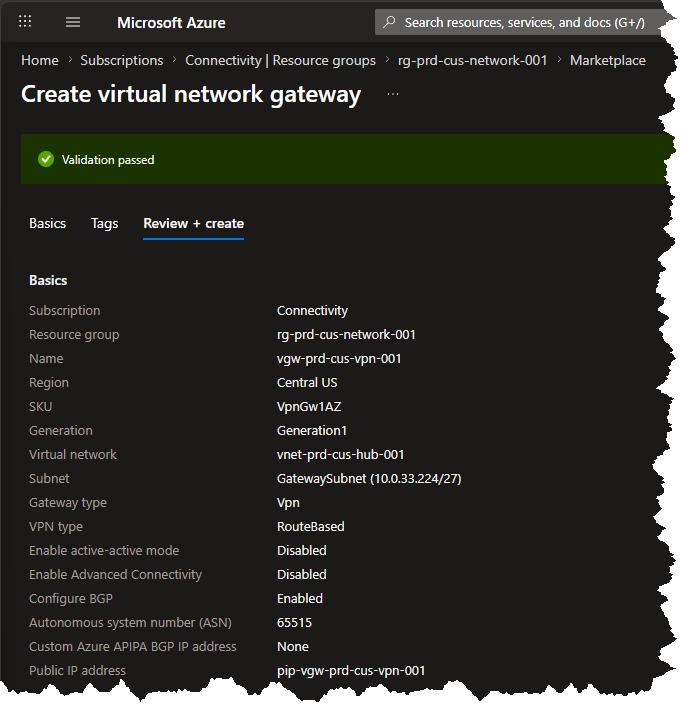
Step 3: Create the Central US VPN Gateway

Search Virtual network gateways → Create, and on Basics:
| Setting | Value |
|---|---|
| Subscription | Connectivity subscription |
| Resource group | rg-prd-cus-network-001 |
| Name | vgw-prd-cus-vpn-001 |
| Region | Central US |
| Gateway type | VPN |
| VPN type | Route-based |
| SKU | VpnGw1AZ or VpnGw2AZ |
| Generation | Generation2 (if available for the SKU) |
| Virtual network | vnet-prd-cus-hub-001 |
| Public IP | Create new → pip-vgw-prd-cus-vpn-001, Standard, Static |
| Active-active mode | Disabled for now |
| Configure BGP | Enabled |
| Autonomous system number | 65515 |
| Custom Azure APIPA BGP IP | 169.254.21.1 (under BGP settings) |
Review + create → Create. Then go get a coffee — gateway creation routinely takes 45 minutes or more. This is the slow part of the whole exercise, and it’s normal. You do NOT need to wait for this one to finish before going to Step 4.
Step 4: Create the West US 2 VPN Gateway
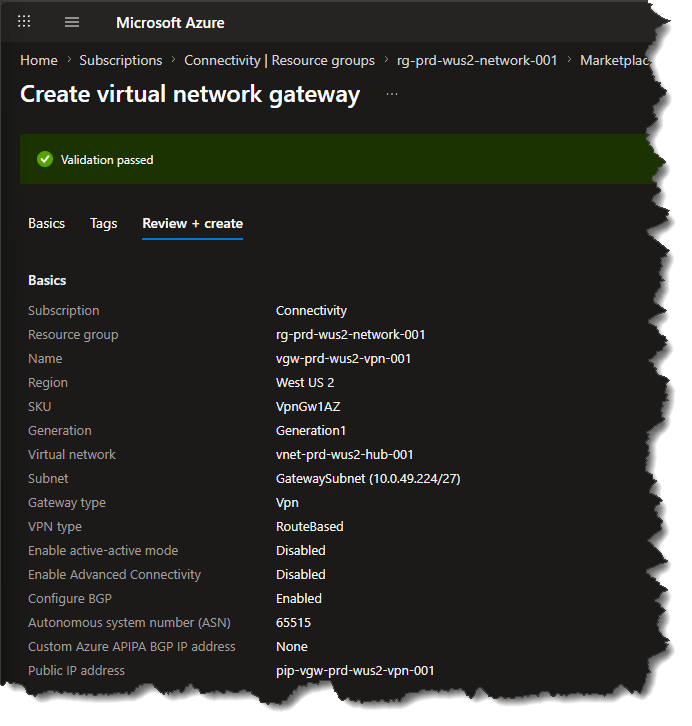
While your first region VPN Gateway is deploying, go ahead and deploy your second region! Same flow, different region. On Basics:
| Setting | Value |
|---|---|
| Resource group | rg-prd-wus2-network-001 |
| Name | vgw-prd-wus2-vpn-001 |
| Region | West US 2 |
| VPN type | Route-based |
| SKU | Same SKU as Central US |
| Virtual network | vnet-prd-wus2-hub-001 |
| Public IP | Create new → pip-vgw-prd-wus2-vpn-001, Standard, Static |
| Active-active mode | Disabled |
| Configure BGP | Enabled |
| ASN | 65515 |
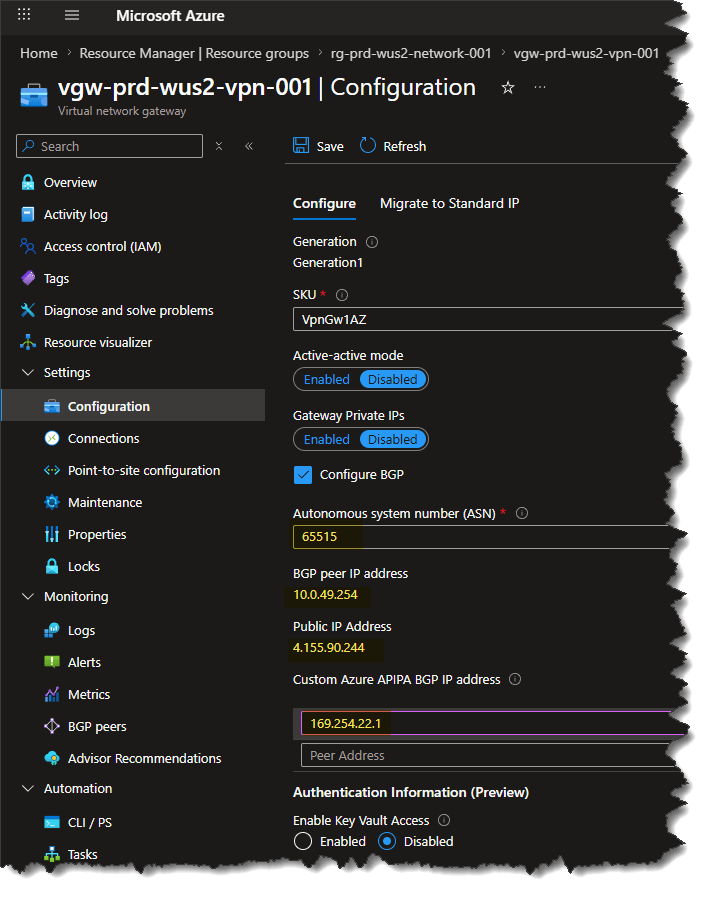
| Custom Azure APIPA BGP IP | 169.254.22.1 (under BGP settings) |
Review + create → Create, and wait for completion.
Step 5: Record the Azure-side values
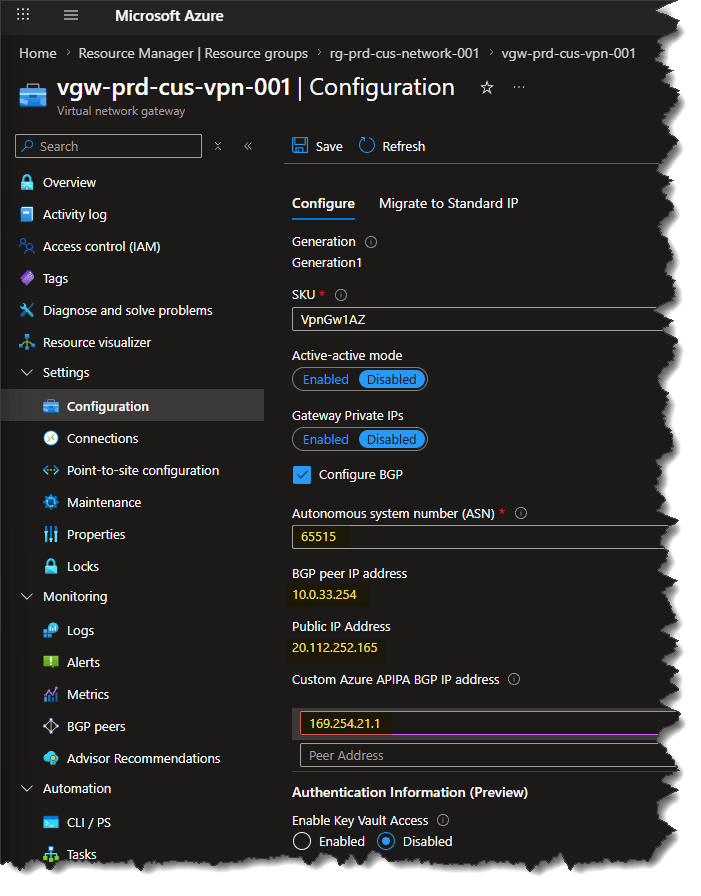
The UDM/FRR config needs to know each gateway’s public IP and BGP peer details. For each gateway, open it → Properties / Configuration and record:
| Region | Gateway | Public IP | Azure ASN | Azure BGP peer IP |
|---|---|---|---|---|
| Central US | vgw-prd-cus-vpn-001 | (from portal) | 65515 | 169.254.21.1 |
| West US 2 | vgw-prd-wus2-vpn-001 | (from portal) | 65515 | 169.254.22.1 |
Because I’m going to use APIPA range for BGP (next step), the Azure-side peer for each tunnel is the custom APIPA you set on the gateway — 169.254.21.1 and 169.254.22.1 — not the default address Azure would otherwise pull from the GatewaySubnet. The only value you actually need to copy down here is each gateway’s Public IP.
Step 6 & 7: Create a Local Network Gateway per region

The Local Network Gateway represents your home lab on the Azure side — it holds the home endpoint and the BGP peer details. One per region, and two of its fields deserve a second look.
Address space: leave it empty. With BGP enabled, Azure adds a host route to your BGP peer IP over the tunnel automatically, and your real prefix (10.0.0.0/20) arrives dynamically via BGP. Typing a static prefix here just duplicates what BGP already advertises.
BGP peer IP address: the address your UDM uses for the BGP session. It has to be a real address the UDM owns — not its public IP, and not inside the Azure VNet ranges — but it doesn’t need its own subnet. I’m using APIPA (link-local 169.254.x.x), the same convention AWS and Cisco devices use. The payoff: an APIPA address lives on the VPN tunnel interface itself, so I don’t spend a LAN IP or stand up a subnet just to carry BGP. Azure reserves 169.254.21.0–169.254.22.255 for its side; the UDM takes a matching address on each tunnel. The one rule to respect: every APIPA address must be unique across all tunnels.
So the addressing scheme is just:
| Tunnel | Azure side (set on the gateway) | UDM side (BGP peer IP) |
|---|---|---|
| Central US | 169.254.21.1 | 169.254.21.2 |
| West US 2 | 169.254.22.1 | 169.254.22.2 |
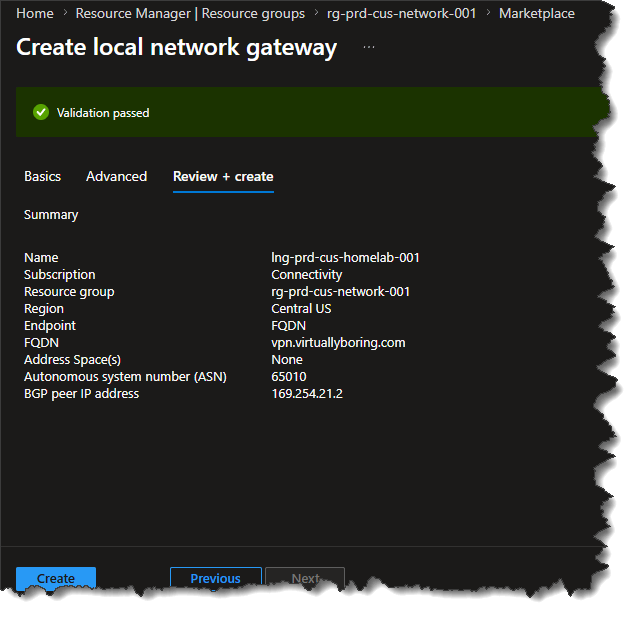
Central US — search Local network gateways → Create:
| Setting | Value |
|---|---|
| Resource group | rg-prd-cus-network-001 |
| Region | Central US |
| Name | lng-prd-cus-homelab-001 |
| Endpoint | FQDN → your DDNS hostname |
| Address space | Leave empty (don’t add an address space as this introduces a static route – let BGP do its thang!) |
| BGP ASN | 65010 |
| BGP peer IP address | 169.254.21.2 |
West US 2 — repeat with rg-prd-wus2-network-001, region West US 2, name lng-prd-wus2-homelab-001, the same DDNS hostname, empty address space, ASN 65010, and BGP peer IP 169.254.22.2. (The Azure-side APIPA addresses — 169.254.21.1 / 169.254.22.1 — are the ones you set back on each VPN gateway, not here.)
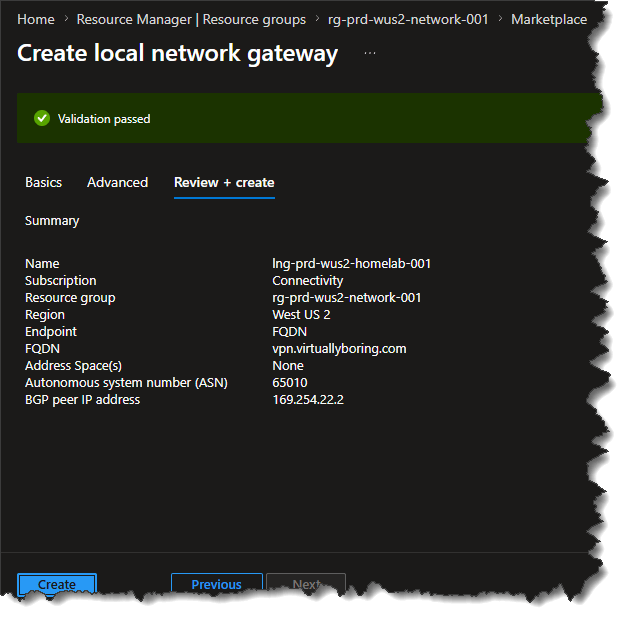
“Wait — the same FQDN on both gateways? Doesn’t Azure forbid that?”
This tripped me up. Microsoft’s rule is that a single VPN gateway with multiple FQDN-based connections needs each FQDN to resolve to a different IP. But here each gateway has exactly one FQDN connection — they just happen to be in different regions pointing at the same home. Two separate gateways, one FQDN connection each. That’s fine. The restriction only bites when one gateway juggles multiple same-IP FQDNs.
One design caveat: I use a single DDNS name because my home lab sits behind one internet provider, so both tunnels resolve back to the same public IP anyway. In production you’d give each path its own DDNS entry — ideally with each path on a separate internet provider — so a single ISP outage can’t drop both regional tunnels at once.
Step 8 & 9: Create the VPN connections
The gateway and the Local Network Gateway don’t form a tunnel until a connection resource ties them together.
On this step, you will need a Shared Key (PSK). This is a mixture of letters and numbers, used to establish encryption for the connection. The same shared key must be used in both the virtual network and local network gateways. If your gateway device doesn’t provide one, you can make one up here and provide it to your device. You can use this PowerShell command to generate one at random.
# PowerShell
$b=[byte[]]::new(24); [System.Security.Cryptography.RandomNumberGenerator]::Fill($b); -join ($b | ForEach-Object { $_.ToString('x2') })Code language: PowerShell (powershell)
Central US — open vgw-prd-cus-vpn-001 → Connections → Add:
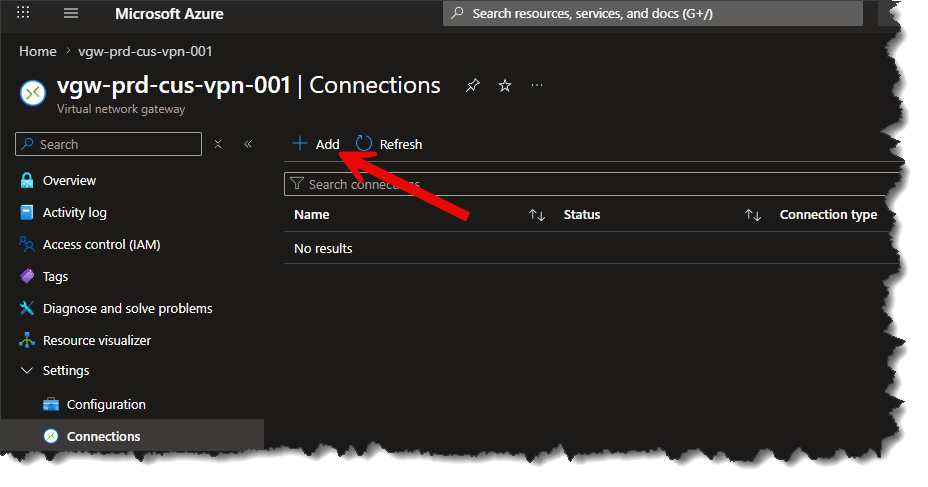
| Setting | Value |
|---|---|
| Name | conn-prd-cus-to-homelab-001 |
| Connection type | Site-to-site (IPsec) |
| Virtual network gateway | vgw-prd-cus-vpn-001 |
| Local network gateway | lng-prd-cus-homelab-001 |
| Shared key | Your strong PSK |
| IKE Protocol | IKEv2 |
| Enable BGP | Enabled |
| IPsec/IKE policy | Custom — set the values below (they must match the UDM exactly in Step 10) |
| • IKE Phase 1 | Encryption AES256 / Integrity SHA256 / DH Group DHGroup14 |
| • IKE Phase 2 (IPsec) | Encryption AES256 / Integrity SHA256 / PFS Group PFS2048 (Azure’s name for DH Group 14) |
| • SA lifetimes | Leave the defaults (these don’t need to match the UDM) |
| Use policy based traffic selector | Disabled |
| DPD timeout | Default (or 45s) |

West US 2 — do it again but with your second VNET Gateway. My naming is conn-prd-wus2-to-homelab-001, vgw-prd-wus2-vpn-001, and lng-prd-wus2-homelab-001.
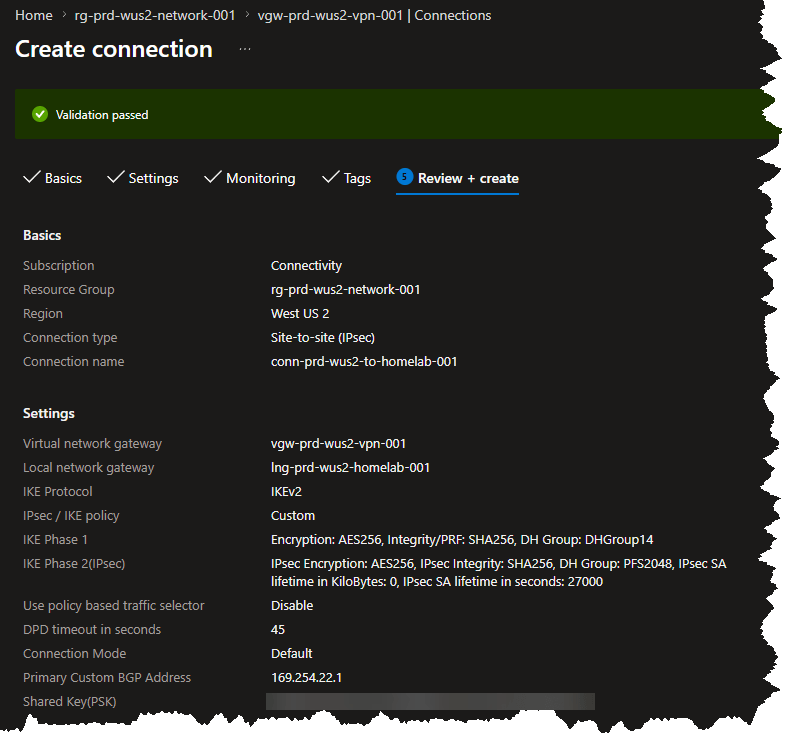
After creating, status will sit at Not Connected / Connecting until the UDM side is configured. That’s expected — Azure is ready and waiting.
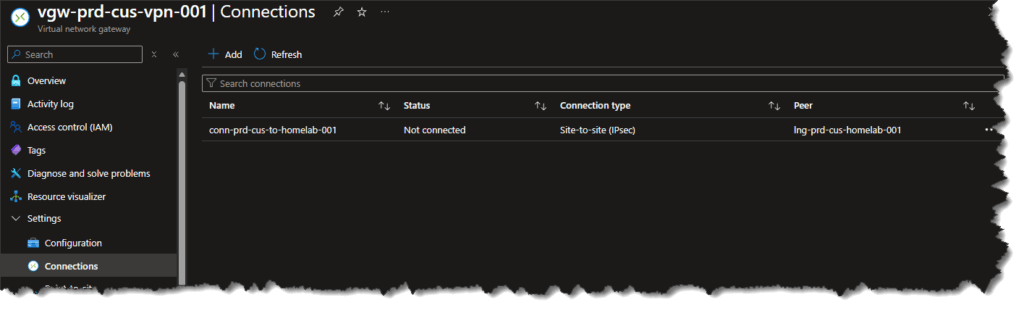
Step 10: Configure the Ubiquiti Dream Machine SE side (Site-to-Site VPN + BGP)
This step will vary greatly depending on your setup as I have an Ubiquiti Dream Machine SE as my endpoint.
Azure can stand up every object on its side, but the tunnels only come up once the UDM matches the IPsec settings and starts talking BGP. The good news: on current UniFi OS (4.1.13 or newer), the UDM SE, Pro, and Pro Max run BGP natively — you enable it by uploading an FRR-format config text file, no SSH or unsupported package installs like the old days. You’ll set up two tunnels (one per region), so do one, confirm it, then repeat.
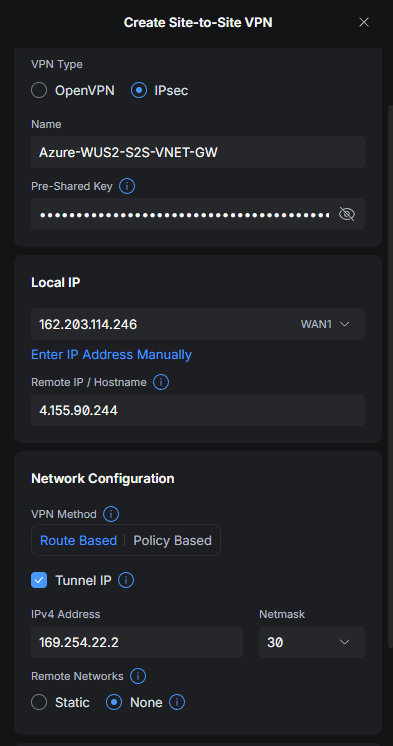
1. Create the Site-to-Site VPN (one per region). In UniFi Network, go to Settings → VPN → Site-to-Site VPN → Create New, choose IPsec, and set:
- Name: Name is something that lets you recognize which region this connection is for.
- Pre-Shared Key: The authentication key shared with the remote gateway that we created in the previous step.
- Local IP: If you have multiple WANs, select which one this is for.
- Remote IP / Hostname: the Azure gateway’s public IP for this region (from Step 5).
- VPN Method: Route Based
- Tunnel IP: enable it. IPv4 Address
169.254.21.2for Central US (169.254.22.2for West US 2), Netmask30— a /30 keeps the Azure-side APIPA (.1) on-link so BGP can peer across the tunnel - Remote Networks: None — with BGP the routes are advertised and learned dynamically, so you don’t list static subnets here. (Choose Static and enter the Azure VNet prefixes only if you’re not using BGP.)
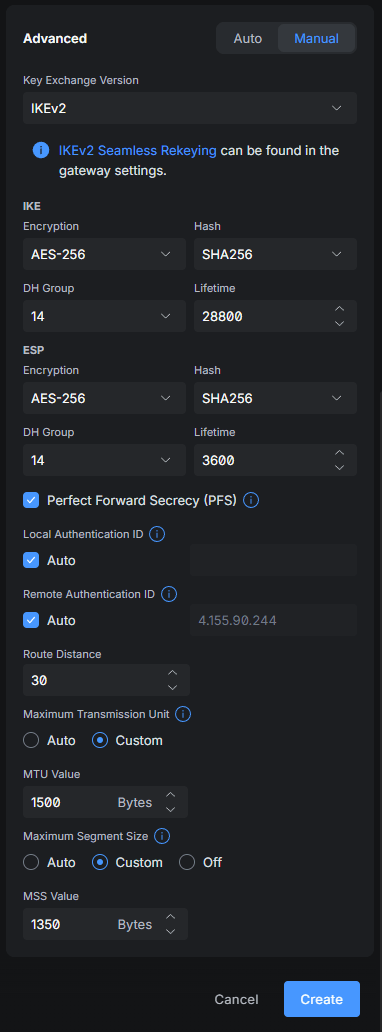
- Advanced: switch to Manual, then Key Exchange Version: IKEv2
- IKE (Phase 1): Encryption AES-256, Hash SHA-256, DH Group 14, Lifetime
28800 - ESP (Phase 2): Encryption AES-256, Hash SHA-256, Lifetime
3600 - Perfect Forward Secrecy: enabled, DH Group 14 — this is the Phase 2 (ESP) DH group, and it has to match Azure’s PFS setting (PFS2048 = Group 14)
- Local / Remote Authentication ID: leave both on Auto — that uses the IP addresses, which is what Azure expects by default
- Route Distance:
30(the default is fine) - Maximum Segment Size: set Custom to
1350— this clamps TCP MSS so large packets don’t black-hole over the tunnel. (Auto usually works, but 1350 is a known-good value for IPsec.) - Maximum Transmission Unit: Auto
Every IKE/ESP value here must match the Custom IPsec/IKE policy you set on the Azure connection back in Step 8 & 9 — if even the hash or DH group differs, the tunnel quietly fails with no obvious error. UniFi pre-fills SHA1 and AES-128 in a couple of spots, so double-check you changed those to SHA-256 / AES-256. Then repeat this whole VPN setup for the second region.
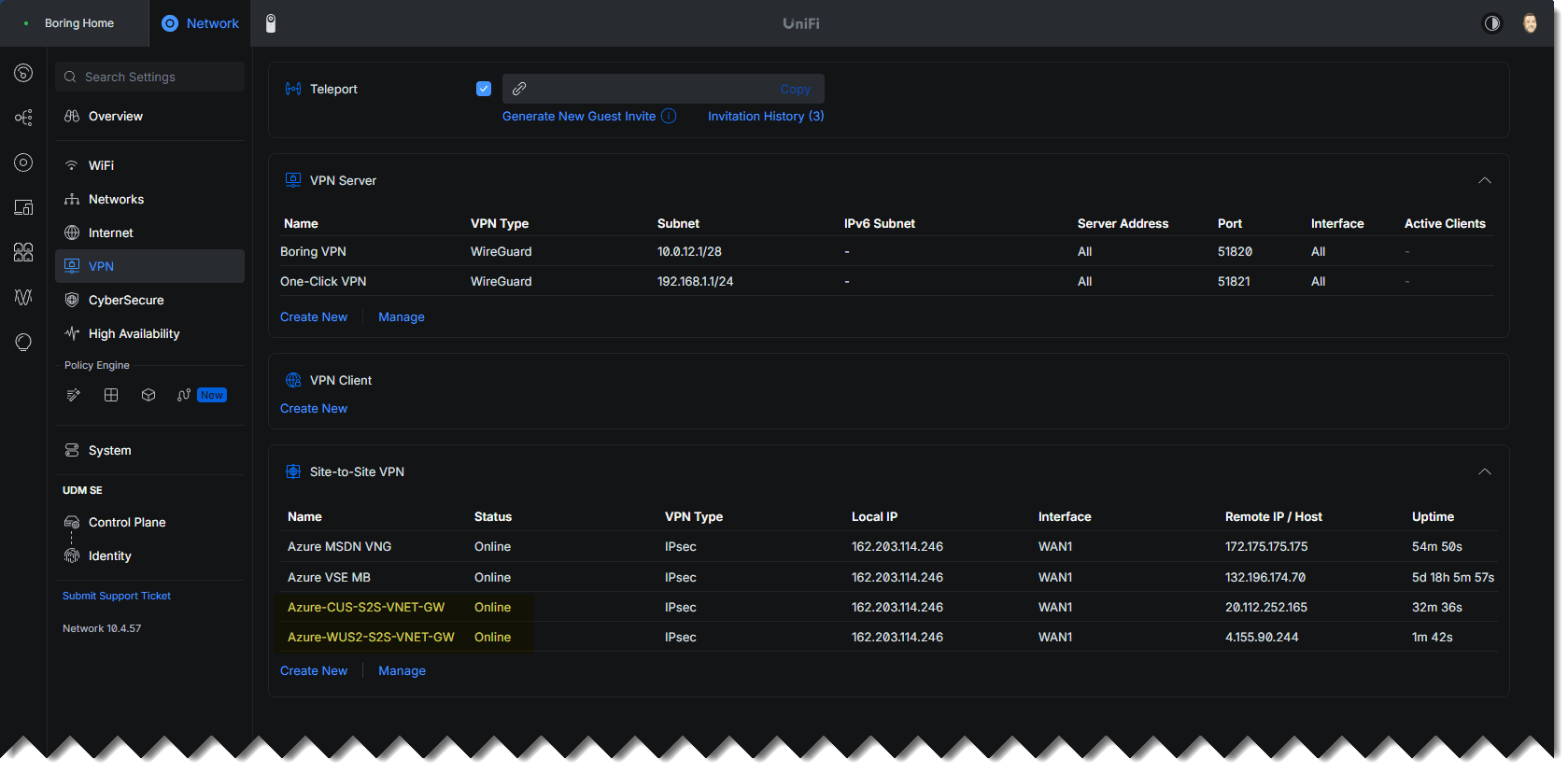
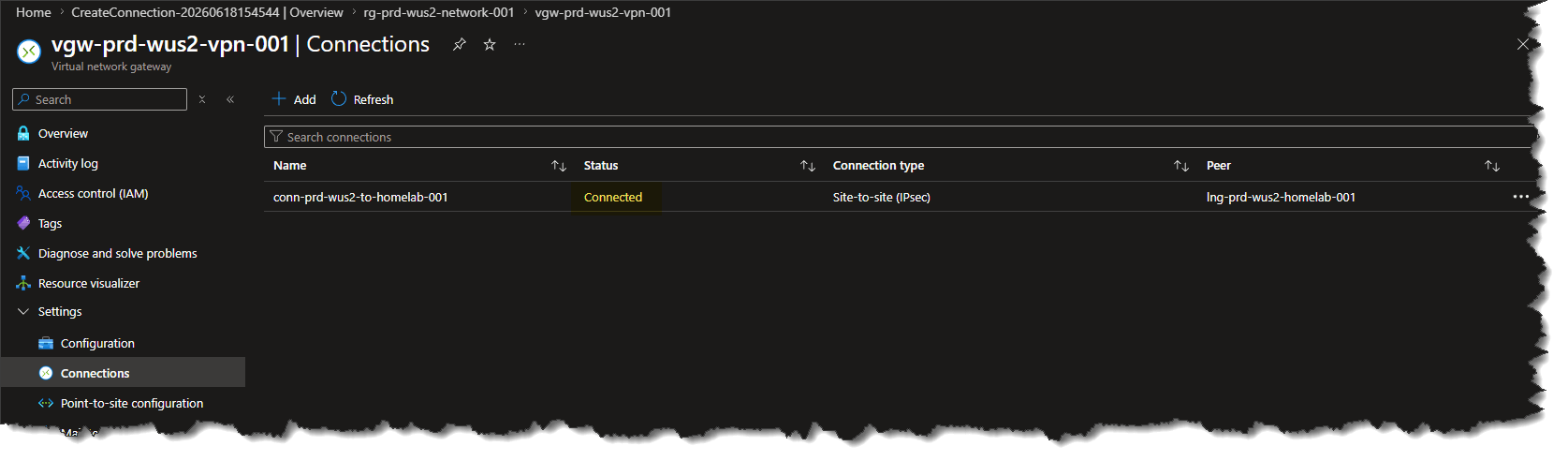
2. Confirm both tunnels show Connected. Pop over to the Site-to-Site VPN in UniFi and the matching connection in the Azure portal — both should now report Connected (Step 11 shows where to look in Azure). That tells you the IPsec tunnels negotiated Phase 1 and Phase 2 and the VTIs are up. At this point the two ends are talking to each other, but the tunnels are still just empty encrypted pipes: BGP isn’t configured yet, so neither side is learning the other’s routes and no real traffic is flowing across them. We fix that next by loading the FRR config — then confirm routes in Step 12 and test actual traffic in Step 13.
3. Build the FRR config file. BGP on the Ubiquiti Dream Machine is driven by FRR (FRRouting) — the open-source routing suite UniFi bundles into the OS, and the same engine that powers a lot of Linux routers. There’s no BGP GUI; instead you hand FRR a plain-text config file in its classic Cisco-style syntax that declares your BGP process, who your neighbors are, and which routes to advertise. It has to be in a .conf format. Here’s the whole thing covering both regions:
router bgp 65010
 bgp router-id 10.0.0.1
 no bgp ebgp-requires-policy
 neighbor 169.254.21.1 remote-as 65515
 neighbor 169.254.21.1 description Azure-CentralUS
 neighbor 169.254.22.1 remote-as 65515
 neighbor 169.254.22.1 description Azure-WestUS2
 !
 address-family ipv4 unicast
  redistribute connected
  neighbor 169.254.21.1 activate
  neighbor 169.254.21.1 soft-reconfiguration inbound
  neighbor 169.254.22.1 activate
  neighbor 169.254.22.1 soft-reconfiguration inbound
 exit-address-family
!Code language: plaintext (plaintext)
A few lines are worth understanding and update in your environment:
router bgp 65010/bgp router-id— your home ASN and a stable identifier (any IP you own; a LAN IP is fine).no bgp ebgp-requires-policy— FRR refuses to exchange eBGP routes without a route-map by default. This line removes that guard so routes flow without building prefix-lists first. Leave it off and add route-maps instead if you want tighter control.neighbor … remote-as 65515— one line per Azure gateway, pointed at its APIPA address with Azure’s ASN.redistribute connected— advertises your local VLAN subnets (inside10.0.0.0/20) to Azure. If you’d rather advertise a single10.0.0.0/20summary instead, addaggregate-address 10.0.0.0/20 summary-only.
Additional Reading: UniFi – Border Gateway Protocol (BGP) – Ubiquiti Help Center
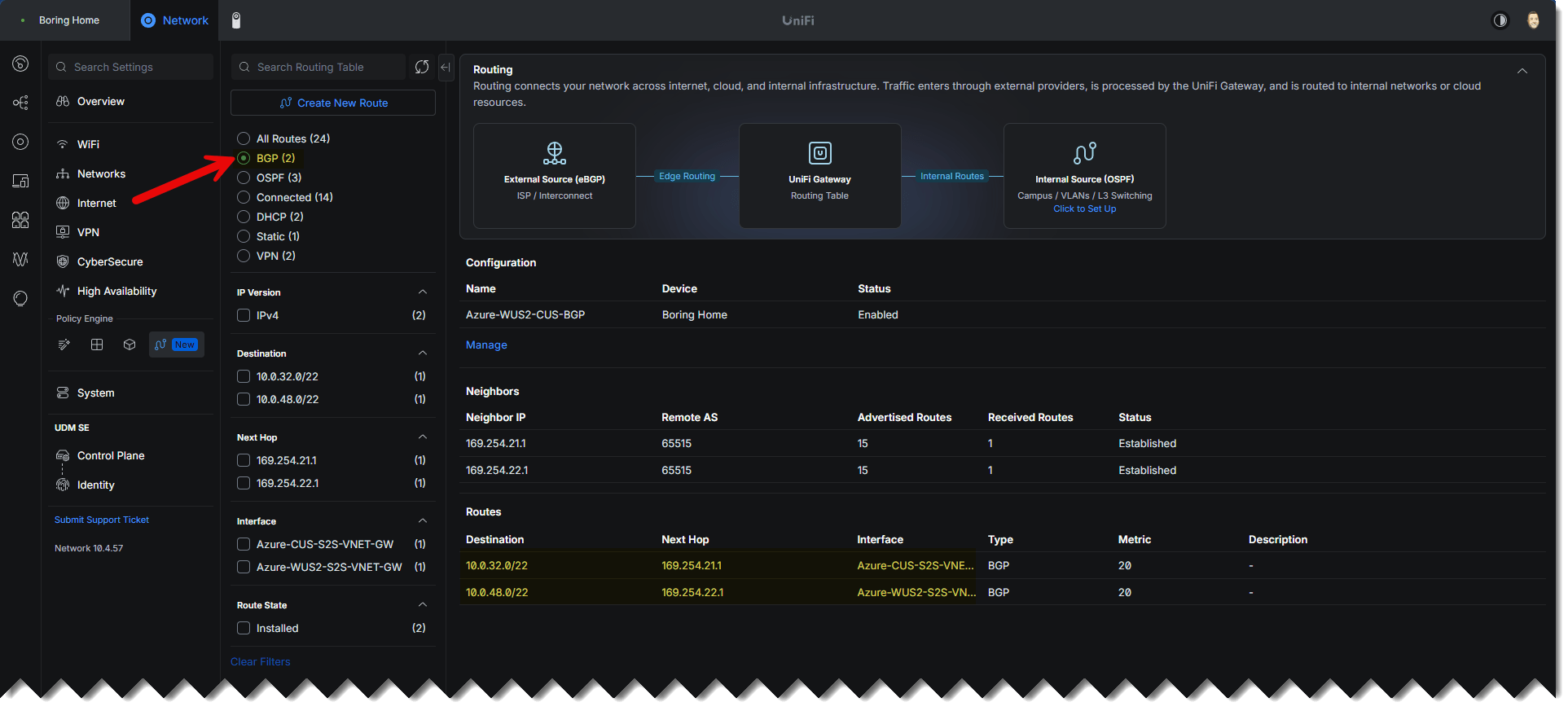
4. Upload and apply. In UniFi, open the BGP configuration (Settings → Routing Table → BGP), upload the file in .conf format, and apply. UniFi loads it into the bundled FRR instance.
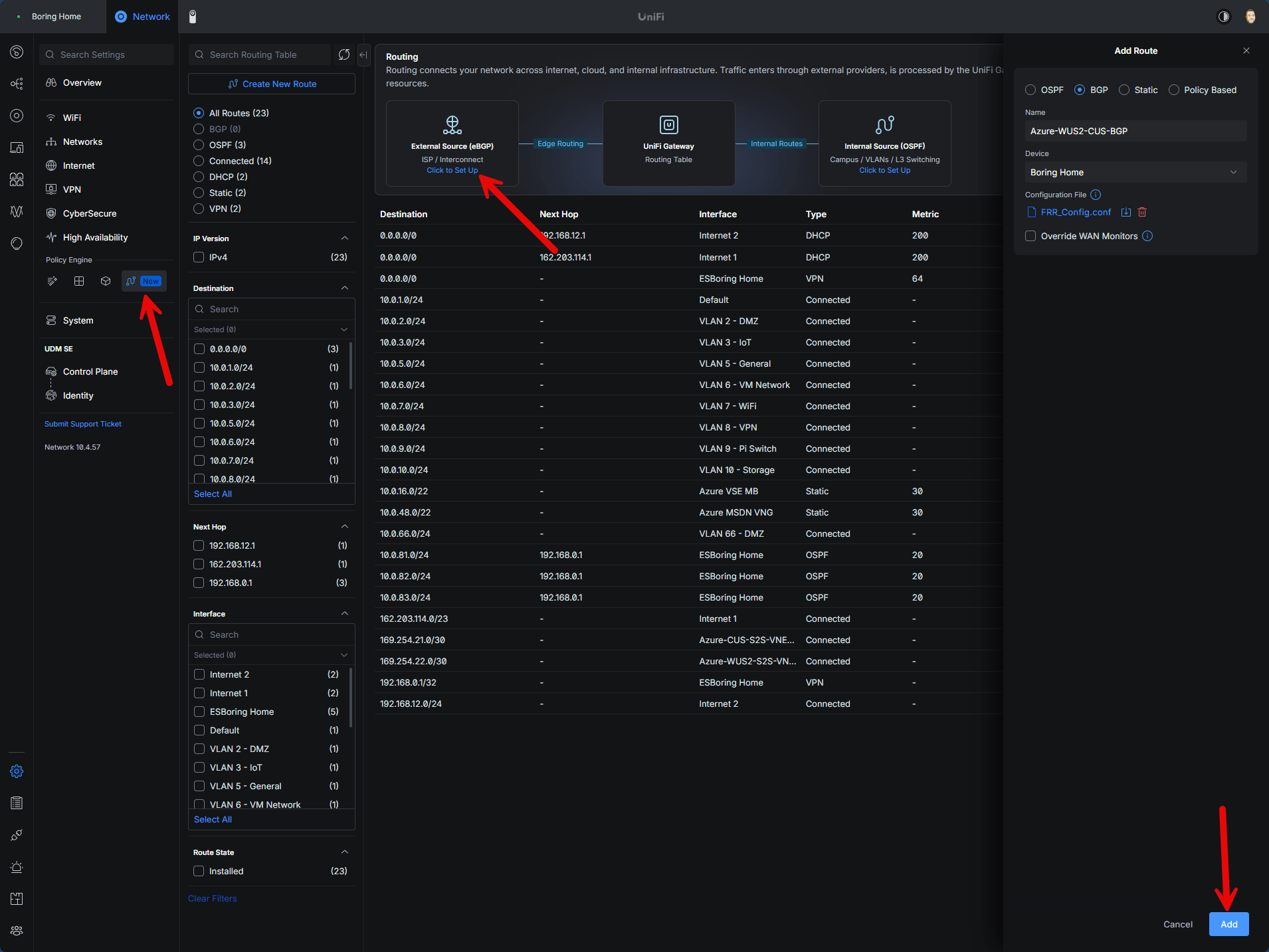
The APIPA trap that gets everyone: when APIPA addresses are in play, the Azure gateway will not initiate the BGP session — the UDM has to. The native UniFi setup initiates outbound, so this generally just works, but if a tunnel is solid green while BGP sits idle, this is the first thing to check.
One UDM limitation to know: the UDM SE doesn’t enable kernel ECMP, so it won’t install two equal-cost paths to the same prefix. That’s fine for this design — Central US advertises 10.0.32.0/22 and West US 2 advertises 10.0.48.0/22, different prefixes — but if you ever advertised the same prefix from both regions, add maximum-paths 1 to avoid route-install errors.
Step 11: Verify the connection status
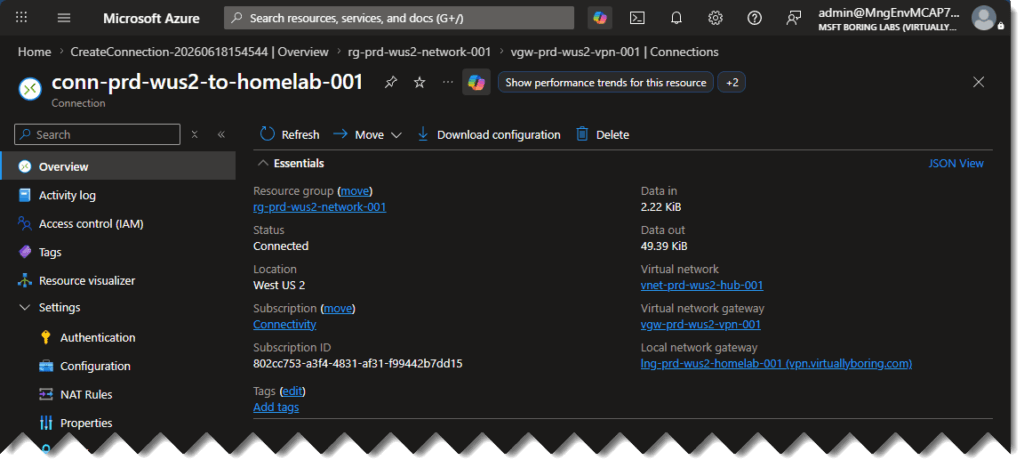
For each gateway: open it → Connections → open the connection → confirm Status: Connected, and glance at the ingress/egress counters.
| Connection | Expected status |
|---|---|
conn-prd-cus-to-homelab-001 | Connected |
conn-prd-wus2-to-homelab-001 | Connected |
Step 12: Verify BGP peers and learned routes
A connected tunnel doesn’t mean BGP is happy — the tunnel can be up while BGP is silent. There are lots of places to check what all is going on now the S2S VPN tunnel is up and BGP is configured. Let’s jump around and take a look!
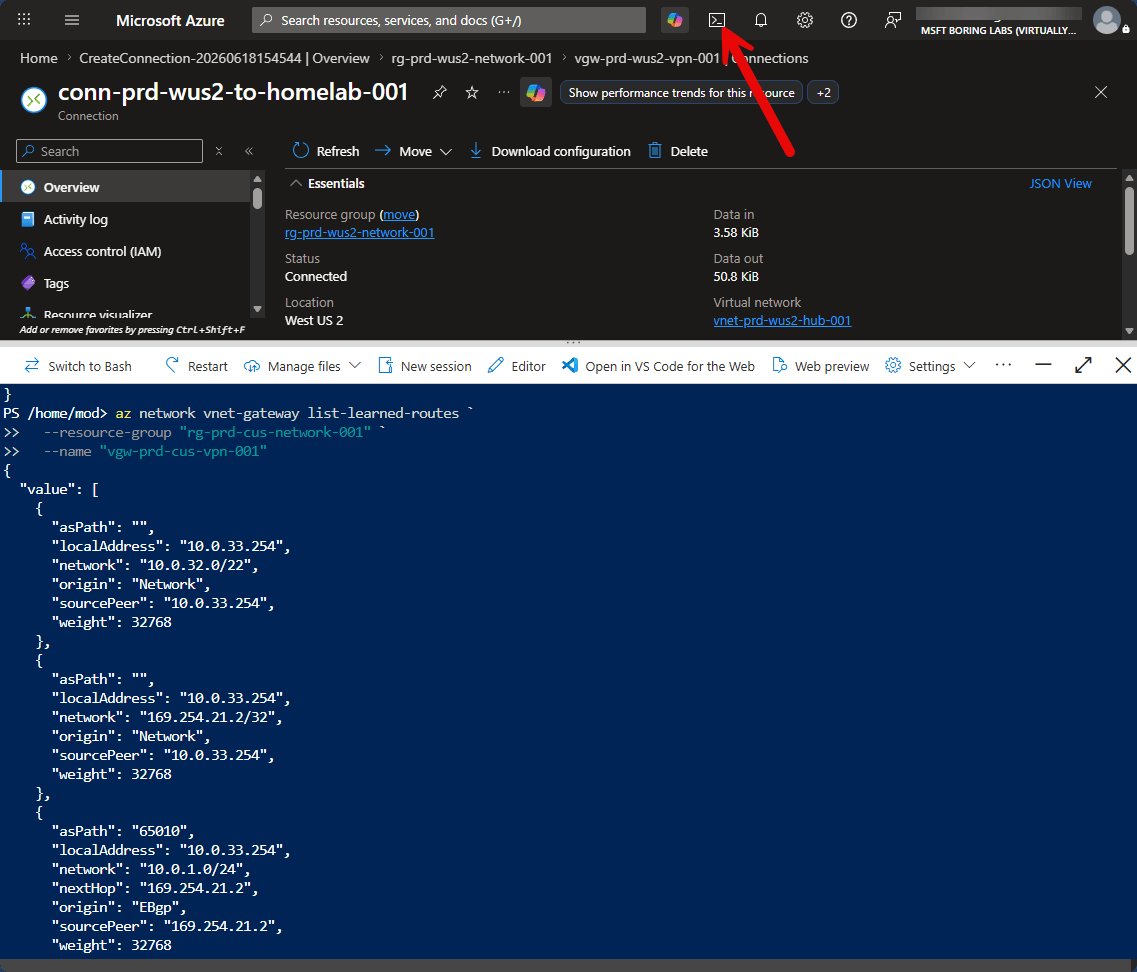
In the portal, open each gateway and look for BGP peers / Learned routes. If the portal view is thin, drop to Cloud Shell or local Azure CLI:
az network vnet-gateway list-bgp-peer-status `
  --resource-group "rg-prd-cus-network-001" `
  --name "vgw-prd-cus-vpn-001"
az network vnet-gateway list-learned-routes `
  --resource-group "rg-prd-cus-network-001" `
  --name "vgw-prd-cus-vpn-001"
Code language: PowerShell (powershell)
Cloud Shell Note: If using Cloud Shell, you may need to run az login and select the right subscription so it can find your resource group.
(Repeat for your second region…. in my deployment that would be West US 2 gateway in rg-prd-wus2-network-001.)
What “healthy” looks like:
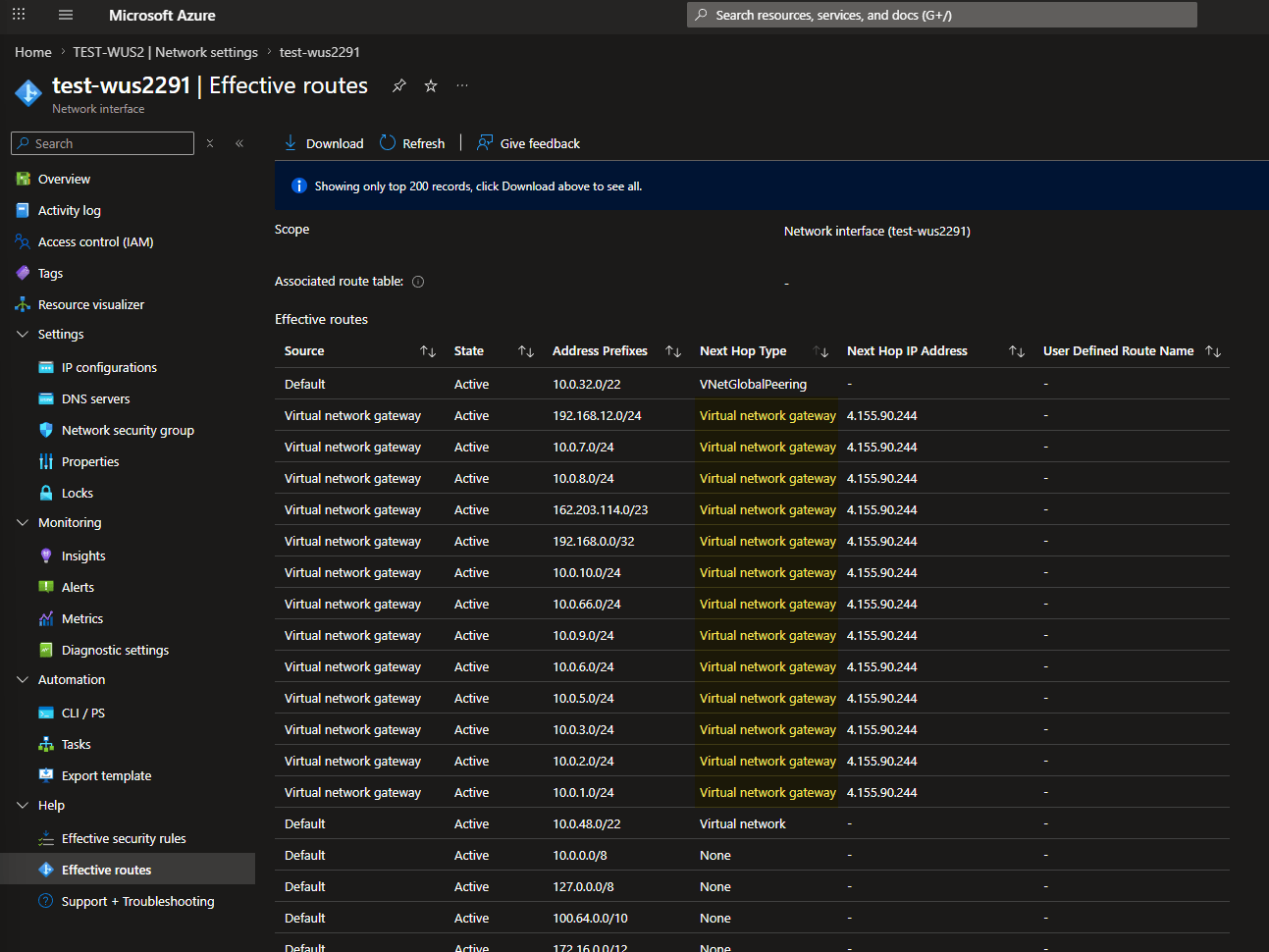
- BGP peer status Connected/Established in both regions
- Azure has learned your on-prem subnets (the VLANs inside
10.0.0.0/20) - UDM/FRR has learned
10.0.32.0/22and10.0.48.0/22
In Ubiquiti, you can filter by BGP and should start to see some routes showing:
I deployed a Virtual Machine real quick, and checked the Effective Routes on the VM NIC. I am seeing it knows about my on-prem subnets being advertised via BGP!
Step 13: Testing actual traffic
Control plane healthy ≠ packets flowing. NSGs, host firewalls, asymmetric routing, or missing return routes can all still block you. So:
- From a test VM in Central US, hit a known home lab IP inside
10.0.0.0/20. - From the home lab, hit a known Azure private IP in
10.0.32.0/22. - Repeat from West US 2 if you have a test VM there.
- Only after confirming both paths work independently, test failover by disabling one tunnel.
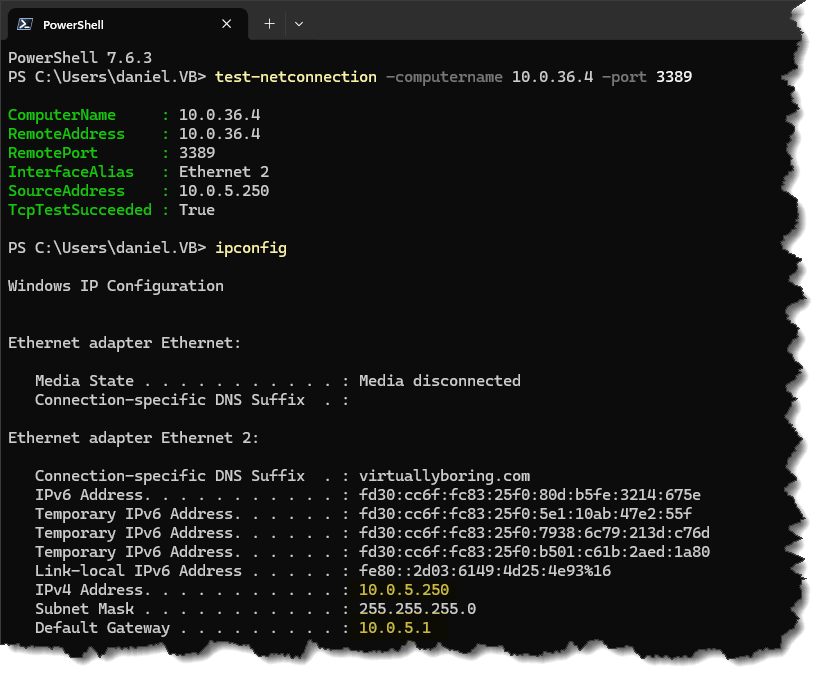
(after disabling Windows Firewall on the deployed VM) I validated that traffic is able to flow from my on-prem home to Azure over the S2S VPN with the learned routes from BGP!
Step 14: Keep the hub a hub — run workloads in spokes
This whole build follows Microsoft’s Cloud Adoption Framework hub-and-spoke model, and it’s worth being deliberate about it: the hub is for shared connectivity and platform services — the VPN gateways you just built, and later things like Azure Firewall, private DNS, or a Route Server — and you don’t run workloads in it. Your actual workloads (VMs, AVD, app services) live in their own spoke VNets, each peered to the regional hub. To let a spoke reach the home lab through the hub’s VPN gateway, enable gateway transit on the peering: on the hub → spoke side turn on “Allow gateway or route server… to forward traffic,” and on the spoke → hub side turn on “Use the remote virtual network’s gateway or route server.” That’s what pushes the on-prem BGP routes down into the spoke (and advertises the spoke’s prefix back to your UDM) — without it, a spoke VM has a tunnel nearby but no route home.
What is an Azure landing zone? – Cloud Adoption Framework | Microsoft Learn

One thing not to do: don’t enable that gateway-transit pattern on the Central US ↔ West US 2 hub-to-hub peering. Each hub already owns its own VPN gateway, and a VNet with its own gateway can’t consume another’s — leave hub-to-hub as a plain VNet peering. And as the spoke count grows and hand-managing all these peerings and gateway-transit flags starts to sting, that’s the signal to look at Azure Virtual WAN, which turns the hub and its transit into a managed service — I’ll cover migrating this hub-and-spoke design to Virtual WAN in a future post.
Cleanup (if this was a lab only)
Delete in dependency order so nothing gets stuck: connections → Local Network Gateways → Virtual Network Gateways → public IPs. Leave the hub VNets, subnets, RGs, and peerings intact.
What’s next
This portal pass did exactly what I wanted: it made the Azure object model visible. Public IP, Virtual Network Gateway, Local Network Gateway, connection, peering — clicking each one by hand makes the relationships obvious in a way a config file never quite does. The natural next step is translating all of it into Terraform (azurerm_virtual_network_gateway, azurerm_local_network_gateway, azurerm_virtual_network_gateway_connection) so the design is repeatable and reviewable — and eventually, if this network grows enough to outgrow a self-managed mesh, evaluating that move to Azure Virtual WAN.
But for now I’ve got two regions talking to one home lab over self-healing BGP tunnels — which, for something that used to feel like dark magic, turned out to be really cool over the traditional way I normally set it up using static routes!