Upgrading Proxmox VE 8 to 9: A Real-World Walkthrough

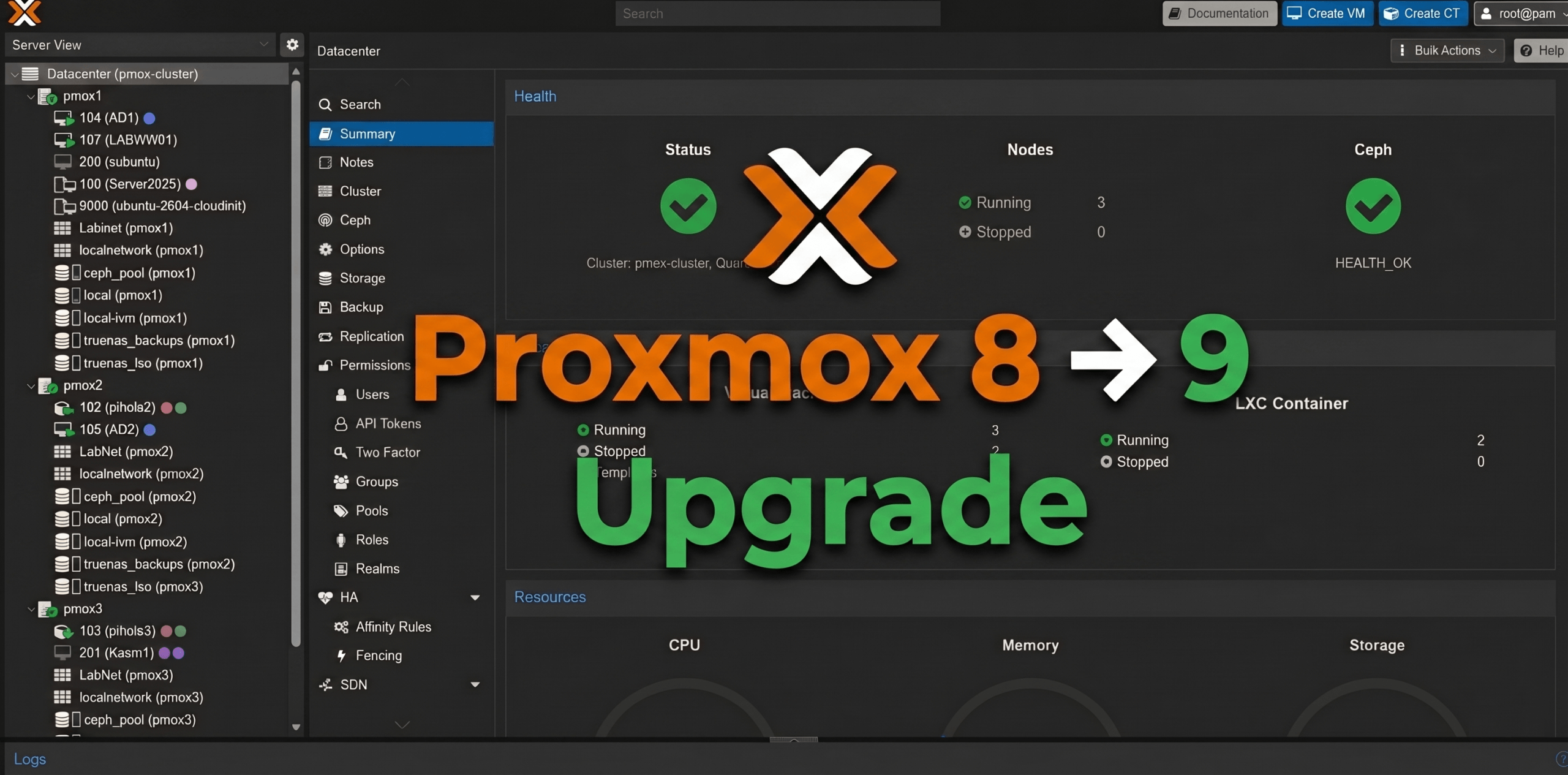
I’ll be honest — I’ve been putting this off for a while. Proxmox VE 9 dropped earlier this year, and every time I looked at the upgrade guide I thought “yeah, I’ll get to that.” This weekend I finally ran out of excuses and carved out some time to tackle it. Three nodes, a hyper-converged Ceph cluster, and a handful of HA-managed VMs. Nothing exotic, but enough moving parts to make it interesting. This post is meant to complement the official Proxmox upgrade documentation — not replace it. If you want the authoritative source, go there. What I’m documenting here is what the upgrade actually looked like in practice on a real homelab cluster, including the things pve8to9 flagged and how I resolved them. Why Upgrade to Proxmox VE 9? Before we get into the how, it’s worth covering the why. Proxmox VE 8 remains functional and receives security updates, but PVE 9 brings meaningful improvements across storage, networking, HA, and container management that make the upgrade worth doing — especially if you’re running any production-adjacent workloads. Debian 13 “Trixie” Foundation PVE 9.0 is built on Debian 13 “Trixie”, bringing a newer kernel (6.14.x in 9.0, jumping to 7.0 in 9.2), updated toolchains, and broader hardware support. QEMU jumps from 8.x to 10.x/11.x, LXC to 6.0.4, and ZFS to 2.3.3. If you’re running newer hardware …

Read more…

vSphere Thick Client End of Life – A Look at the HTML 5 Client Fling

On May 18th VMware announced the end of the road for the C# vSphere Thick Client. The next version of vSphere the thick client will not be available. VMware has been building up to this moment and previously announced they wanted to move to a web based client to have maximum compatibility and mobility. The current versions of the vSphere thick client will remain supported (5.5, 6.0) until their end of life cycle. So what does the future look like for the vSphere Client? VMware will keep the existing Flash web client and introduce the HTML5 based vSphere Client. The Flash web client will remain so third party developers can migrate their plugins over to the long term HTML5 client.

The HTML 5 Web Client Fling is available to download and install. It gives a fantastic view of how VMware envisions the new HTML 5 client. There are quite a few limitations in the current form but VMware will have the kinks worked out before it becomes the primary client. Below is how to deploy the v1.6 HTML 5 Client Fling and link to a VCSA:

Full installation instructions can be found here

Deploying the OVA:

Once the OVA is downloaded from the Fling website, login to your vSphere Web Client, right click on the Data Center, then click Deploy OVF Template:

1 HTML Fling - Deploy OVA

Read more…

VMware Horizon View 7: Instant Clone Desktop Pool [Part 8]

In Part 8 of this Boring series I will be setting up an Instant Clone Desktop Pool. This is one of the coolest features announced of Horizon 7 in my opinion! You may have heard of Project Fargo (aka vmFork) announced during the keynote speech of VMworld 2014. This is the result of that project! Instant Clone gives you the ability to rapidly deploy VMs (children) from a already powered on and running VM (parent). The child clones share the memory and disk of the parent for Reads while Writes are placed in a delta disk. To read more about Instant Clone technology check out this VMware Blog post.

vBoring Blog Series:

  1. VMware Horizon View 7: Deployment and Installation
  2. VMware Horizon View 7: Apply SSL Certificates
  3. VMware Horizon View 7: Create Events Database
  4. VMware Horizon View 7: Add Microsoft RDS Farm
  5. VMware Horizon View 7: Setup Remote Access through Security Server
  6. VMware Horizon View 7: Create Master Desktop Template
  7. VMware Horizon View 7: Automated Desktop Pool
  8. VMware Horizon View 7: Instant Clone Desktop Pool

Creating the Instant Clone Template:

For a guide to setup your Master Template follow my previous post: https://boring.wpengine.com/vmware-horizon-view-7-create-master-desktop-template/

There are a few additional stipulations that needs to be met:

  • Windows 7 and Windows 10 are the only supported operating systems for Instant Cloning
  • Only VSAN and VMFS datastores are supported; NFS and local storage are not allowed
  • Ensure your template is VM Hardware Version 11
  • When installing the Horizon View Agent, ensure you enabled the VMware Horizon Instant Clone option:
    • Horizon View 7 - Agent Install

Read more…

VMware Horizon View 7: Automated Desktop Pool [Part 7]

Part 7 of the series we will be creating a Automated Desktop Pool using Full Desktops.

vBoring Blog Series:

  1. VMware Horizon View 7: Deployment and Installation
  2. VMware Horizon View 7: Apply SSL Certificates
  3. VMware Horizon View 7: Create Events Database
  4. VMware Horizon View 7: Add Microsoft RDS Farm
  5. VMware Horizon View 7: Setup Remote Access through Security Server
  6. VMware Horizon View 7: Create Master Desktop Template
  7. VMware Horizon View 7: Automated Desktop Pool
  8. VMware Horizon View 7: Instant Clone Desktop Pool

Create Automated Desktop Pool:

To create a desktop pool login to the View Administrator Console, drill down to Catalog-> Desktop Pools -> then click Add:

Horizon View 7 - 1 Add Desktop Pool

Read more…

VMware Horizon View 7: Create Master Desktop Template [Part 6]

Part 6 of the series we will be creating a ‘golden’ master desktop template to use for our View Desktop pools. I will be creating a Windows 10 template but you could use any Windows version you wish!

vBoring Blog Series:

  1. VMware Horizon View 7: Deployment and Installation
  2. VMware Horizon View 7: Apply SSL Certificates
  3. VMware Horizon View 7: Create Events Database
  4. VMware Horizon View 7: Add Microsoft RDS Farm
  5. VMware Horizon View 7: Setup Remote Access through Security Server
  6. VMware Horizon View 7: Create Master Desktop Template
  7. VMware Horizon View 7: Automated Desktop Pool
  8. VMware Horizon View 7: Instant Clone Desktop Pool

Virtual Hardware:

When creating the VM shell ensure you have the following set:

  • For best performance ensure VMXNET3 is used for Network
    • Horizon View - Template Adapter Type VMXNET 3
  • For best performance ensure Paravirtual is used as SCSI controller type
    • Horizon View - Template SCSI Type Paravirtual
  • Enabled Memory and CPU Hot Add
    • Horizon View 7 - Enable Memory and CPU Hot Add

Read more…

VMware Horizon View 7: Setup Remote Access through Security Server [Part 5]

Part 5 of the series will be configuring the environment so Horizon View can be accessed remotely. There are some ports that need to be opened up on your firewall to the Security Server. As every environment is different I will show how my environment looks so you can mirror it.

vBoring Blog Series:

  1. VMware Horizon View 7: Deployment and Installation
  2. VMware Horizon View 7: Apply SSL Certificates
  3. VMware Horizon View 7: Create Events Database
  4. VMware Horizon View 7: Add Microsoft RDS Farm
  5. VMware Horizon View 7: Setup Remote Access through Security Server
  6. VMware Horizon View 7: Create Master Desktop Template
  7. VMware Horizon View 7: Automated Desktop Pool
  8. VMware Horizon View 7: Instant Clone Desktop Pool

Firewall Rules:

You need to have ports 443 (HTTPS), 8443 (Blast for HTML access), and 4172 (PCoIP) open externally for your Security Server.

Firewall Ports for View Security Server

Note: If your Security Server is in the DMZ use this VMware KB to open additional ports from your Security Server to your core network: VMware KB 1027217 – VMware View ports and network connectivity requirements 

Read more…

VMware Horizon View 7: Add Microsoft RDS Farm [Part 4]

In part 4 of the series we will be adding a existing Microsoft Remote Desktop Services farm to Horizon View 7. This enables RDS application to be published out using Horizon View 7 taking advantage of the PCoIP protocol, View Management, and creates a single pane of glass to access applications and virtual desktops.

vBoring Blog Series:

  1. VMware Horizon View 7: Deployment and Installation
  2. VMware Horizon View 7: Apply SSL Certificates
  3. VMware Horizon View 7: Create Events Database
  4. VMware Horizon View 7: Add Microsoft RDS Farm
  5. VMware Horizon View 7: Setup Remote Access through Security Server
  6. VMware Horizon View 7: Create Master Desktop Template
  7. VMware Horizon View 7: Automated Desktop Pool
  8. VMware Horizon View 7: Instant Clone Desktop Pool

If you wish to deploy a Microsoft RDS environment check out my post: Setup Remote Desktop Services in Windows Server 2012 R2

Remote Desktop Services Header

Add RDS Server to View 7 - 1 RDS Overview

Read more…

VMware Horizon View 7: Create Events Database [Part 3]

Part 3 of the series will be creating the Events database. Horizon View uses the events database as a repository to store logging information such as user connections. Microsoft SQL Server or Oracle database servers are supported. For my environment I will be using SQL Server 2014. This step can be skipped if you do not want to log these events.

vBoring Blog Series:

  1. VMware Horizon View 7: Deployment and Installation
  2. VMware Horizon View 7: Apply SSL Certificates
  3. VMware Horizon View 7: Create Events Database
  4. VMware Horizon View 7: Add Microsoft RDS Farm
  5. VMware Horizon View 7: Setup Remote Access through Security Server
  6. VMware Horizon View 7: Create Master Desktop Template
  7. VMware Horizon View 7: Automated Desktop Pool
  8. VMware Horizon View 7: Instant Clone Desktop Pool

Creating Events Database in SQL 2014:

First we need to create the database. Login to your SQL server, launch the SQL Server Management Studio, right click Database then click New Database:

Horizon View 7 - 1 Create New SQL Database

Read more…

VMware Horizon View 7: Deployment and Installation [Part 1]

VMware Horizon View enables users to access virtual desktops and applications through a single pane of glass. There have been many improvements added to the release of Horizon View 7 such as Blast Extreme protocol, Instant Clone, enhanced security and policy management. VMware Horizon 7 What’s New. In this blog series I will be going through installation and configuration of Horizon View 7 in my lab environment.

vBoring Blog Series:

  1. VMware Horizon View 7: Deployment and Installation
  2. VMware Horizon View 7: Apply SSL Certificates
  3. VMware Horizon View 7: Create Events Database
  4. VMware Horizon View 7: Add Microsoft RDS Farm
  5. VMware Horizon View 7: Setup Remote Access through Security Server
  6. VMware Horizon View 7: Create Master Desktop Template
  7. VMware Horizon View 7: Automated Desktop Pool
  8. VMware Horizon View 7: Instant Clone Desktop Pool
Horizon View Components

Read more…