
Updated October 2026: Corrected how Cloud-Init behaves when you change its settings on an existing VM, and added several build improvements based on reader feedback and retesting. See the changelog at the end of the post for details.
Ubuntu 26.04 LTS dropped last month, and instead of doing what I’d normally do — build a template, snapshot it, and slowly watch it age — I decided it was finally time to actually dig into Cloud-Init.
If you’ve built Proxmox templates before, you know the drill: create a VM, install the OS, install your packages, sysprep it, convert it to a template, and then clone it every time you need a new box. It works, but every clone inherits whatever state the template was in the day you built it. Packages drift. You’re manually cleaning up machine IDs and SSH host keys after every clone. Spin up ten VMs for a lab build and you’ve got ten rounds of post-boot cleanup ahead of you.
Cloud-Init sidesteps all of that. Instead of a fat, opinionated image, you start with a minimal cloud image — the same kind AWS, Azure, and GCP use under the hood. The image carries no fixed identity. When you clone it and boot it, Proxmox injects your config (username, SSH key, hostname, network settings) via a virtual CD-ROM drive, and Cloud-Init configures the VM from the inside on first boot. Clean machine ID, unique SSH host keys, fully configured — before you even open a terminal.
The real unlock is that your config is a YAML file. Want ten identical VMs? Same file, ten times. Want to add a package or a user? Edit the file. Your infrastructure becomes something you can version, reuse, and actually reason about — instead of a template you’re scared to touch because you don’t remember what’s in it.
That’s why I built this. Here’s exactly how I did it on Proxmox VE 9.2.3 with Ubuntu 26.04 LTS “Resolute Raccoon.” Still on Proxmox 8? I’d get the cluster current first — here’s how I upgraded my Proxmox cluster from version 8 to 9.
What is Cloud-Init, Actually?
Cloud-Init is the industry-standard first-boot initialization system for cloud images. Instead of manually clicking through an Ubuntu installer and then scrubbing machine IDs and SSH host keys from the image, you start with a pre-built minimal “cloud image” designed to be generic and stateless.
When you clone it and boot it, Cloud-Init reads a small config — hostname, username, SSH key, network settings — that Proxmox injects via a virtual CD-ROM drive. The VM configures itself automatically in seconds. No manual post-boot setup, no configuration drift, no forgotten hostname changes causing weird network issues two weeks later.
One important thing to understand upfront: Cloud-Init’s setup runs once per instance, not on every boot. The Cloud-Init service starts each time the VM boots, but the real work only happens when it sees a new instance. That work includes creating your user, installing your SSH key, generating SSH host keys, applying network settings, and upgrading packages. Proxmox builds the instance ID from the user and network settings in the Cloud-Init tab. Leave those alone, and a reboot doesn’t pull fresh packages or re-apply anything. Change them, regenerate the image, and reboot, and Cloud-Init treats the VM as brand new and runs its setup again. If you want a fresh, fully updated machine, the workflow is to clone the template again, not reboot an existing one. That distinction shapes everything about how you operate day-to-day with Cloud-Init.
Why Shared Storage Changes the Storage Decision
On a single node, local-lvm is fine. On a cluster, it creates a real problem: the template only exists on the node you built it on. Clones default to that same node’s local storage, which means no live migration without offline disk moves, no HA eligibility, and you’d need a copy of the template on every node if you want flexibility.
Storing the template on shared storage (I’m using Ceph) solves all of this. Any node can clone directly from it, clones live on shared storage by default, and those VMs are immediately eligible for live migration and Proxmox HA — no extra configuration needed. On a single node, local-lvm is a solid choice; NFS, CIFS, or a directory-backed share are also valid where configured. The commands below use ceph_pool as an example storage ID, but the disk volume ID printed by qm importdisk is backend-specific—copy it exactly rather than replacing only the storage name. (The one-command shortcut after Step 6 handles this for you.)
The Walkthrough
What you’ll need: Proxmox VE (I’m on 9.2.3, kernel 7.0.6-2-pve), a configured Ceph pool or shared storage, SSH access to a node, and about 10 minutes.
Step 1: Download the Ubuntu 26.04 Cloud Image
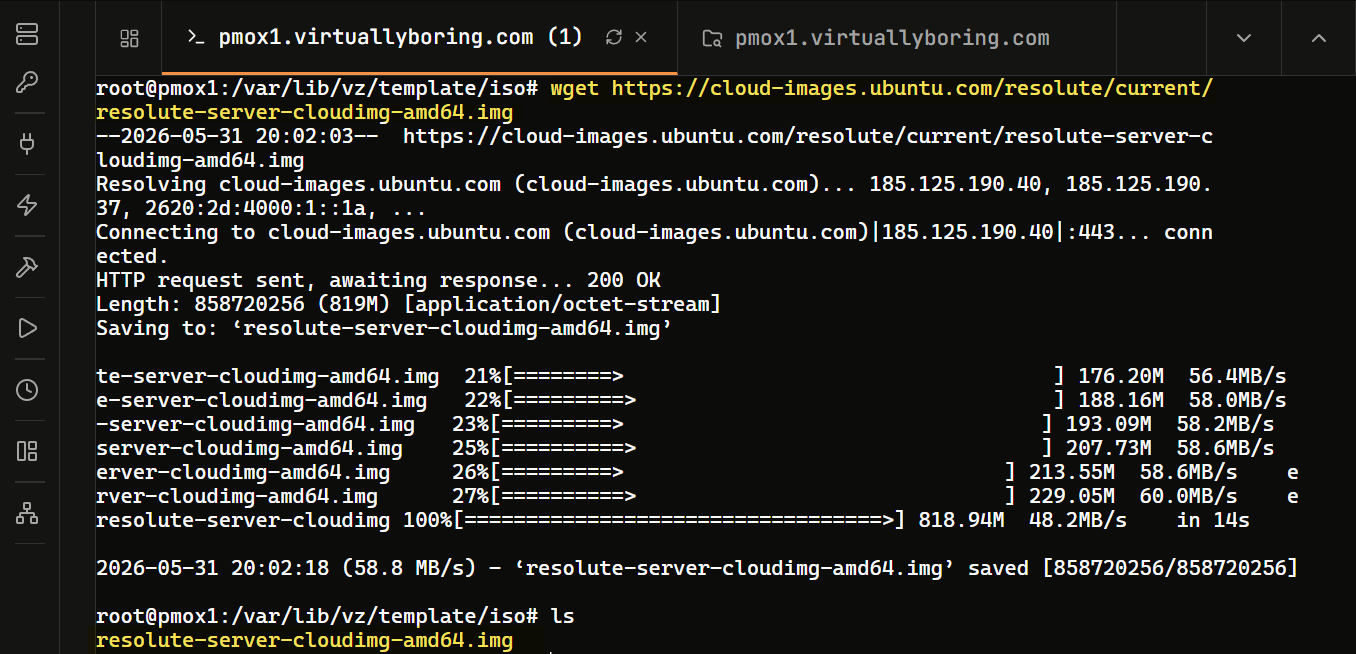
SSH into your Proxmox node and grab the official image:
cd /var/lib/vz/template/iso/
wget https://cloud-images.ubuntu.com/resolute/current/resolute-server-cloudimg-amd64.imgCode language: JavaScript (javascript)
Verify it landed with ls -lh resolute-server-cloudimg-amd64.img — you should see around 819M. This is a minimal server image: no desktop, no extras.
Before going further, verify the download against the checksum file Ubuntu publishes next to the image:
wget https://cloud-images.ubuntu.com/resolute/current/SHA256SUMS
sha256sum --ignore-missing -c SHA256SUMSCode language: JavaScript (javascript)
You should see resolute-server-cloudimg-amd64.img: OK. If it fails, delete the image and download it again. Grab both files at the same time, since current moves whenever Ubuntu publishes a new build.
Step 2: Inject the QEMU Guest Agent
Ubuntu cloud images ship intentionally lean. The QEMU Guest Agent — which lets Proxmox read the VM’s IP address and send clean shutdown signals from the UI — isn’t included. We inject it directly into the image file before the VM ever boots using virt-customize.
Install the tool:
apt update && apt install -y libguestfs-tools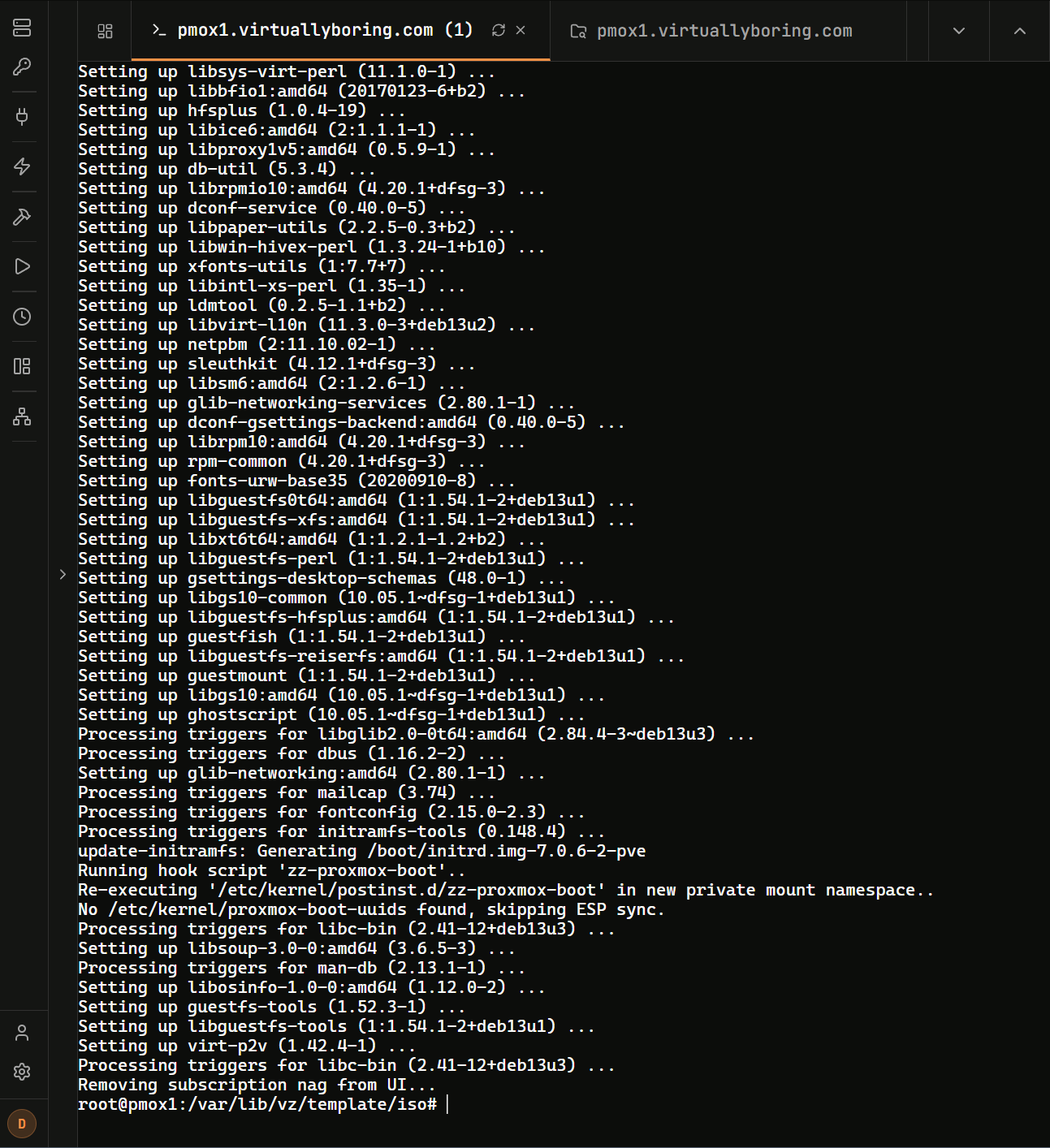
Then inject the agent:
virt-customize -a resolute-server-cloudimg-amd64.img --install qemu-guest-agent --truncate /etc/machine-id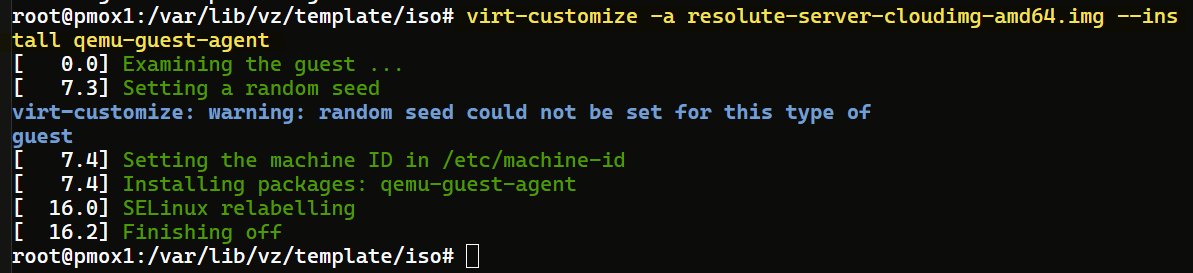
You’ll see a timestamped log as it works. The random seed warning is harmless — cloud images don’t persist a seed by design. What matters: Installing packages: qemu-guest-agent, Truncating: /etc/machine-id, and Finishing off.
Why the truncate? Installing packages with virt-customize writes a machine ID into the image as a side effect, so every clone would boot with the same one. I confirmed this on my own template: two clones reported identical machine IDs. Depending on your DHCP server, that can hand clones the same lease. Anything that identifies hosts by machine ID, like logging and monitoring agents, will also see them as one machine. Truncating leaves the file empty, which tells systemd to generate a fresh ID on each clone’s first boot. Confirm it worked; this should print nothing:
virt-cat -a resolute-server-cloudimg-amd64.img /etc/machine-idStep 3: Create the VM Shell
Build an empty hardware profile — chassis only, no OS yet:
qm create 9000 --name "ubuntu-2604-cloudinit" --memory 2048 --cores 2 --cpu host --net0 virtio,bridge=vmbr0Code language: JavaScript (javascript)
VM ID 9000 keeps this in the template range (9000+), visually separated from runtime VMs in the sidebar. Silent return means success.
Set the CPU type explicitly. When you create a VM from the CLI without --cpu, Proxmox falls back to the legacy kvm64 model, which hides newer instructions like SSE4.2 and AES-NI from the guest. The web UI defaults to x86-64-v2-AES, but qm create doesn’t. My nodes have identical CPUs, so I use host, which passes the full CPU feature set through. If your cluster mixes CPU generations, use x86-64-v2-AES instead, because host VMs can only live-migrate between nodes with matching CPUs.
Step 4: Import and Attach the Disk
Import the cloud image into your Ceph pool:
qm importdisk 9000 resolute-server-cloudimg-amd64.img ceph_poolCode language: CSS (css)Not using Ceph? Use your storage ID in place of
ceph_pool(for example,local-lvmor an NFS/CIFS/directory-backed store). The disk name returned by the import is backend-specific: copy the complete volume ID from the success message into the attach command below. A directory-backed share can returntruenas_vm:9000/vm-9000-disk-0.raw, rather than the Ceph-styleceph_pool:vm-9000-disk-0.
The image expands from its compressed 819MB to 3.5GB on Ceph — that’s the actual provisioned size. When complete:
unused0: successfully imported disk 'ceph_pool:vm-9000-disk-0'Code language: JavaScript (javascript)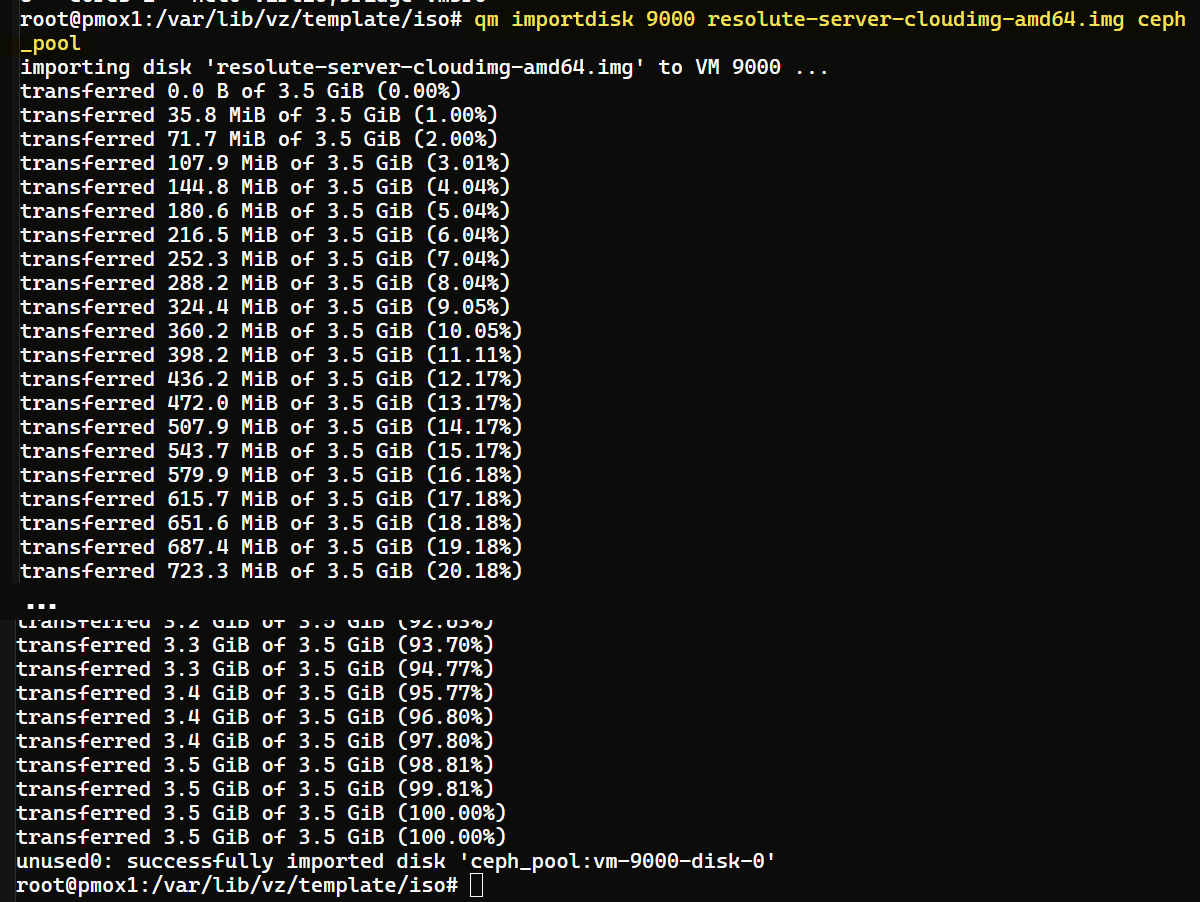
Now attach it on a VirtIO SCSI controller — the highest-performance option, and what Ubuntu cloud images expect:
qm set 9000 --scsihw virtio-scsi-pci --scsi0 ceph_pool:vm-9000-disk-0,discard=on,ssd=1Code language: JavaScript (javascript)For non-Ceph storage: do not replace only
ceph_poolin the command above. Attach the exact volume ID printed byqm importdisk. For example:qm set 9000 --scsihw virtio-scsi-pci --scsi0 truenas_vm:9000/vm-9000-disk-0.raw,discard=on,ssd=1.

discard=on passes the guest’s TRIM requests through to Ceph, so space freed inside the VM goes back to the pool. Ubuntu runs fstrim weekly by default. ssd=1 tells the guest it’s on solid-state storage.
Next, grow the disk. At 3.5GB, there isn’t enough free space for the package upgrade Proxmox runs on each clone’s first boot. In my retesting, that upgrade failed with “not enough free space” and Cloud-Init finished with an error. Give the template room now so every clone starts with it:
qm disk resize 9000 scsi0 10GOn Ceph the extra space is thin-provisioned, so it costs nothing until it’s used. You can still grow individual clones later; see Day Two.
Step 5: Add the Cloud-Init Drive
This is what makes the whole thing work — a virtual CD-ROM that Proxmox uses to pass your first-boot config into the VM:
qm set 9000 --ide2 ceph_pool:cloudinitCode language: JavaScript (javascript)Not using Ceph? Replace
ceph_poolhere with the storage ID you selected for the template disk—for example,qm set 9000 --ide2 local-lvm:cloudinit. Unlike the imported OS disk, this command creates the new Cloud-Init volume, so it uses the storage ID plus:cloudinit.

Proxmox immediately generates a blank Cloud-Init ISO. Each clone you create gets its own copy, populated with whatever config you set in the Cloud-Init tab.
Step 6: Boot Order, Serial Console & QEMU Agent
Three quick settings, each with a specific reason:
qm set 9000 --boot order=scsi0
qm set 9000 --agent enabled=1
qm set 9000 --serial0 socket --vga serial0Code language: JavaScript (javascript)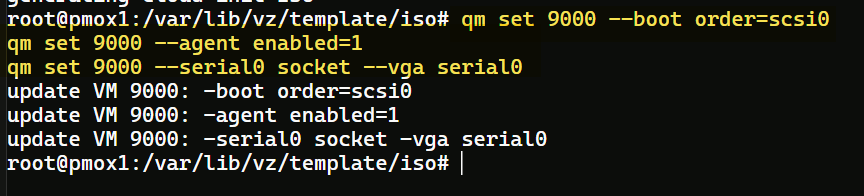
--boot order=scsi0— boot from disk, not the CD-ROM--agent enabled=1— tells Proxmox to talk to the guest agent we injected--serial0 socket --vga serial0— redirects console output to a serial socket; skip this and you’ll get a black screen in the web console because cloud kernels don’t load VGA drivers
Optional: set Cloud-Init defaults on the template. Clones inherit the template’s Cloud-Init settings, so you can set the common ones once and only change what differs per VM:
qm set 9000 --ciuser daniel --sshkeys /root/.ssh/template_keys.pub --ipconfig0 ip=dhcpCode language: JavaScript (javascript)Swap in your own username. --sshkeys takes a file containing one or more public keys. If you also want a console password (see Step 8), set it in the template’s Cloud-Init tab rather than on the command line, so it stays out of your shell history. Every clone shares it, which is fine for a lab.
Shortcut: Steps 3–6 in one command. If you’d rather skip the individual steps, this creates the VM, imports and attaches the disk, and applies every setting above in one go:
qm create 9000 --name ubuntu-2604-cloudinit --memory 2048 --cores 2 --cpu host --net0 virtio,bridge=vmbr0 --scsihw virtio-scsi-pci --scsi0 ceph_pool:0,import-from=/var/lib/vz/template/iso/resolute-server-cloudimg-amd64.img,discard=on,ssd=1 --ide2 ceph_pool:cloudinit --boot order=scsi0 --agent enabled=1 --serial0 socket --vga serial0
qm disk resize 9000 scsi0 10GCode language: JavaScript (javascript)
import-fromhandles the import and attach together, so there’s no volume ID to copy. On other storage, replaceceph_poolin both places. The image path must be absolute.
Step 7: Convert to Template
qm template 9000
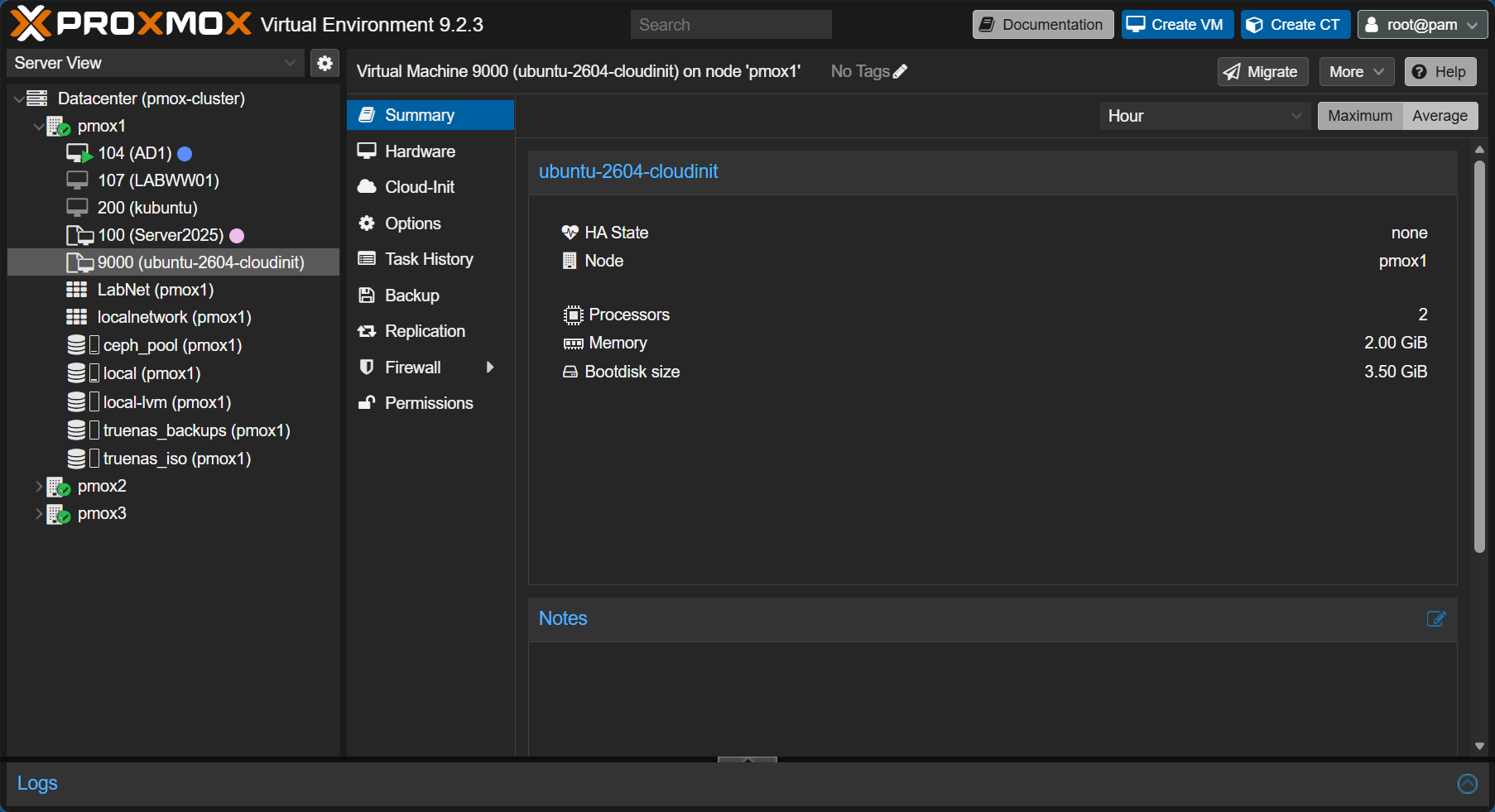
Because the disk lives on Ceph, Proxmox snapshots it before locking — you’ll see Creating snap: 100% complete. That’s a shared storage bonus. VM 9000 now shows the stacked-pages template icon in the UI. Read-only from here — clone it to make VMs, never edit the template directly.
Step 8: Clone, Configure, Boot
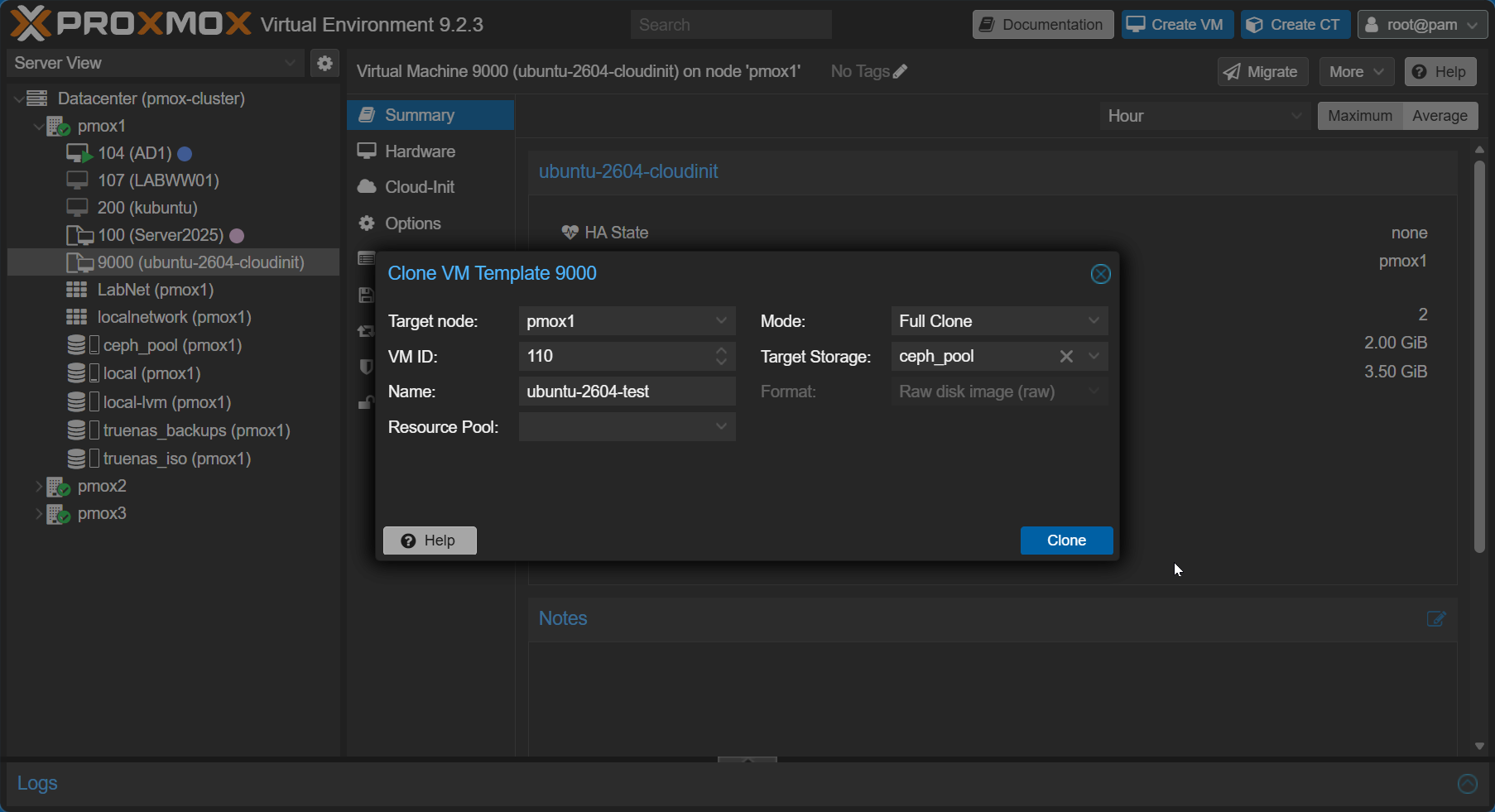
Right-click VM 9000 then Clone. Set mode to Full Clone, assign an ID and name, target ceph_pool for storage.
Not using Ceph? Choose the local or shared storage configured for your environment instead. The storage target governs where the full clone is created and whether it can be live-migrated or made HA-eligible.
On the new VM, open the Cloud-Init tab. If you set template defaults, they’re already filled in, so change only what differs. Otherwise, fill in your user, SSH public key, a password, and IP config. Then hit Regenerate Image before starting.
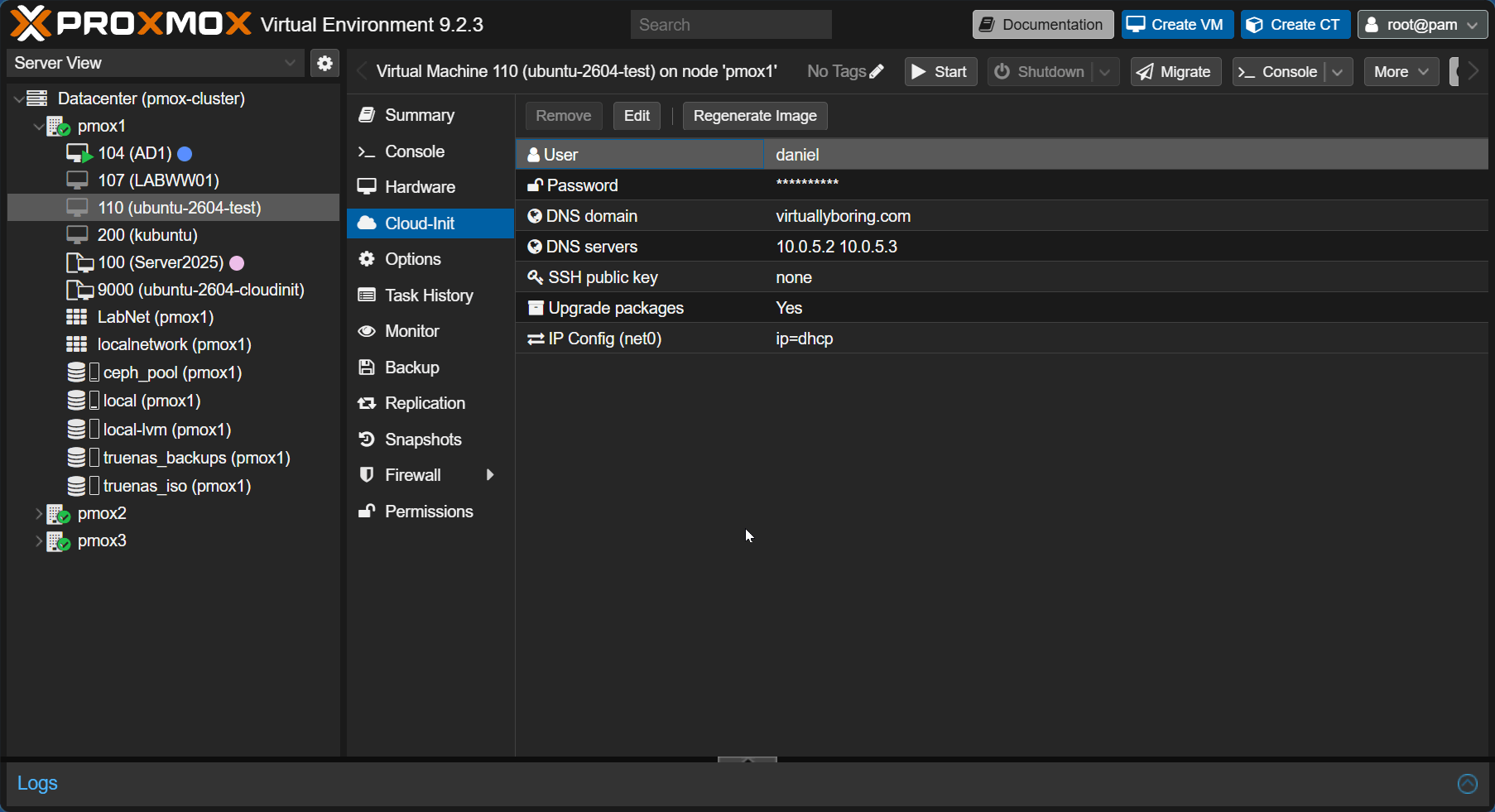
One thing I ran into: I initially tried username and password only, no SSH key. Ubuntu cloud images disable SSH password authentication by default, so even with a valid password, SSH rejects the connection. Use an SSH key for SSH. Still set a password, though, because the Proxmox web console can’t use your key. On Windows, generate a key in PowerShell:
ssh-keygen -t ed25519 -C "[email protected]"
cat $HOME/.ssh/id_ed25519.pubCode language: PHP (php)
Paste the .pub output into the Cloud-Init SSH key field, regenerate, and you’re good.
First boot can take a few minutes while the package upgrade runs. Once the guest agent checks in, the IP appears on the Summary tab and you can SSH straight in.
To use the Proxmox web console, click inside the Console tab, press Enter for the login prompt, and log in with the password from the Cloud-Init tab. Ubuntu cloud images start a serial login on the console automatically, so there’s nothing to enable inside the VM.
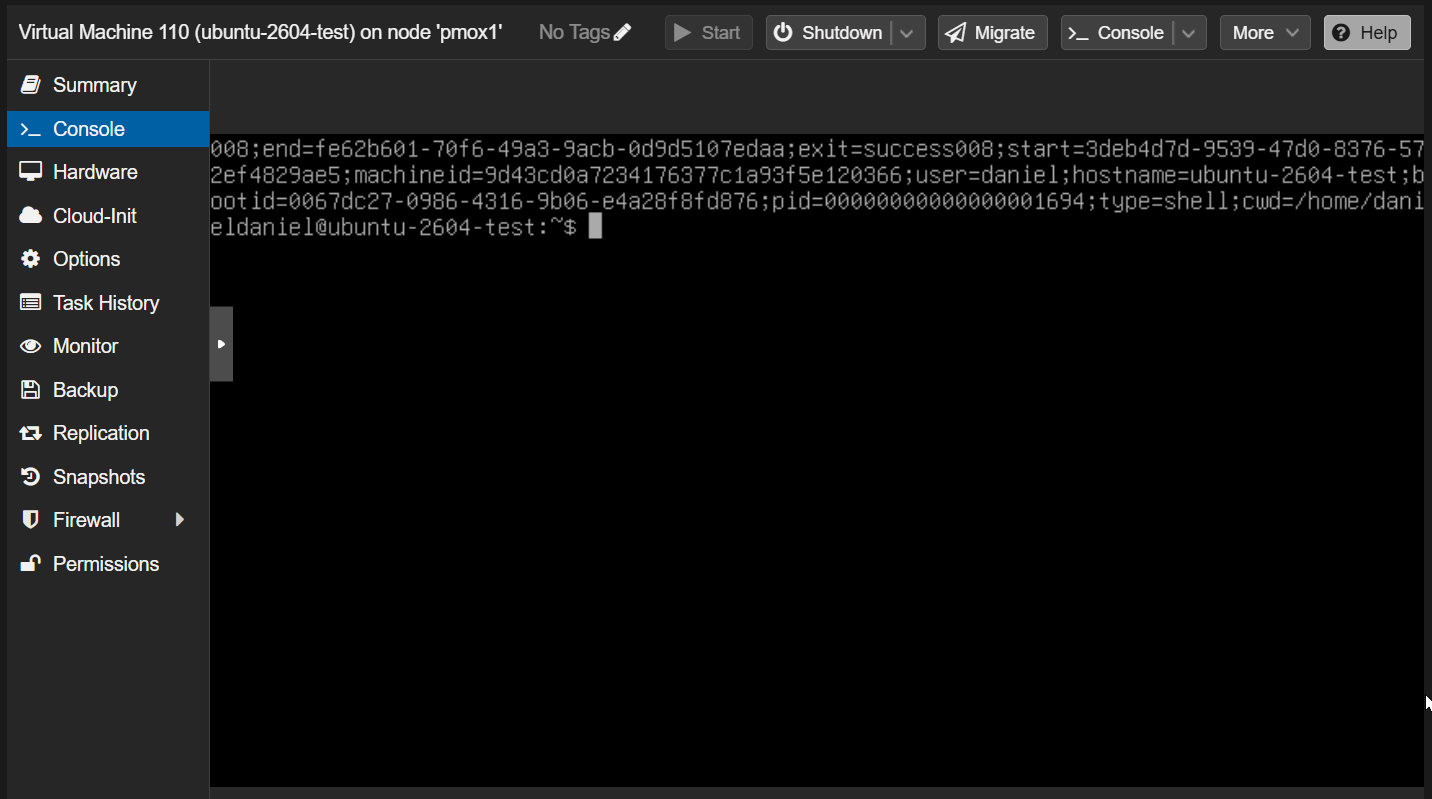
Important: Treat the Cloud-Init tab as the VM’s birth certificate. If you change the username, SSH key, or IP settings on an existing VM and regenerate the image, Cloud-Init sees a new instance ID on the next boot and runs its setup again. Your changes apply, but the VM also gets new SSH host keys (expect a host-key warning on your next SSH connection). It may also run another package upgrade, and it can even rename its network interface; I saw
ens18becomeeth0in testing. That can be handy for a quick IP change, but it’s easy to trigger by accident. If you need a VM with different settings, clone fresh. That’s the workflow.
Day Two Operations
The template is built — now what? Here are the operations you’ll actually use on a regular basis.
- Resize the disk before first boot. The template disk is 10GB (Step 4), which covers the OS and its first-boot upgrade. If a VM needs more, resize the clone before you start it: Hardware → Disk Action → Resize, and add what you need (e.g. +30G). Cloud-Init grows the root partition and filesystem at boot. That check runs on every boot, so if you grow the disk on a running VM later, the extra space is picked up at the next reboot. No manual
growpartorresize2fsrequired. - Destroy and re-clone instead of patching. This is the mindset shift Cloud-Init enables. VM misbehaving or drifted from a known state? Don’t troubleshoot it — destroy it, clone a fresh one, and you’re back in 30 seconds. This is “cattle not pets” in practice.
This works cleanly when your VM is stateless — a web server, reverse proxy, monitoring agent, or any service where the app is just a binary and config that gets re-deployed from a repo or user-data script. Nothing precious lives on the disk, so nothing is lost.
If your VM has persistent data — a database, file storage, app state — you’d keep that on a separate attached disk that isn’t part of the Cloud-Init template. The VM disk stays ephemeral (OS + app binaries), and the data disk survives independently when you destroy and recreate the VM. In Proxmox, that’s just a second disk attached to the clone after it’s created.
- Use vendor-data snippets for a reusable baseline.
Proxmox already generates Cloud-Init user-data from the username, SSH key, password, DNS, and IP settings in the Cloud-Init tab. A custom
user=file replaces that generated data. For a baseline that should run alongside the settings from the UI, attach the snippet asvendor=instead.Choose where the snippet lives. Local storage is fine for a single-node system or a VM pinned to one node. If clones can migrate or use HA, put the snippet on shared storage that every node can reach. This cluster uses the shared TrueNAS NFS storage named
truenas_vm.First enable the Snippets content type: Datacenter → Storage → select truenas_vm → Edit → Content → Snippets. Keep the existing content types selected when you add it.
Open a shell on any healthy Proxmox node and confirm that the shared storage is active:
pvesm status --storage truenas_vmCreate the snippets directory and the vendor-data file:
mkdir -p /mnt/pve/truenas_vm/snippets
nano /mnt/pve/truenas_vm/snippets/vendor-data.yaml
Proxmox already handles package upgrades. Its
ciupgradeoption (Upgrade packages in the Cloud-Init tab) is on by default and addspackage_upgrade: trueto the generated user-data, so the baseline doesn’t need to repeat it. For faster first boots,qm set 9000 --ciupgrade 0turns it off. Clones then start with whatever packages the template image had, so pair that with the scheduled rebuild in item 5.Start with this baseline:
#cloud-config
package_reboot_if_required: true
timezone: America/Chicago
packages:
  - curl
  - htop
There’s no
runcmdblock: the guest agent and the serial console login both start on their own.Save the file, then make sure Proxmox sees it:
pvesm list truenas_vm --content snippetsThe output should include
truenas_vm:snippets/vendor-data.yaml.Check before attaching it. The next command assumes the template does not already have a custom Cloud-Init file. Check VM 9000 first:
qm config 9000 | grep -E '^(name|template|cicustom):'If a
cicustom:line already exists, preserve every value on that line when you addvendor=. Runningqm set --cicustomwith only the new value replaces the entire property.With no existing
cicustomvalue, attach the shared vendor-data file and verify the result:qm set 9000 --cicustom "vendor=truenas_vm:snippets/vendor-data.yaml" qm config 9000 | grep '^cicustom:'The result should be:
cicustom: vendor=truenas_vm:snippets/vendor-data.yamlFor a single-node installation using the default
localstorage, place the YAML in/var/lib/vz/snippets/and usevendor=local:snippets/vendor-data.yaml.Test with a fresh clone. Cloud-Init runs per instance, so an existing VM will not test a changed snippet. Clone the template, fill in (or confirm) the username, SSH key, password, and network settings in the Cloud-Init tab, regenerate the image, and boot it. Proxmox’s package upgrade can make this first boot take several minutes, and
package_reboot_if_required: truemay reboot the VM once.After the clone is reachable, check Cloud-Init and confirm the baseline applied:
cloud-init status --wait
cloud-init status --long
timedatectl show -p Timezone
command -v curl htop
The Proxmox username and SSH key should still work because the snippet is vendor-data rather than replacement user-data, and the web console should present a login prompt as usual.
Once the baseline works, you can extend it with firewall rules, Docker, monitoring agents, or other role-specific setup. Keep credentials, API tokens, and private keys out of snippets. The Cloud-Init drive is readable from inside the guest.
After first boot, leave the Cloud-Init pieces in place. Keep the Cloud-Init drive attached and keep the referenced YAML file on shared storage. Cloud-Init records that it completed, so it will not repeat the per-instance setup during a normal reboot, as long as the Cloud-Init tab’s user and network settings stay the same (see the note at the end of Step 8). Do not run
cloud-init cleanor delete/var/lib/cloudunless you deliberately want Cloud-Init to treat the VM as a new instance.Treat a snippet that deployed VMs reference as immutable. In this example,
vendor-data.yamlis the first version. For the next change, copy it to a new name such asvendor-data-v2.yaml, test that file with a disposable clone, and then update the template. Do not edit or delete the old file while existing VMs still reference it. - Pair it with Ansible to configure apps automatically. Once your Cloud-Init VM is booted and SSH is ready, Ansible can take over and configure whatever you need — no manual steps, no drift. This is where the two tools complement each other perfectly: Cloud-Init handles the OS identity and base setup, Ansible handles the app layer.
You can run Ansible centrally from an admin workstation after the clone is reachable, or let a clone bootstrap itself on first boot with
ansible-pull. For the self-bootstrap pattern, addansibleto the role’spackageslist and add a versioned repository command toruncmd:runcmd: - ansible-pull -U https://github.com/your-org/homelab-ansible.git -i localhost, playbooks/web.ymlUse a public repository or a properly managed deploy credential; never put an access token or private key in user-data or vendor-data. Here’s a practical example — deploying Nginx onto a freshly cloned VM. Start with an inventory file pointing at your VM’s IP (the one that showed up in the Proxmox Summary tab after first boot):
# inventory.yml
all:
  hosts:
    web01:
      ansible_host: 10.0.5.100
      ansible_user: daniel
      ansible_ssh_private_key_file: ~/.ssh/id_ed25519
Then a playbook to install and configure the app:
# deploy-nginx.yml
---
- name: Deploy Nginx web server
  hosts: all
  become: true

  vars:
    site_name: my-lab-app

  tasks:
    - name: Install Nginx
      apt:
        name: nginx
        state: present
        update_cache: yes

    - name: Write site config
      copy:
        dest: /etc/nginx/sites-available/{{ site_name }}
        content: |
          server {
            listen 80;
            server_name _;
            root /var/www/{{ site_name }};
            index index.html;
          }
      notify: Reload Nginx

    - name: Enable site
      file:
        src: /etc/nginx/sites-available/{{ site_name }}
        dest: /etc/nginx/sites-enabled/{{ site_name }}
        state: link

    - name: Create web root
      file:
        path: /var/www/{{ site_name }}
        state: directory

    - name: Deploy index page
      copy:
        dest: /var/www/{{ site_name }}/index.html
        content: "<h1>Deployed via Ansible from Cloud-Init template</h1>"

    - name: Ensure Nginx is running
      service:
        name: nginx
        state: started
        enabled: yes

  handlers:
    - name: Reload Nginx
      service:
        name: nginx
        state: reloaded
Run it with:
ansible-playbook -i inventory.yml deploy-nginx.ymlThis works out of the box because Cloud-Init already created your user and installed your SSH key — Ansible has everything it needs to connect. Swap Nginx for any app, and the pattern is the same: Cloud-Init provisions the VM, Ansible configures what runs on it.
- Rebuild the template on a schedule.
The template ages like any other. Ubuntu’s
currentimage keeps moving, and withciupgradeon, every week of drift means a longer upgrade on each clone’s first boot. Every step in this post is scriptable, so rebuilding takes one command. Run it on one node; shared storage makes the result available to the whole cluster:#!/usr/bin/env bash # rebuild-ubuntu-2604-template.sh: rebuild template 9000 from the current Ubuntu cloud image set -euo pipefail VMID=9000 NAME=ubuntu-2604-cloudinit STORAGE=ceph_pool SNIPPET="vendor=truenas_vm:snippets/vendor-data.yaml" BASE=https://cloud-images.ubuntu.com/resolute/current IMG=resolute-server-cloudimg-amd64.img WORK=/var/lib/vz/template/iso cd "$WORK" rm -f "$IMG" SHA256SUMS wget -q "$BASE/$IMG" "$BASE/SHA256SUMS" sha256sum --ignore-missing -c SHA256SUMS virt-customize -a "$IMG" --install qemu-guest-agent --truncate /etc/machine-id if qm status "$VMID" &>/dev/null; then qm destroy "$VMID" fi qm create "$VMID" --name "$NAME" --memory 2048 --cores 2 --cpu host --net0 virtio,bridge=vmbr0 --scsihw virtio-scsi-pci --scsi0 "$STORAGE:0,import-from=$WORK/$IMG,discard=on,ssd=1" --ide2 "$STORAGE:cloudinit" --boot order=scsi0 --agent enabled=1 --serial0 socket --vga serial0 --cicustom "$SNIPPET" qm disk resize "$VMID" scsi0 10G # Optional template defaults (see Step 6) qm set "$VMID" --ciuser daniel --sshkeys /root/.ssh/template_keys.pub --ipconfig0 ip=dhcp qm template "$VMID"Run it monthly from cron or a systemd timer. The script deletes the old image before downloading, so each run starts from a clean copy instead of re-customizing last month’s file. If the checksum doesn’t match, the script stops before touching the template.
qm destroyfails if linked clones still depend on the template. The full clones used in this post don’t. Drop the optional defaults line if you don’t use template defaults. The console password isn’t in the script, so set it again in the template’s Cloud-Init tab after each rebuild.
What’s Next
Template done — Ubuntu 26.04 LTS on Ceph, any node in the cluster can clone from it, every clone is live-migratable and HA-eligible out of the box. The first thing I’m deploying from it is Hermes Agent — and having a clean, repeatable Cloud-Init base to start from makes that setup a whole lot cleaner. I’ll cover that next.
Changelog
October 6, 2026: Corrections and improvements from reader feedback and retesting. Thanks to Giorgi for the detailed review.
- Corrected how Cloud-Init behaves on Proxmox: changing the Cloud-Init tab settings and rebooting re-runs first-boot setup. Updated the explanation, the Step 8 callout, and the Day Two notes.
- Step 1: added SHA256 checksum verification.
- Step 2: truncate
/etc/machine-idaftervirt-customizeso clones don’t share a machine ID. - Step 3: set the CPU type explicitly.
- Step 4: enabled discard and SSD emulation, and grew the template disk to 10GB so the first-boot upgrade has room.
- Step 6: added optional template-level Cloud-Init defaults and a one-command shortcut for Steps 3–6.
- Step 8: set a password for console login, removed the manual serial console step, and fixed the Windows key path.
- Day Two: removed vendor-data settings Proxmox already handles, updated the baseline and its checks, and added a template rebuild script.
- Fixed formatting issues.
August 2026: Added the Day Two snippet section, then switched it from user-data to vendor-data so it no longer replaces the username, SSH key, and network settings from the Cloud-Init tab.
May 31, 2026: Originally published.
What’s actually wrong:
* The “Cloud-Init only runs once” callout is incorrect for Proxmox. Cloud-init runs on every boot.
* The vendor-data baseline duplicates what Proxmox already does. Proxmox’s ciupgrade option defaults to on, which adds package_upgrade: true to the generated user-data unless you explicitly disable it. The snippet’s upgrade lines are redundant. If you want faster first boots, the fix is –ciupgrade 0 plus a fresher template.
* The serial console needs a password to log in.
Improvements:
* No checksum check. Ubuntu publishes SHA256SUMS next to the image, and the guide never verifies against it.
* No machine-id safeguard. Nothing confirms /etc/machine-id is still empty after running virt-customize on the image. Clones getting the same DHCP address is a recurring Proxmox forum problem, because Linux usually identifies itself to the DHCP server by machine ID. Adding –truncate /etc/machine-id costs nothing.
* Old CPU type. qm create without –cpu falls back to the legacy kvm64 model. The x86-64-v2-AES default only applies to VMs created in the web UI.
* No discard=on. On Ceph without it, space freed inside the guest never returns to the pool.
Doing it more efficiently
* Steps 3–6 collapse into a single command.
* Put defaults on the template. Set the user, SSH keys, ipconfig0=dhcp and a realistic disk size once on the template. Clones inherit them, so you only override what differs instead of filling in the Cloud-Init tab every time.
* Script it and rebuild on a schedule. The intro’s complaint about templates aging applies here too. The current image keeps moving, and every week of drift means a longer upgrade on each clone’s first boot. Here’s the whole build as one re-runnable script:
Hi Giorgi!! Thanks for taking the time to write this up! You were right on nearly every point, especially the “Cloud-Init only runs once” claim. On Proxmox, changing the Cloud-Init settings and rebooting really does re-run the setup, and I’ve corrected that throughout the post.
Retesting also turned up a couple of things I’d missed: the 3.5GB disk was too small for the first-boot package upgrade, and the manual serial console step turned out to be unnecessary.
The post now includes checksum verification, the machine-ID fix, an explicit CPU type, discard on the disk, a one-command option for Steps 3–6, template-level defaults, and a rebuild script. Everything is listed in the changelog at the bottom. Appreciate the detailed feedback!!