
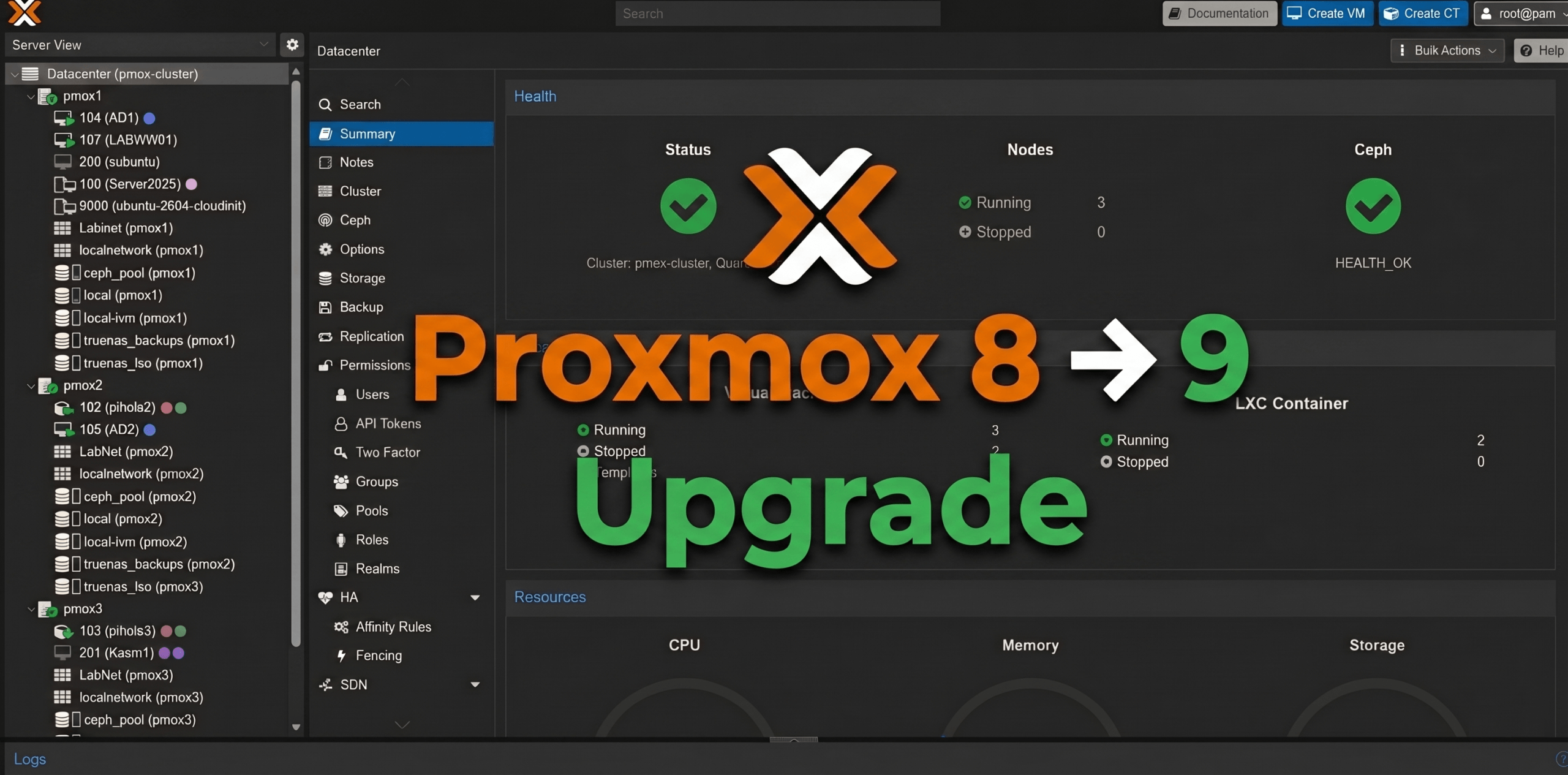
I’ll be honest — I’ve been putting this off for a while.
Proxmox VE 9 dropped earlier this year, and every time I looked at the upgrade guide I thought “yeah, I’ll get to that.” This weekend I finally ran out of excuses and carved out some time to tackle it. Three nodes, a hyper-converged Ceph cluster, and a handful of HA-managed VMs. Nothing exotic, but enough moving parts to make it interesting.
This post is meant to complement the official Proxmox upgrade documentation — not replace it. If you want the authoritative source, go there. What I’m documenting here is what the upgrade actually looked like in practice on a real homelab cluster, including the things pve8to9 flagged and how I resolved them.
Why Upgrade to Proxmox VE 9?
Before we get into the how, it’s worth covering the why. Proxmox VE 8 remains functional and receives security updates, but PVE 9 brings meaningful improvements across storage, networking, HA, and container management that make the upgrade worth doing — especially if you’re running any production-adjacent workloads.
Debian 13 “Trixie” Foundation
PVE 9.0 is built on Debian 13 “Trixie”, bringing a newer kernel (6.14.x in 9.0, jumping to 7.0 in 9.2), updated toolchains, and broader hardware support. QEMU jumps from 8.x to 10.x/11.x, LXC to 6.0.4, and ZFS to 2.3.3. If you’re running newer hardware — particularly recent Intel or AMD platforms — the kernel and QEMU updates alone can have a noticeable impact on performance and compatibility.
Snapshots for Thick-Provisioned LVM Shared Storage
This was the most requested enterprise feature for years. If you’re running VMs on iSCSI or Fibre Channel-backed SAN storage with thick-provisioned LVM, PVE 9 finally brings snapshot support to those environments. Snapshots are implemented as volume chains — incremental differences from the parent — giving you storage-independent snapshot capability without needing vendor-specific integrations. NFS and CIFS storages also benefit from volume chain snapshots in this release.
HA Affinity Rules Replace the Old Groups Model
The HA configuration model got a significant rework. The old “groups” approach is replaced with proper affinity rules — two kinds: node affinity rules that pin or prefer VMs to specific nodes, and resource affinity rules that keep related guests together (or force them apart for redundancy). This means you can now express real cluster topology constraints — keep an app server and its database co-located to reduce latency, or force multiple replicas of the same service onto different nodes for fault tolerance.
SDN Fabrics for Complex Routed Networks
PVE 9.0 introduces SDN Fabrics, which simplifies the configuration of dynamically routed networks using OpenFabric or OSPF. This is aimed at spine-leaf architectures — multi-path routing between nodes with automatic NIC failover. It’s also the recommended underlay for EVPN and full-mesh Ceph networks. PVE 9.1 builds on this with enhanced GUI visibility: the interface now shows all guests connected to bridges/VNets, learned IP/MAC addresses in EVPN zones, routes, neighbors, and interfaces — all without touching the CLI.
OCI Container Support (9.1)
PVE 9.1 adds support for Open Container Initiative (OCI) images as LXC templates. You can pull images directly from container registries or upload them manually, then provision them as either full system containers or lean application containers. This is a big deal if you have existing Docker-based build pipelines — it opens a path to running those workloads as LXC containers without repackaging them as Proxmox templates.
vTPM Snapshots and Nested Virtualization (9.1)
Two improvements that matter specifically for Windows workloads: PVE 9.1 can now store vTPM state in qcow2 format, which means you can take full VM snapshots even when a vTPM is active — previously a blocker for Windows 11 and Server 2025 VMs on NFS/CIFS storage. On top of that, nested virtualization gets finer-grained control via a new vCPU flag, which is useful for Windows environments running Virtualization-based Security (VBS) or Hyper-V.
The bottom line: if you’re running PVE 8, you’re not in a broken state, but you are missing meaningful improvements in storage flexibility, HA control, and Windows VM compatibility. The upgrade path is well-documented and — as you’ll see below — not particularly risky if you follow the pre-flight checklist.
My Environment
Before we get into it, here’s what I was working with:
- 3-node Proxmox cluster — pmox1, pmox2, pmox3
- Proxmox VE 8.4.19 on all nodes before starting
- Hyper-converged Ceph Squid 19.2.3 — one OSD per node
- HA-managed VMs running across the cluster
- No-subscription (homelab) repo
Step 1 — Run the Pre-Flight Checker
The first thing you do before touching anything is run pve8to9 --full on each node. This is Proxmox’s built-in upgrade readiness checker, and it’s genuinely good. Pay attention to every FAIL and WARN line — they’re not suggestions.
On my first node (pmox3, which I chose to upgrade first since it had no running workloads), I got three items that needed attention:
FAIL: systemd-boot meta-package installed
FAIL: systemd-boot meta-package installed. This will cause problems on upgrades of other boot-related packages. Remove ‘systemd-boot’
This was the only hard blocker. My node was running GRUB, not systemd-boot — but the meta-package was installed anyway, probably a leftover from somewhere. Having it present confuses package management during the upgrade and can break boot-related package updates. Fix was simple:
apt remove systemd-bootWARN: Removable bootloader / GRUB EFI not configured
WARN: Removable bootloader found at ‘/boot/efi/EFI/BOOT/BOOTX64.efi’, but GRUB packages not set up to update it!
This one matters more than it looks. If your primary GRUB EFI entry gets corrupted during the upgrade and the fallback path isn’t being maintained, you can end up with a node that won’t boot. Two commands fix it:
echo 'grub-efi-amd64 grub2/force_efi_extra_removable boolean true' | debconf-set-selections -v -u
apt install --reinstall grub-efi-amd64Code language: JavaScript (javascript)
WARN: intel-microcode not installed
Not a blocker, but worth noting — I handled this after the upgrade was complete. More on that at the end.
After resolving the FAIL and the GRUB WARN, I re-ran pve8to9 --full and got a clean result. Don’t skip this re-run — it’s your green light to proceed.
Step 2 — Clean Up the APT Repositories
This is where the actual upgrade prep happens. Proxmox VE 9 is based on Debian 13 “Trixie”, so every repo reference needs to move from bookworm to trixie.
Start with the main sources list:
sed -i 's/bookworm/trixie/g' /etc/apt/sources.listCode language: PHP (php)Then replace the old PVE repo with the new deb822 format .sources file:
cat > /etc/apt/sources.list.d/pve-no-subscription.sources << 'EOF'
Types: deb
URIs: http://download.proxmox.com/debian/pve
Suites: trixie
Components: pve-no-subscription
Signed-By: /usr/share/keyrings/proxmox-archive-keyring.gpg
EOFCode language: JavaScript (javascript)
Since I’m running Ceph, I also needed to update the Ceph repo:
cat > /etc/apt/sources.list.d/ceph-squid.sources << 'EOF'
Types: deb
URIs: http://download.proxmox.com/debian/ceph-squid
Suites: trixie
Components: no-subscription
Signed-By: /usr/share/keyrings/proxmox-archive-keyring.gpg
EOFCode language: JavaScript (javascript)
When I ran apt update after making those changes, I still had two stale bookworm hits showing up:
Hit:3 http://download.proxmox.com/debian/ceph-squid bookworm InRelease
Hit:5 http://download.proxmox.com/debian/pve bookworm InReleaseCode language: JavaScript (javascript)
Digging into /etc/apt/sources.list.d/ revealed the culprits — old .list files that hadn’t been touched:
ceph.list
pve-install-repo.list
pvetest-for-beta.list
pve-enterprise.sourcesCode language: CSS (css)
I backed all of these up rather than deleting them outright:
mv /etc/apt/sources.list.d/ceph.list /etc/apt/sources.list.d/ceph.list.bak
mv /etc/apt/sources.list.d/pve-install-repo.list /etc/apt/sources.list.d/pve-install-repo.list.bak
mv /etc/apt/sources.list.d/pvetest-for-beta.list /etc/apt/sources.list.d/pvetest-for-beta.list.bak
mv /etc/apt/sources.list.d/pve-enterprise.sources /etc/apt/sources.list.d/pve-enterprise.sources.bakCode language: PHP (php)
After that, apt update came back clean — all trixie sources, zero bookworm references, zero 401 errors.
Step 3 — The Upgrade Itself
With clean repos and a passing pve8to9 --full, it was time for the actual upgrade. I was inside a tmux session for this — non-negotiable if you’re doing this over SSH. A dropped connection mid-dist-upgrade leaves you with a half-upgraded node that’s painful to recover from.
tmux new -s upgrade
apt dist-upgradeCode language: JavaScript (javascript)
The upgrade takes 20–60 minutes depending on disk speed. During the run I hit one interactive config file prompt worth calling out:
/etc/issue — the Proxmox login banner vs. the plain Debian 13 login prompt. I pressed D to diff it first, then kept my existing version (N). It’s cosmetic, but diffing first is a good habit — some of the other prompts that can show up during a Proxmox upgrade are not cosmetic.
/etc/lvm/lvm.conf — this one showed hundreds of lines of diff. My existing config was tuned for my Proxmox LVM setup, so I kept it (N). The pve8to9 checker had already validated my LVM configuration, so there was no reason to overwrite it with a generic Debian default.
After the upgrade completed, reboot:
systemctl rebootPost-reboot verification:
uname -r        # expect 7.0.6-2-pve
pvecm status    # all 3 nodes, quorate
systemctl --failed  # should be emptyCode language: PHP (php)
One thing I want to flag here — I initially thought the kernel version was wrong. uname -r returned 7.0.6-2-pve and I expected something in the 6.x range based on my runbook. Turns out Proxmox VE 9.2 ships Linux kernel 7.0 as the stable default. My runbook was written before 9.2 dropped. Always verify against current release notes before assuming something is broken.
Step 4 — Rolling the Other Two Nodes
The process was identical on pmox2 and pmox1 — same repo cleanup, same apt dist-upgrade, same post-reboot checks. The only additional step on the last node (pmox1) was migrating an HA-managed VM off onto an already-upgraded node before starting:
qm migrate 104 pmox3 --onlineThis requests an HA-managed live migration, so the VM stayed running the entire time. Once ha-manager status showed the node clear, the upgrade proceeded the same way.
Post-Upgrade Cleanup
A few things worth doing once all nodes are upgraded:
Remove orphaned packages on each node:
apt autoremove --purge -y
apt clean
Install intel-microcode — the pve8to9 checker flagged this as missing. First add the non-free-firmware component to your Debian sources, then:
apt install intel-microcode -yThe microcode takes effect on the next reboot. Schedule a rolling reboot of each node at your convenience — one at a time, same discipline as the upgrade.
Clear the Ceph noout flag if you set it before starting:
ceph osd unset noout
ceph osd dump | grep flagsCode language: PHP (php)
Final cluster health check:
ceph -s          # HEALTH_OK
pvecm status     # all nodes, quorate
ha-manager status  # all LRMs active
systemctl --failed  # zeroCode language: PHP (php)
All green on my end.
Troubleshooting: Windows VMs Won’t Boot After Upgrade
After the cluster was fully upgraded, I ran into one more issue I didn’t see coming: my Windows Server 2025 VM was hung at the Windows logo on boot. No error, just a spinning logo that never progressed. Here’s what happened and how I fixed it.

The Root Cause: Wrong OS Type
Running qm config <vmid> on the affected VM revealed the problem immediately:
ostype: l26Code language: HTTP (http)
l26 is the Linux 2.6+ OS type. This VM was running Windows Server 2025 — not Linux. With QEMU 8, this misconfiguration was largely harmless; Proxmox would still start the VM and Windows would boot. With QEMU 9/10 (which ships with Proxmox VE 9), the OS type setting has a more significant effect on how Hyper-V enlightenments and Windows-specific CPU flags are passed to the guest. A Linux ostype means none of those Windows optimizations get applied, and modern Windows versions — particularly Server 2025 — are sensitive enough to this that they fail to boot.
The fix was straightforward: in the Proxmox web UI, go to the VM → Options tab → OS Type → change it to Microsoft Windows > 11/2022/2025. This sets ostype: win11 in the config, which tells QEMU to pass the correct Hyper-V enlightenments and Windows CPU flags. The VM booted immediately on the next attempt.

You can also fix it from the CLI:
qm set <vmid> --ostype win11Code language: HTML, XML (xml)If you have multiple Windows VMs, check them all:
grep -r 'ostype' /etc/pve/qemu-server/Code language: JavaScript (javascript)Any VM running Windows that shows ostype: l26 or ostype: other should be corrected. Use win11 for Windows 10/11 and Windows Server 2019/2022/2025, or win10 for older versions.
What’s Next
The cluster is fully on Proxmox VE 9.2.3 with kernel 7.0.6. Ceph Squid 19.2.3 is still running — Tentacle (20.2) is now the default for fresh installs, but existing clusters aren’t auto-migrated. Squid is supported until September 2026, so I have time to plan that upgrade separately. Future post for that one!
With the cluster freshly on PVE 9, the first thing I built on it was a reusable VM template — if you want clean, repeatable VMs on your upgraded cluster, see Building an Ubuntu 26.04 LTS Cloud-Init Template in Proxmox. Once it settled, I also set up full monitoring using PVE 9’s native OpenTelemetry support: Proxmox 9 Observability: OpenTelemetry, Metrics, and Logs.
For now though? Tech debt cleared. Took a Sunday afternoon, went smoothly, and the cluster never lost quorum.
Have questions about the upgrade or running into something specific on your cluster? Drop a comment below.
Upgrading to PVE 9.2.3 (as you point out in this article) is definitely worth the effort. The underlying Debian 13 base is feature rich and technically stable.
This is a great article! However, I did run into another edge case worth mentioning. I just upgraded a 3-node cluster that used NFS v3 to connect to a PetaSAN 3-node storage cluster. After the upgrade of the first node, Proxmox would not mount the storage. After a little research, I found that 9.2 disables NFS v3 and forces v4. However, even after forcing the storage to v4, it would not mount. The solution was to edit /etc/pve/storages.conf and replace the options line with the following:
options vers=4.1,proto=tcp,port=2049
After restarting pvestatd (systemctl restart pvestatd), the NFS volume mounted successfully.