I’ll be honest — I’ve been putting this off for a while.
Proxmox VE 9 dropped earlier this year, and every time I looked at the upgrade guide I thought “yeah, I’ll get to that.” This weekend I finally ran out of excuses and carved out some time to tackle it. Three nodes, a hyper-converged Ceph cluster, and a handful of HA-managed VMs. Nothing exotic, but enough moving parts to make it interesting.
This post is meant to complement the official Proxmox upgrade documentation — not replace it. If you want the authoritative source, go there. What I’m documenting here is what the upgrade actually looked like in practice on a real homelab cluster, including the things pve8to9 flagged and how I resolved them.
Updated October 21, 2026: Rebuilt and retested on Proxmox VE 9.2.10 using shared TrueNAS NFS storage. This revision adds a preflight, the tested New York vendor-data baseline, real SSH checks, a normal-reboot test, and a safer replacement-template workflow. It also adds a Cloud-Init lifecycle diagram, more step-by-step screenshots, and a short note about a known Proxmox-generated deprecation warning.
Ubuntu 26.04 LTS is out, and instead of doing what I would normally do—build a template, snapshot it, and slowly watch it age—I decided it was time to dig into Cloud-Init.
If you have built Proxmox templates before, you know the drill: create a VM, install the OS, install your packages, clean it up, convert it to a template, and clone it whenever you need a new box. It works, but every clone inherits the state of that image. Packages drift, and identity cleanup becomes another thing to remember.
Cloud-Init starts with a generic cloud image. Proxmox provides a small configuration drive containing the hostname, user, SSH public key, and network settings. The guest reads it during initialization and configures itself. Add a versioned YAML baseline, and the common setup becomes something you can review and reuse.
The original walkthrough used Ceph. For this retest, I built template 9002, named ubuntu-2604-cloudinit-9002, on pmox2 using shared NFS storage truenas_vm. The screenshot pass used disposable template 9002 and full clone 9903; the replacement-script example built candidate 9003. Existing templates 9000 and 9001 were retained. The temporary resources were removed after testing. The commands and new screenshots below follow that tested layout.
What Cloud-Init Runs, and When
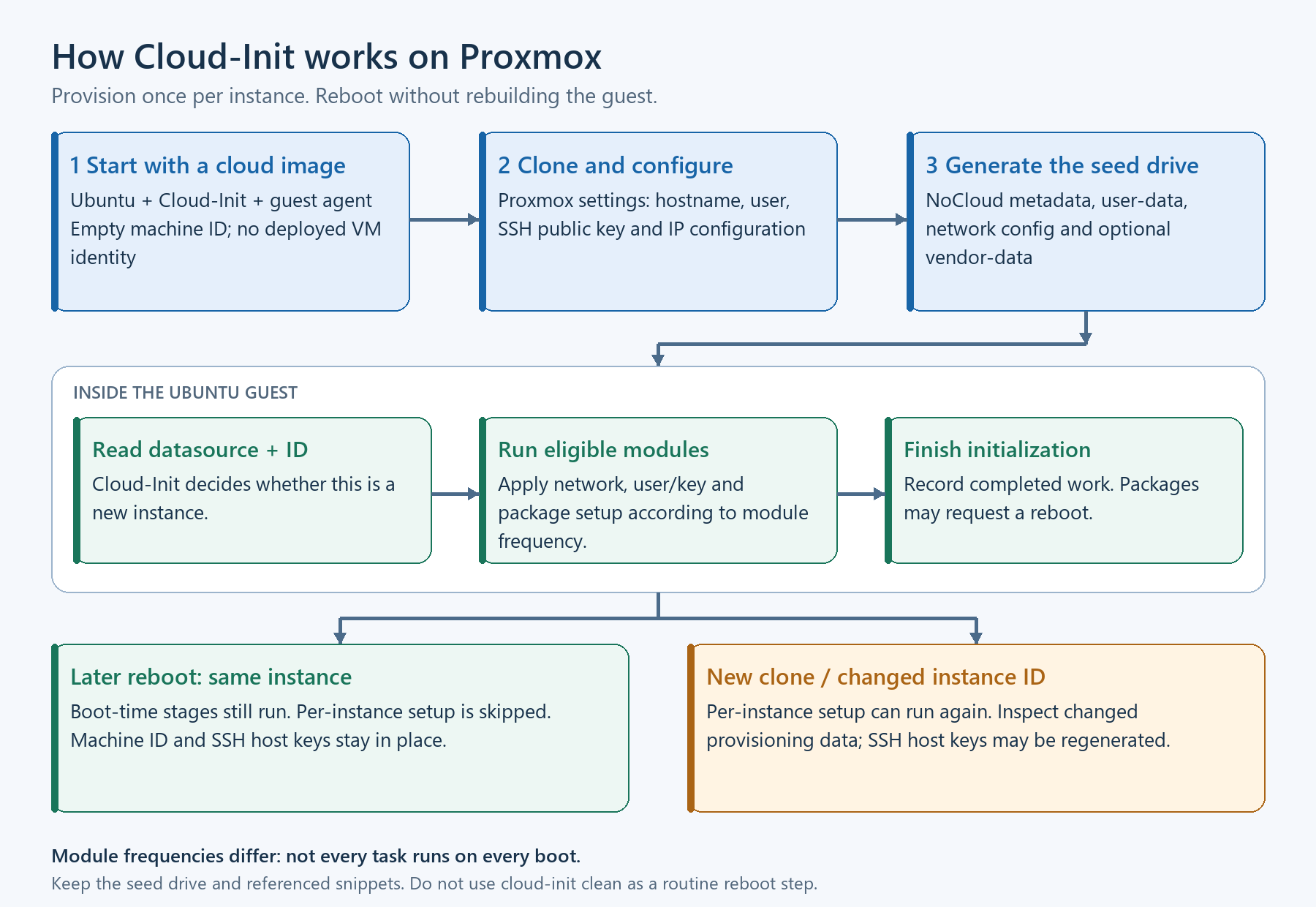
Cloud-Init starts during boot, but its modules have different run frequencies. The user creation, SSH host-key generation, and package setup in this walkthrough are per-instance work. An ordinary reboot with the same instance configuration should not be treated as another package-update run.
Proxmox generates the NoCloud data from the VM configuration. Changes to the generated user or network data can change the instance identity and cause per-instance setup to run again on the next boot. Treat the Cloud-Init tab as provisioning configuration: set it before first boot, and inspect the generated data before changing it on an existing machine.
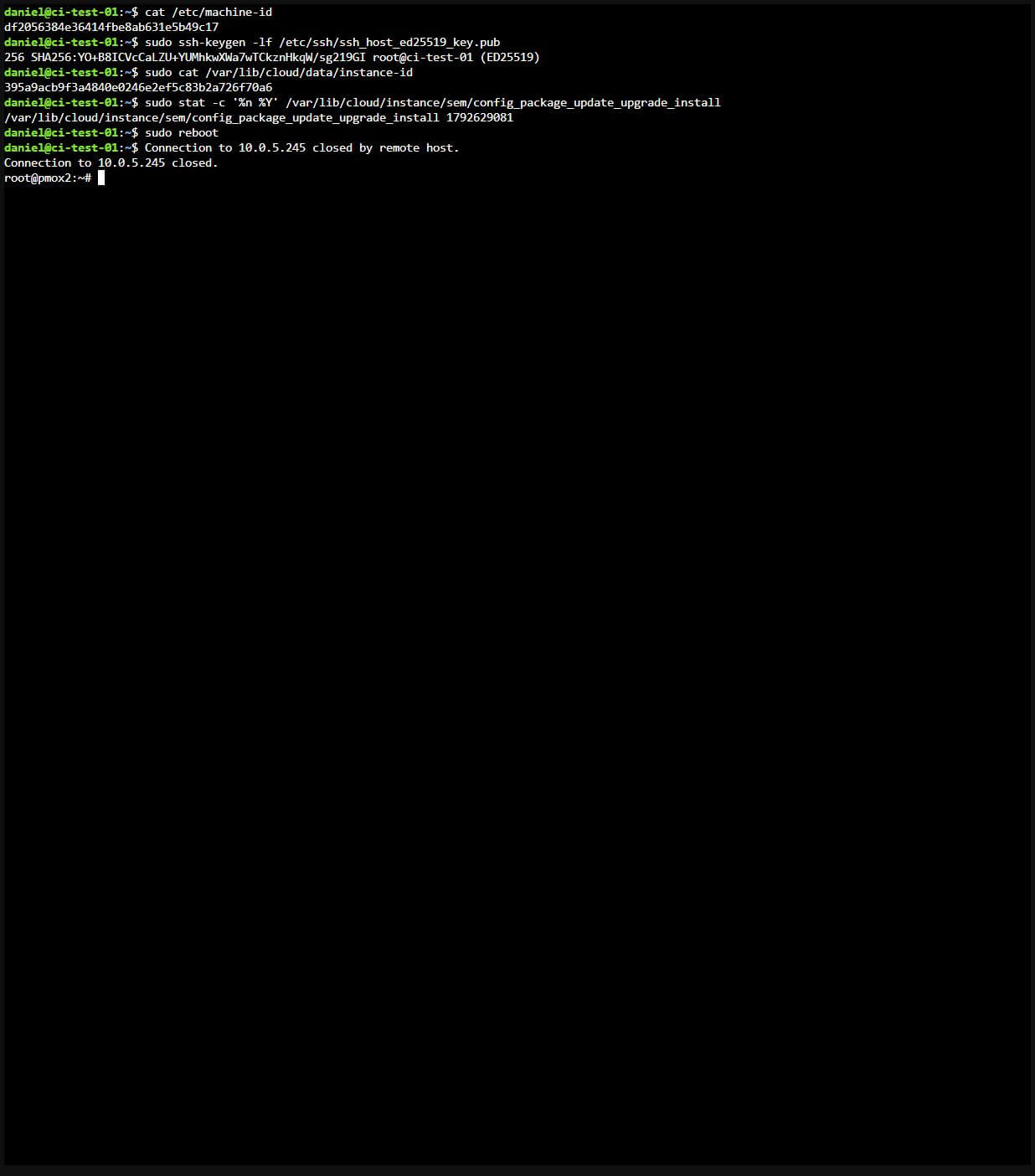
In my ordinary-reboot test, the machine ID, SSH host key, Cloud-Init instance ID, and package-module timestamp all stayed the same. An IP change alone does not prove that Cloud-Init created a new instance.
Proxmox supplies the configuration; Cloud-Init applies eligible work inside Ubuntu. Normal reboots retain the instance identity, while a new clone or changed instance ID can trigger per-instance setup again.
Choose the Storage for Your Lab
Shared storage makes the template disks available to the nodes that can access that storage. This retest uses truenas_vm, an active NFS share configured for VM images and snippets. For a single node, local-lvm can hold the VM disks; snippets need a storage type that supports snippet files, such as a directory or NFS storage.
Ceph is also a valid image-storage choice. Copy the full volume ID returned by the import: an NFS disk can be truenas_vm:9002/vm-9002-disk-0.raw, while a Ceph RBD volume has a different name. Changing only the storage prefix in an attach command is not enough.
Shared disks do not automatically enable HA or guarantee migration. CPU compatibility, available resources, network bridges, storage access, and your HA configuration still matter. I tested full clones and guest behavior on pmox2; I did not test live migration or HA placement in this run.
The Walkthrough
Run the host commands as root on the target Proxmox node, either through SSH or the node’s browser Shell. This retest used PVE 9.2.10 with kernel 7.0.14-12-pve. The guest is the Ubuntu 26.04 amd64 server cloud image. The 2-core, 2 GiB RAM, 10 GiB disk settings are the lab baseline tested here; size application VMs for their workload.
Step 1: Check the Target Before Creating Anything
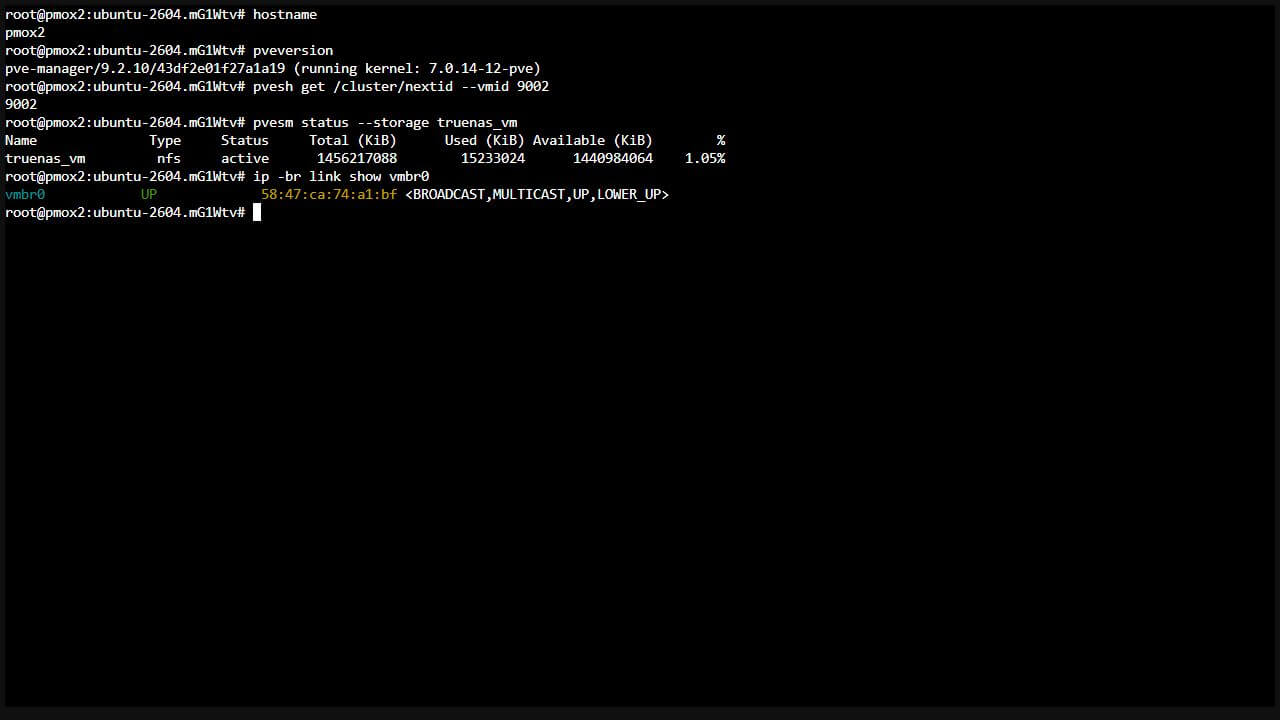
Choose a free VM ID, an active image storage, and the correct bridge for the network you want. In this example, template ID 9002 and clone ID 9903 were free when they were created. They are examples, not reserved IDs. If an ID is already taken, choose another; do not destroy an existing VM just to make the commands fit.
hostname
pveversion
pvesh get /cluster/nextid --vmid 9002
pvesm status --storage truenas_vm
ip -br link show vmbr0Code language:Bash(bash)
Confirm image content is enabled under Datacenter → Storage. For the vendor-data file later in the walkthrough, enable Snippets on the shared file storage as well, preserving its other content types. Verify that vmbr0 reaches a network with DHCP, or plan the clone’s static address, gateway, and DNS before booting it.
Step 1: target node, PVE version, free VM ID 9002, active storage, and bridge checks, each with its output. Click to view the full original capture.
Step 2: Download and Verify the Official Image
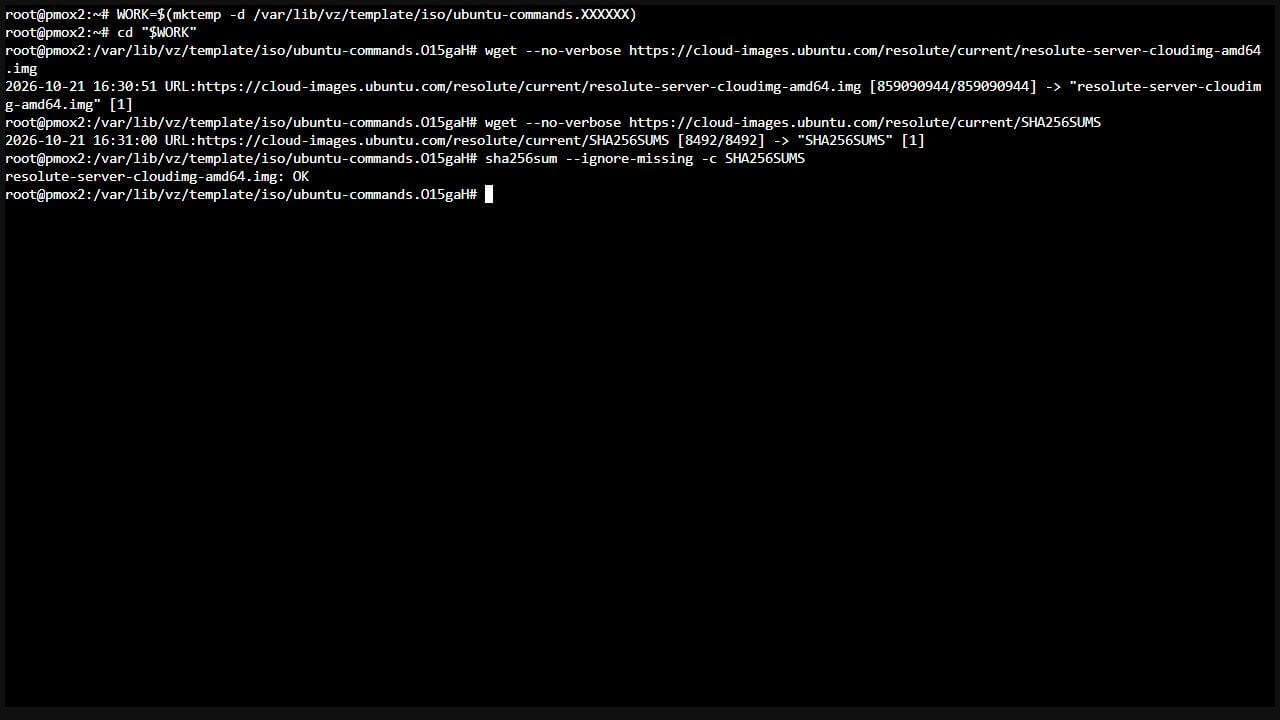
Use a new working directory so the source image and checksum file cannot be confused with an older or already-customized download. Keep the same shell open for the commands that use WORK.
Expect resolute-server-cloudimg-amd64.img: OK. The download in my retest was about 819 MiB, but the size and checksum change as Ubuntu publishes new builds. Download the image and checksum file together. Stop on a mismatch and retry in a new directory; do not import an unverified image. The checksum applies to the downloaded source, before the customization in the next step.
The working directory, both downloads, and SHA256 verification are visible together. The source image reports OK. The temporary directory prefix differs between captures; keep using your own WORK directory. Click to view the full original capture.
Step 3: Inject the Guest Agent and Clear the Machine ID
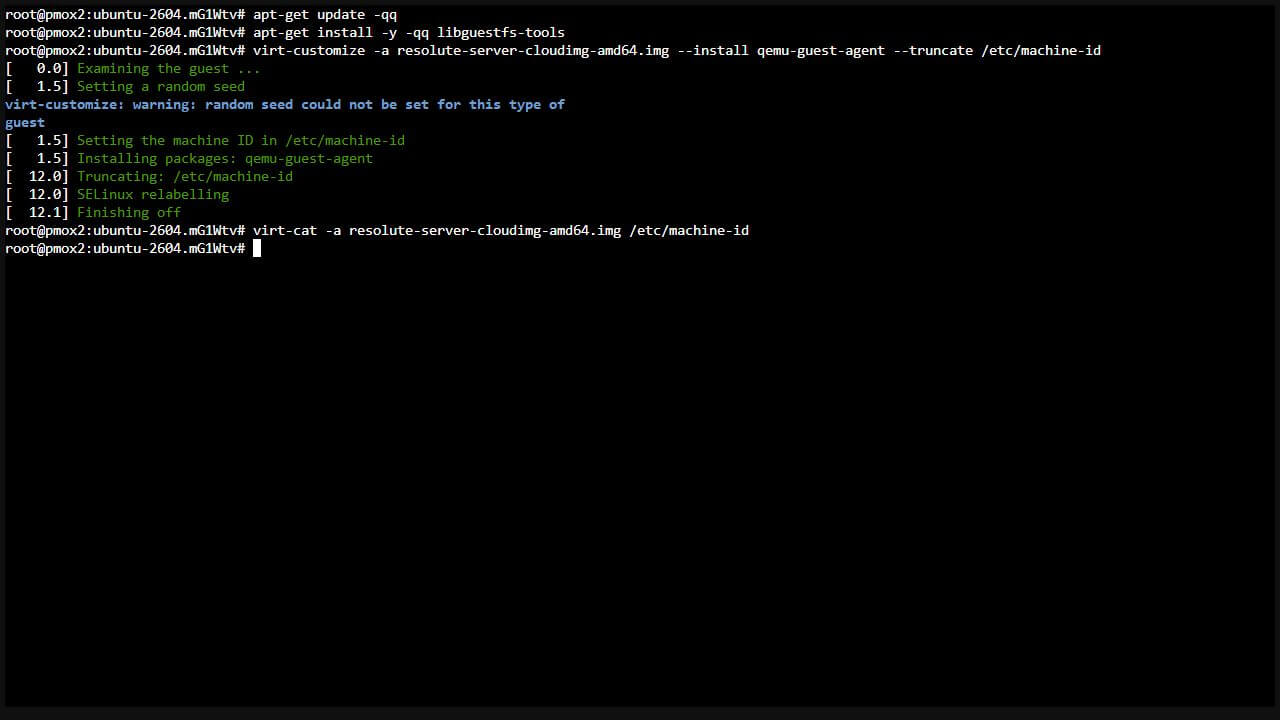
apt-get update -qq
apt-get install -y -qq libguestfs-tools
virt-customize -a resolute-server-cloudimg-amd64.img --install qemu-guest-agent --truncate /etc/machine-id
virt-cat -a resolute-server-cloudimg-amd64.img /etc/machine-idCode language:Bash(bash)
The guest agent gives Proxmox guest-side visibility, including the IP address, and supports guest-agent operations. Installing packages into the image can initialize /etc/machine-id; truncating it afterward lets the cloned guest generate a fresh identity. The final command should print no machine-ID content. I checked this before importing the image, then verified that the cloned guest generated a machine ID and SSH host key and retained them through an ordinary reboot.
A random-seed warning appeared during customization in this test, but the install and truncation completed. Check the actual result instead of using the presence or absence of that warning as the success criterion.
Step 3: install the tools, customize the image, and read back an empty machine-id file. Click to view the full original capture.
The explicit --ostype l26 marks this as a Linux guest. Set the CPU model deliberately, too. I used host in this lab. For mixed hosts, choose a CPU baseline supported by every intended target and by the guest OS, then test migration. Do not assume that a VM that boots on one node can live-migrate to every other node.
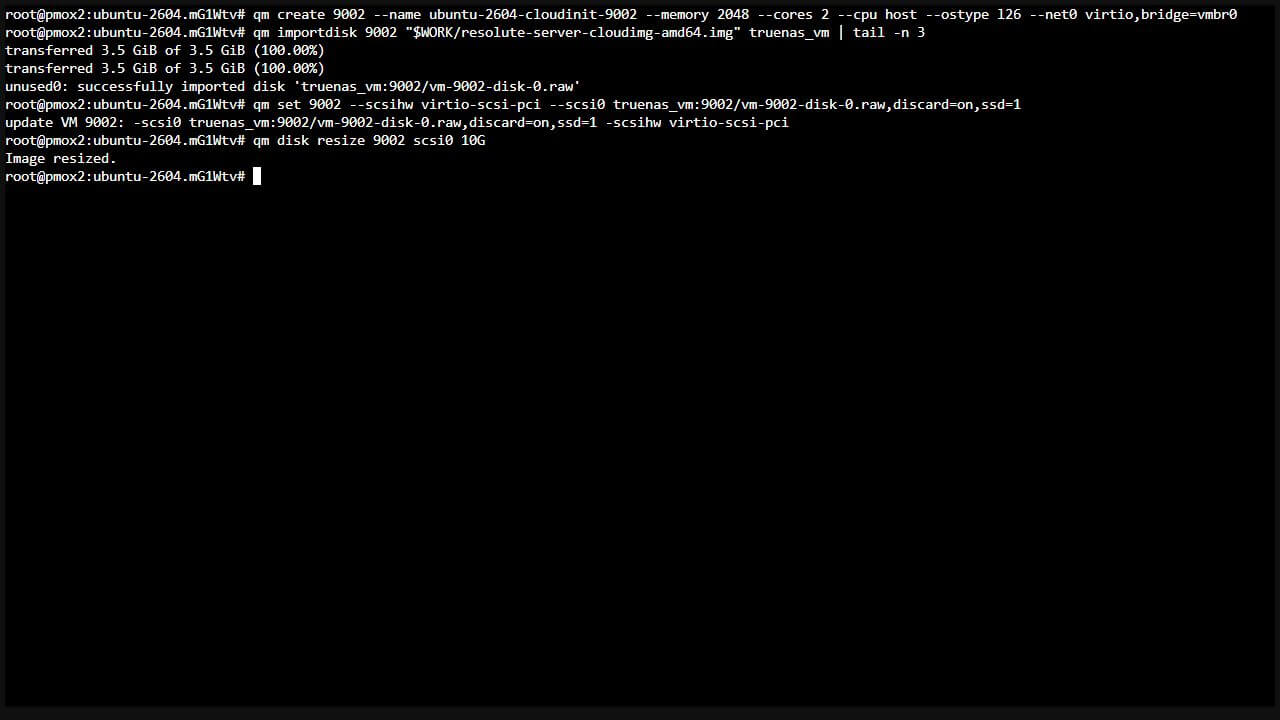
Copy the exact disk volume ID printed by the import. For the raw NFS import in this retest it was truenas_vm:9002/vm-9002-disk-0.raw. Attach that disk and grow it before any clone boots:
qm set 9002 --scsihw virtio-scsi-pci --scsi0 truenas_vm:9002/vm-9002-disk-0.raw,discard=on,ssd=1
qm disk resize 9002 scsi0 10GCode language:Bash(bash)
Step 4: actual VM creation, disk import, disk attachment, and resize to 10 GiB. Click to view the full original capture.
The source image’s virtual disk was 3.5 GiB. A 10 GiB template gave the first-boot package upgrade room to run. My test clone expanded its root filesystem to roughly 8.6 GiB usable, with about 6.5 GiB free afterward. The filesystem is smaller than the virtual disk because the disk also contains other partitions and filesystem overhead.
discard=on enables guest discard requests and ssd=1 exposes SSD emulation. Actual space reclamation depends on the storage backend and guest trim behavior; the flags alone do not demonstrate that a specific pool has reclaimed space.
The import pipeline shows the final three progress lines so the command and result remain together in the capture. Omit | tail -n 3 if you prefer the full progress display. In automation, enable set -o pipefail so a failed import is not hidden by a successful tail.
Step 5: Add Cloud-Init and the Console Settings
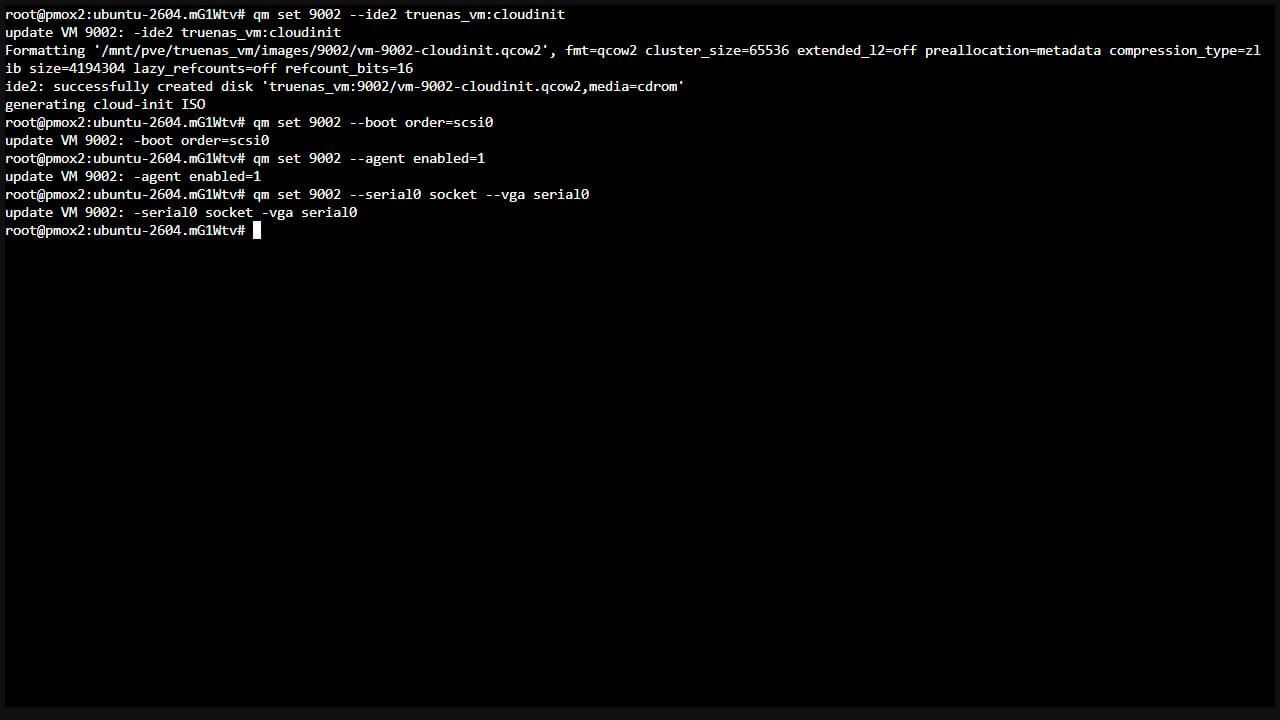
qm set 9002 --ide2 truenas_vm:cloudinit
qm set 9002 --boot order=scsi0
qm set 9002 --agent enabled=1
qm set 9002 --serial0 socket --vga serial0Code language:Bash(bash)
The Cloud-Init drive carries the provisioning data. The boot order selects the OS disk, the agent option enables communication with the guest agent installed in Step 3, and the serial display provides a usable console for this cloud image. No manual serial-getty enable command was needed in the guest during my retest.
Step 5: add the Cloud-Init drive, disk boot order, guest agent, and serial console settings. Click to view the full original capture.
Step 6: Set the Defaults Clones Should Inherit
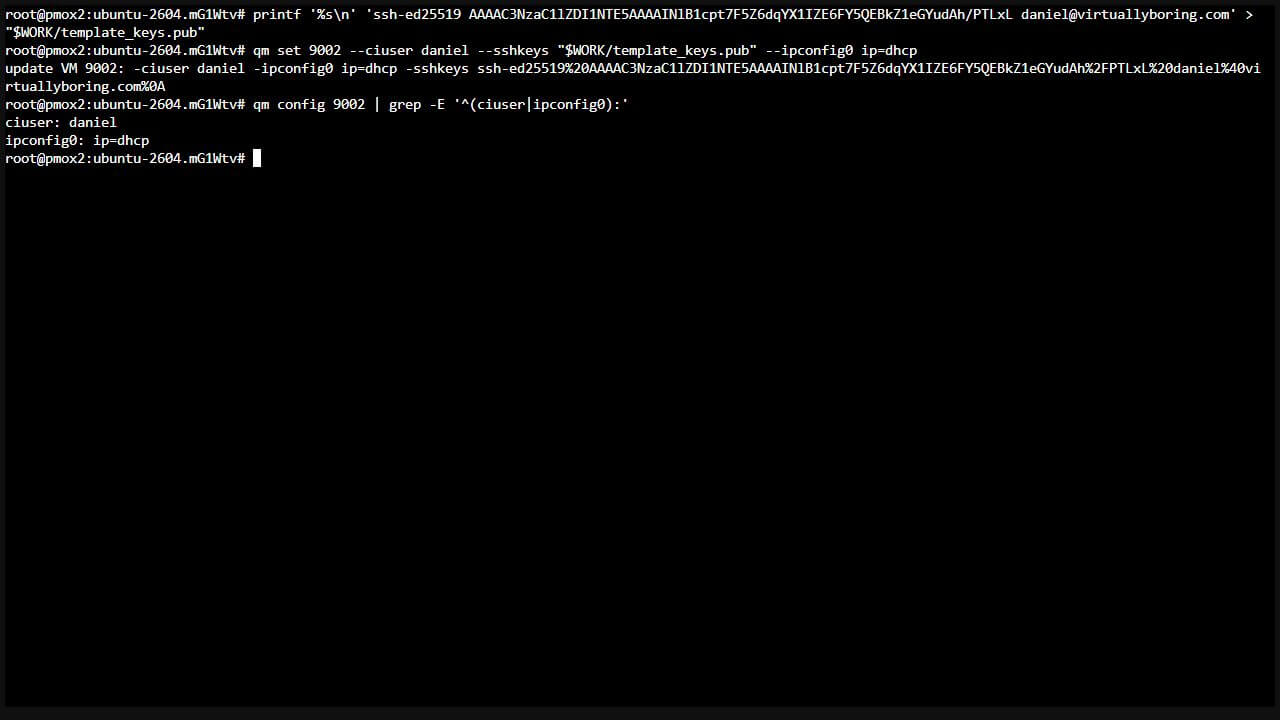
Place your SSH public key in a file on the Proxmox node, then point --sshkeys at that file. Replace YOUR_SSH_PUBLIC_KEY with your entire public-key line and substitute your username. Keep the same WORK shell variable from Step 2. The screenshot contains my public key; use your own. The private key stays on your workstation.
printf'%s\n''YOUR_SSH_PUBLIC_KEY' > "$WORK/template_keys.pub"
qm set 9002 --ciuser daniel --sshkeys "$WORK/template_keys.pub" --ipconfig0 ip=dhcp
qm config 9002 | grep -E '^(ciuser|ipconfig0):'Code language:Bash(bash)
The new template has user daniel, a public key, DHCP, and package upgrades enabled. This SSH-key test did not set a console password. Set a console password in the clone’s Cloud-Init tab before first boot if you need interactive console login. Do not put a shared password in a build script or shell history.
Step 6: write the public-key file, apply username/key/DHCP defaults, and inspect the username and network settings. Click to view the full original capture.
Ubuntu cloud images in this test allowed public-key SSH and had SSH password authentication disabled. A console password and an SSH key solve different login needs. If your client key has a passphrase, unlock it locally when connecting, or load it into your workstation’s SSH agent; copying the private key into Cloud-Init does not solve that requirement.
Optional combined command for Steps 4–6: After preparing the image and public-key file, use this on a free VM ID instead of running the individual creation commands. It imports and attaches the disk while setting the hardware and Proxmox Cloud-Init defaults. The disk resize remains a separate command. Do not run both paths for the same ID.
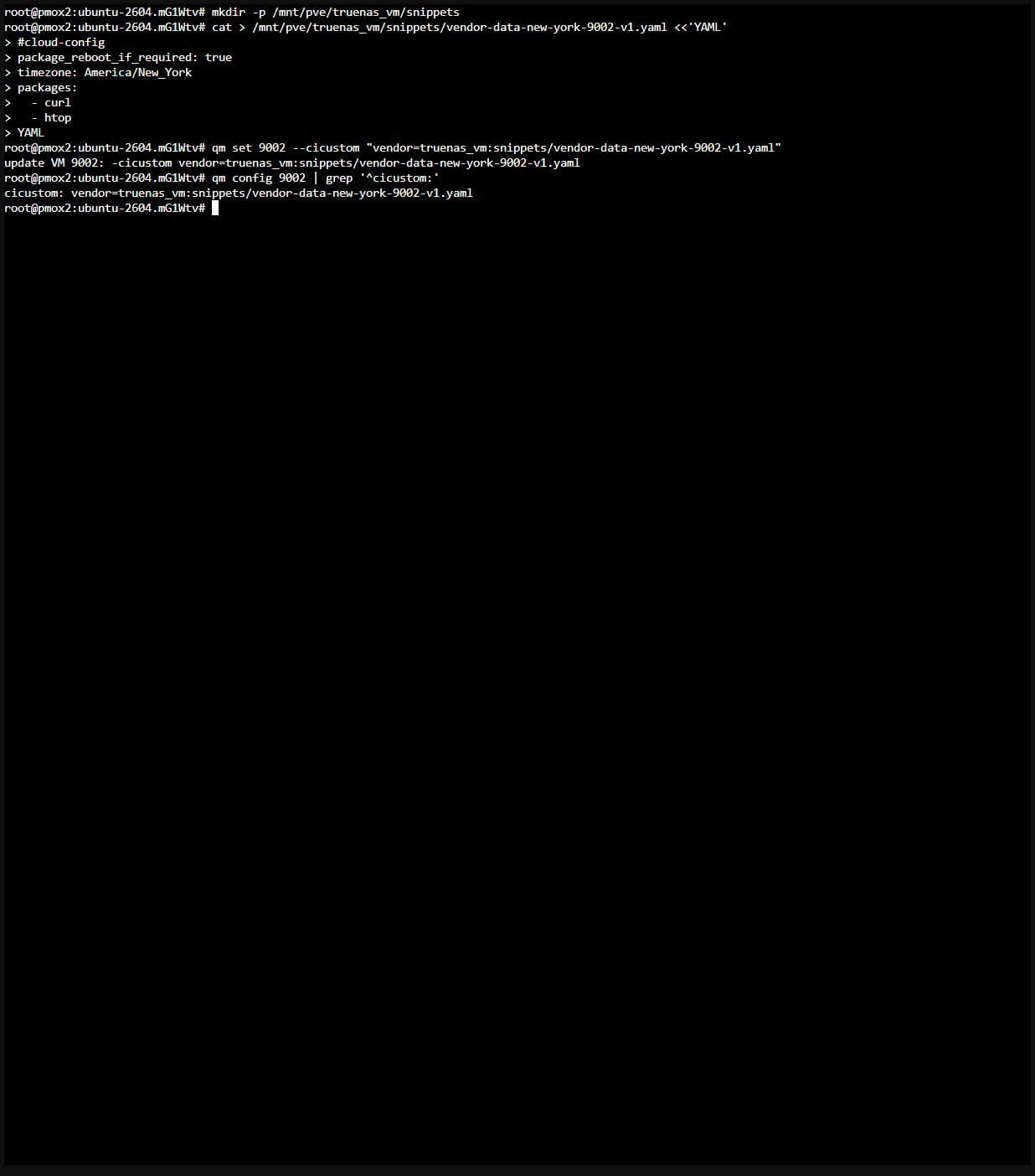
Proxmox generates user-data from its Cloud-Init settings. A custom user= file replaces that generated user-data. For this baseline I used vendor=, so the Proxmox-created user and SSH key could remain in place while the YAML added a timezone and packages. Those settings were then verified together over SSH.
Create a new file on shared snippet-capable storage. In this retest I used vendor-data-new-york-9002-v1.yaml, leaving the older vendor-data.yaml file alone because existing VMs referenced it.
America/New_York handles the local daylight-saving rules. There is no duplicate package_upgrade entry here: Proxmox’s enabled Upgrade packages option generated package_upgrade: true in user-data. The snippet permits a reboot if the package module requires one. It does not mean every boot will install packages or reboot.
Optional faster first boot: Proxmox enables package upgrades by default. If you deliberately manage updates another way and refresh your template frequently, disable that upgrade on the unbooted template or clone with qm set 9002 --ciupgrade 0. This skips the automatic upgrade; it does not remove package installation requested by vendor-data or make an older image current. This walkthrough keeps upgrades enabled, as tested.
For this newly created VM with no existing cicustom value, attach it as follows. If one already exists, preserve all its entries when adding the vendor file; setting the property replaces the entire value.
Step 7: enter the complete vendor-data YAML, attach it, and verify the template reference. Click to view the full original capture.
For a single node, a local directory storage can hold snippets under /var/lib/vz/snippets/. For migration or HA, keep every referenced snippet available on all potential target nodes. Keep the Cloud-Init drive attached and preserve the versioned YAML while any clone references it. For the next baseline, create a new filename and test a fresh clone before changing the template. Keep private keys, passwords, and API tokens out of these files.
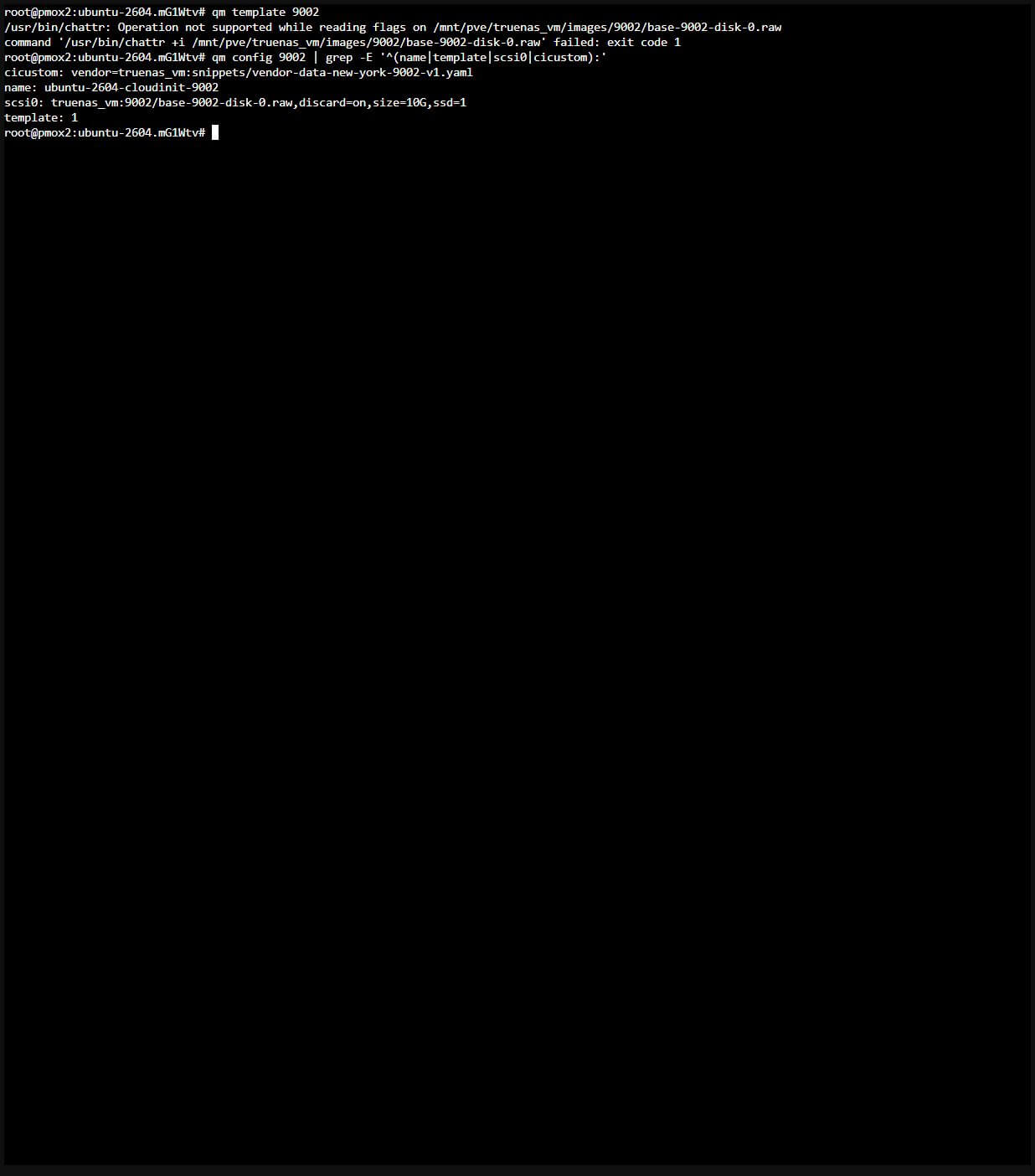
Look for template: 1 and the template icon. Do not boot this base VM to finish configuration; clone it for testing. In the NFS retest, conversion reported an unsupported chattr +i operation on the base disk. The template flag was set, and full-clone creation and boot succeeded. That warning means file immutability was not enforced through that filesystem operation; it is not a reason to assume every backend makes the base disk read-only in the same way.
Step 8: run qm template 9002, then verify template: 1 and the base disk. The NFS chattr warning is visible. Click to view the full original capture.
Step 9: Full Clone, Configure, and Boot
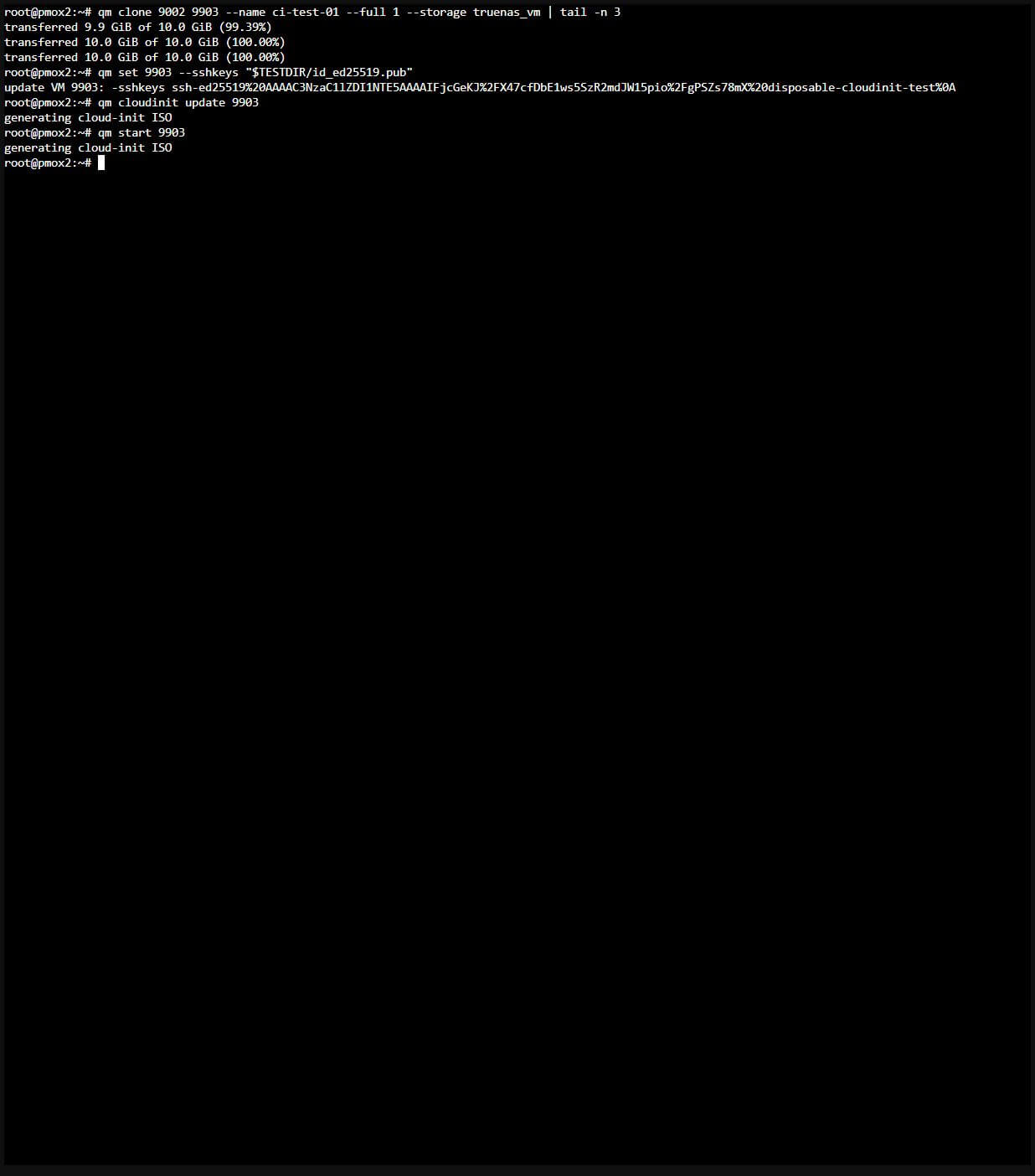
Use a free clone ID. In the GUI, right-click the template, select Clone, and choose Full Clone, the intended node, and storage. The commands below are the equivalent CLI path; choose one path. Full clones keep the replacement workflow independent of the old template’s base disk.
Before generating the Cloud-Init image and starting the clone, confirm its username, public key, DNS, and IP settings. Normally it inherits your own public key from Step 6. For the isolated screenshot test only, I generated a temporary test key and inserted qm set 9903 --sshkeys "$TESTDIR/id_ed25519.pub" between cloning and regeneration. TESTDIR is that temporary test directory; it is not required for the normal walkthrough. No temporary test key was added to the template.
Step 9: create the full clone, apply its temporary test public key, regenerate Cloud-Init, and start the VM. Click to view the full original capture.
First boot can take several minutes while networking and package upgrades complete. A package-triggered reboot can interrupt SSH or a guest-agent command. Let the VM return, check its current IP in Summary, and reconnect before interpreting a disconnected command as a failed deployment. The shortened progress display has the same pipefail caveat as Step 4.
Step 10: Validate Over SSH, Then Test a Normal Reboot
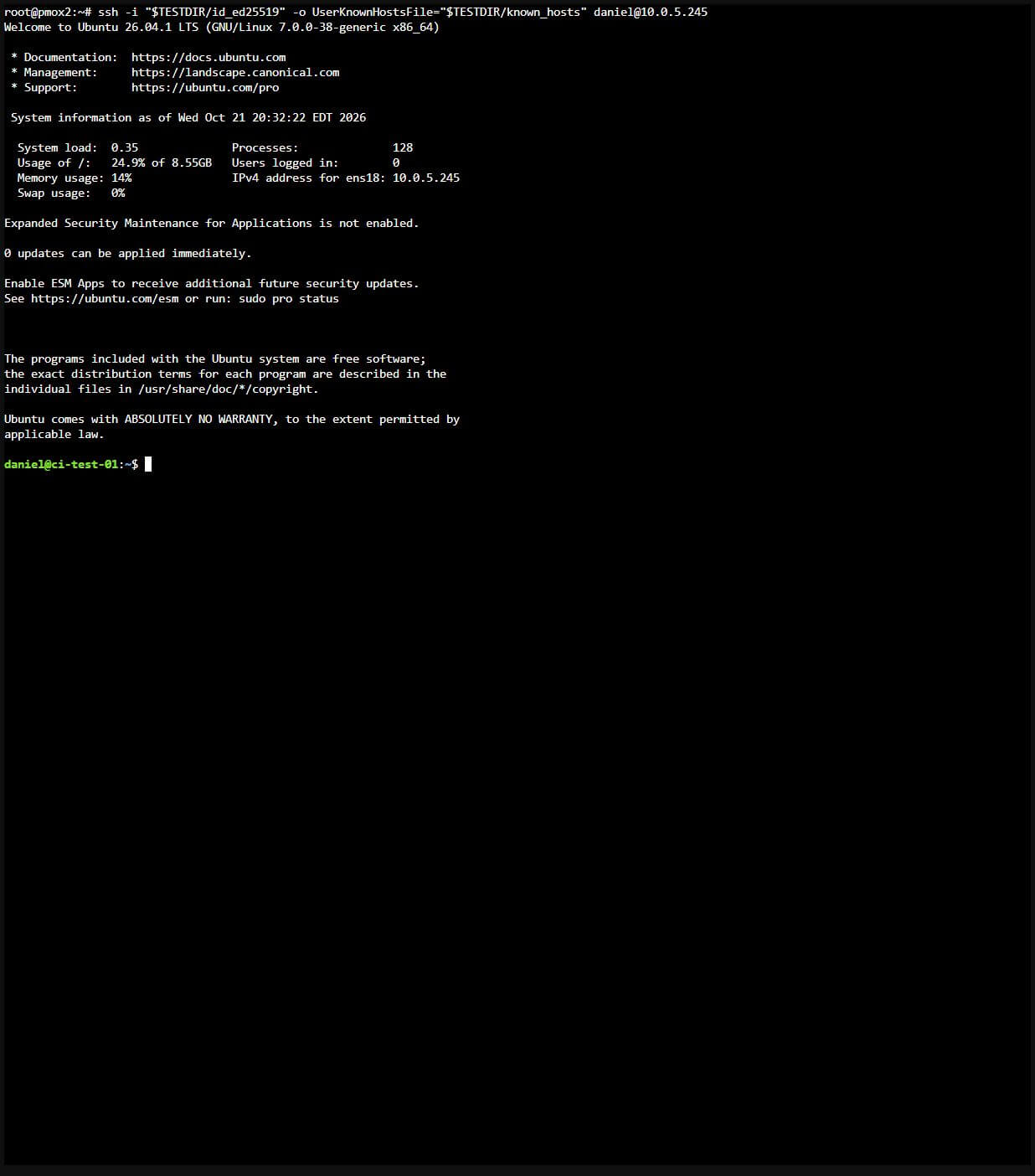
Connect over SSH using the private key corresponding to the public key configured in Step 6. Confirm the clone’s current IP and verify its SSH host fingerprint before connecting.
Command shown in the screenshot — run from the Proxmox node’s Linux shell: This test used the temporary key directory introduced in Step 9, with TESTDIR pointing to it. The command below is exactly what appears in the capture. Your workstation login can use the alternative below; you do not need to recreate this temporary test setup.
Step 10: full SSH login command, Ubuntu banner, and the daniel guest prompt. The temporary key belonged only to this disposable test. Click to view the full original capture.Alternative: connect from your Windows workstation
Use your own existing key and the clone’s current IP. This PowerShell command is an alternative to the Linux command in the screenshot:
If you do not yet have an SSH key, create one with the following commands and configure its public key in the clone’s Proxmox Cloud-Init settings before first boot. Do not overwrite an existing key:
Only the .pub file is copied into Proxmox. Keep the private key on your workstation, and enter its passphrase locally or load it into your SSH agent.
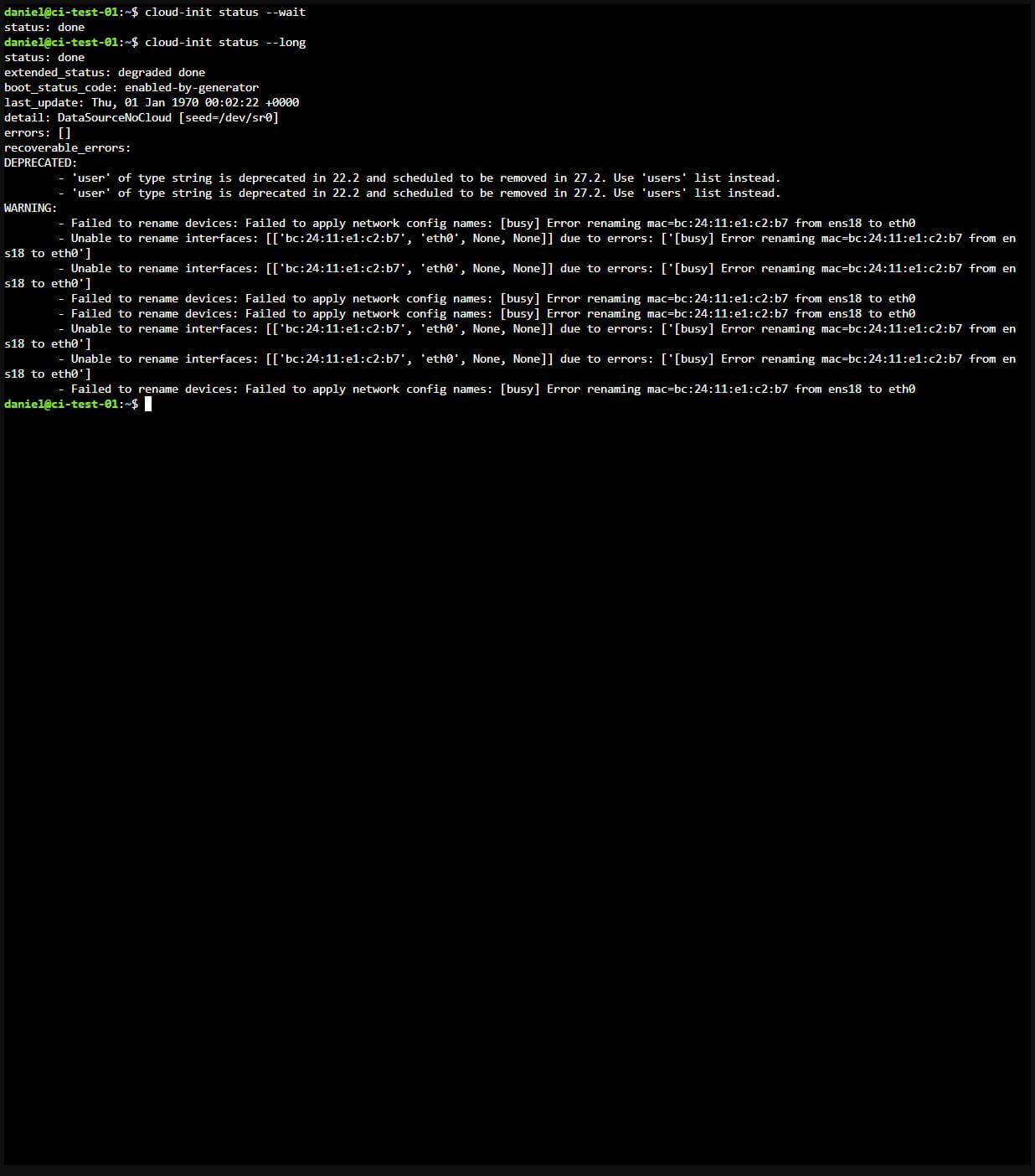
After connecting, run the following commands inside the Ubuntu guest. Each group is followed by a screenshot of those same commands and their output:
cloud-init status --wait
cloud-init status --longCode language:Bash(bash)
Step 10: actual SSH-session Cloud-Init status checks, including the reported username and interface-renaming warnings. Click to view the full original capture.
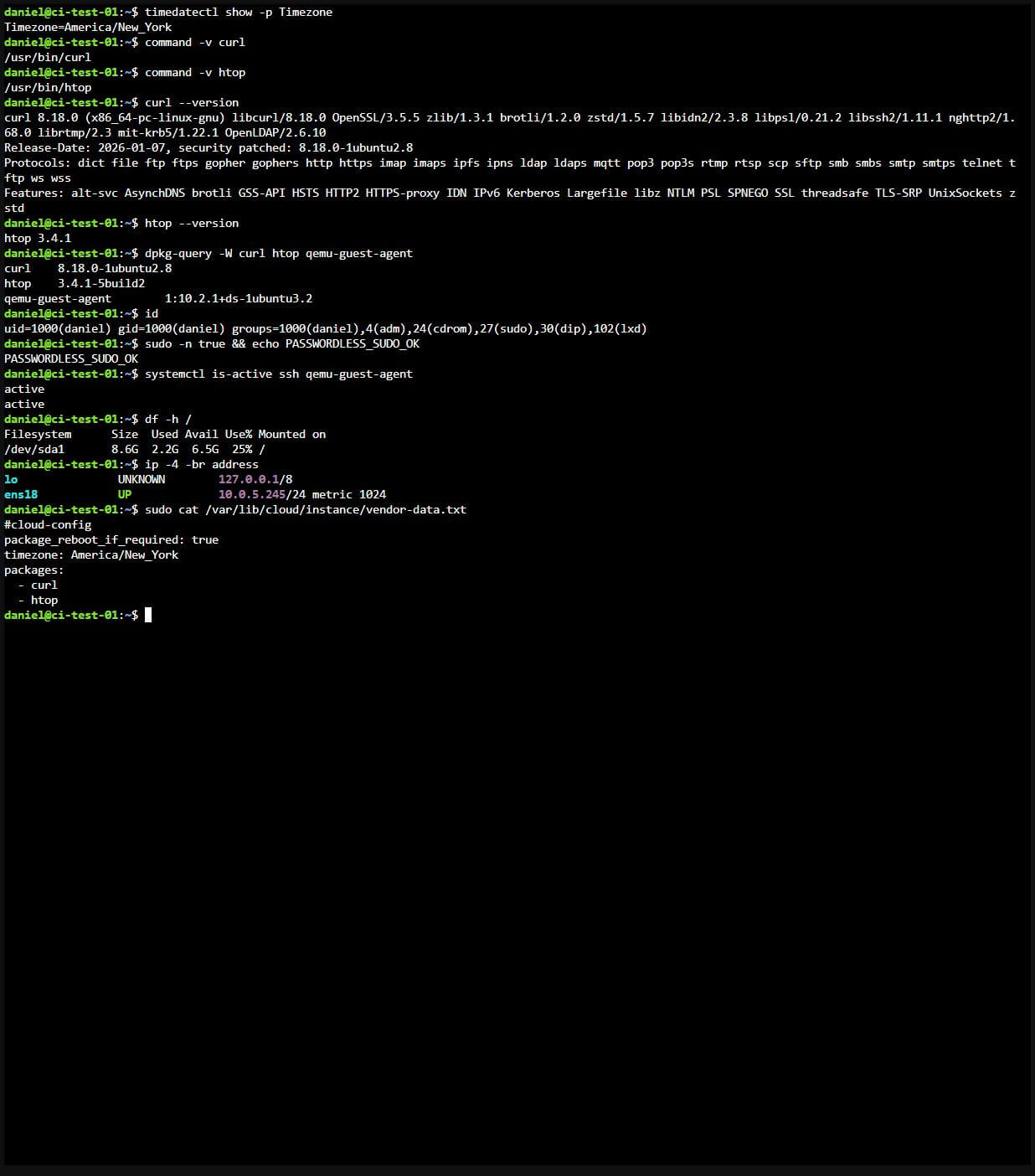
Step 10: separate SSH commands verify timezone, packages, identity, sudo, services, disk growth, networking, and vendor-data. Click to view the full original capture.
Use separate executable checks. In this environment, command -v curl htop printed only curl even though htop was installed; htop --version and the package database confirmed it. The checks above verified New York timezone, both packages, the expected user, passwordless sudo, SSH, the guest agent, and filesystem growth in an actual SSH session.
Read the detailed status:status: done alone is not enough. Cloud-Init documents exit code 0 for an error-free run, 1 for a crash, and 2 for completion with recoverable errors. Inspect extended_status, errors, and recoverable_errors. If you automate these checks with set -e, capture a nonzero status before the script exits so you can preserve the diagnostic output.
Known Proxmox Cloud-Init Warning
You may see DEPRECATED: 'user' of type string, sometimes with extended_status: degraded done. Proxmox currently generates the older user: <username> format. Cloud-Init still accepts it in the tested Ubuntu image, but recommends a users list. This is a known, reported compatibility issue: see the Proxmox forum discussion and linked bug 5384. It does not by itself mean that user creation or the vendor-data baseline failed.
We keep the Proxmox Cloud-Init controls for the username, SSH key, and network settings because they worked in these tests. As of October 21, 2026, I could not confirm a released fix or a scheduled update for this warning. Once Proxmox releases an update that addresses it, I will retest this walkthrough and update the blog post. Continue to inspect the detailed status and validate the guest; treat any other warning or error separately.
The detailed SSH status capture above also contains interface-renaming warnings observed with this image and Proxmox version. Those are separate from the deprecated username field. Networking worked, but the DHCP address changed after a normal reboot, so always check the current address before reconnecting.
Check a Normal Reboot
Finally, test an ordinary reboot without changing the Cloud-Init settings. Record the identity and package-module marker, reboot, reconnect at the current IP, and repeat the checks:
Normal reboot: record the four identity/package-marker values, then run sudo reboot and observe SSH disconnect. Click to view the full original capture.
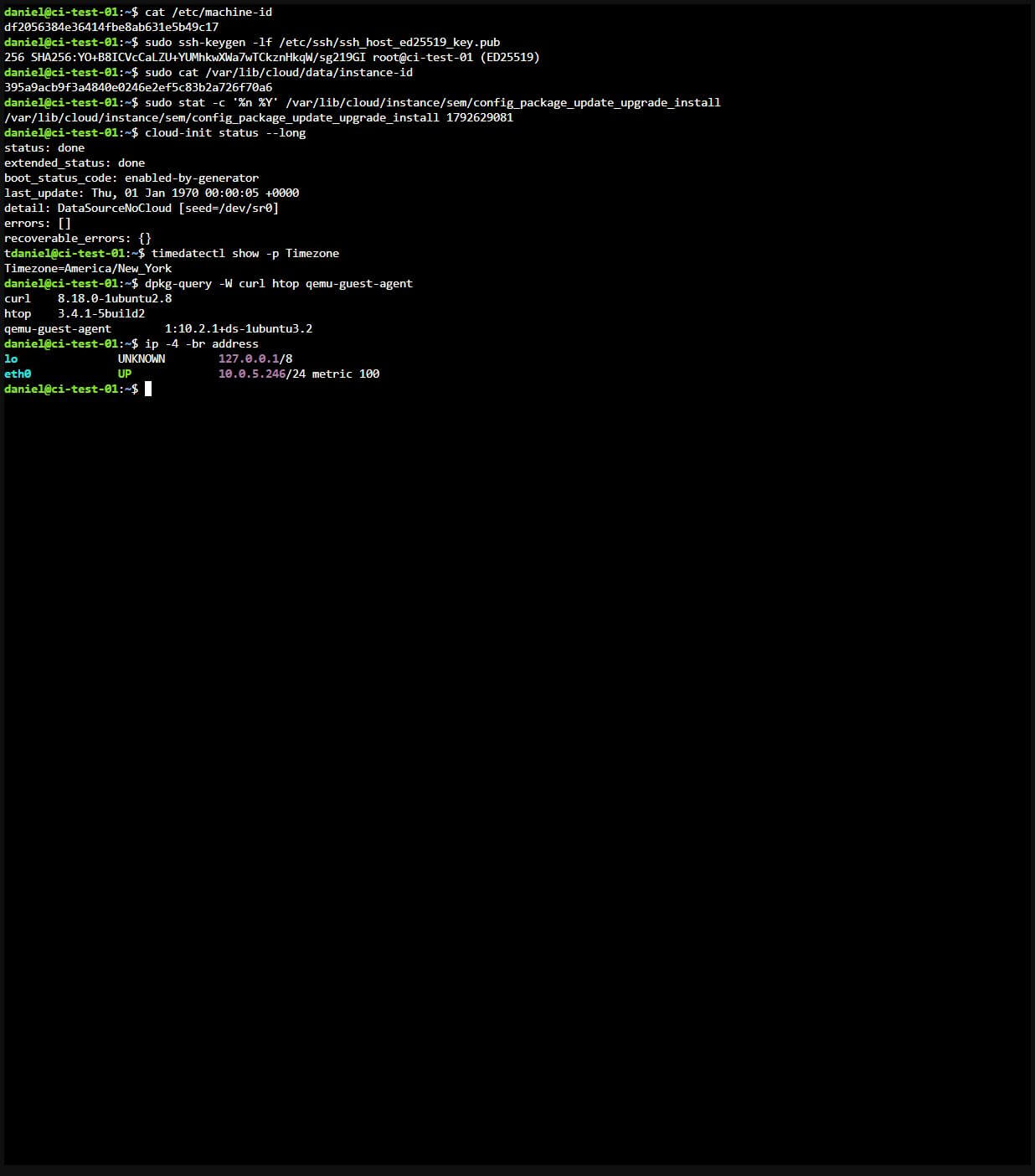
Reconnect over SSH using the guest’s current address. In this test DHCP changed from 10.0.5.245 to 10.0.5.246. Repeat the same four checks, then inspect status, timezone, packages, and networking:
cat /etc/machine-id
sudo ssh-keygen -lf /etc/ssh/ssh_host_ed25519_key.pub
sudo cat /var/lib/cloud/data/instance-id
sudo stat -c '%n %Y' /var/lib/cloud/instance/sem/config_package_update_upgrade_install
cloud-init status --long
timedatectl show -p Timezone
dpkg-query -W curl htop qemu-guest-agent
ip -4 -br addressCode language:Bash(bash)
After reboot: the same machine ID, SSH host-key fingerprint, instance ID, and package-module timestamp; clean status, retained timezone/packages, and current IP. Click to view the full original capture.
In my normal-reboot test, these values stayed unchanged and the New York timezone and installed packages persisted. Do not use cloud-init clean or delete /var/lib/cloud as a routine reboot step.
Day Two Operations
Keep the Baseline Versioned
The template and its snippet are a pair. Leave both available while VMs reference them. Create vendor-data-new-york-9002-v2.yaml for the next baseline change, test it with a fresh clone, then update the template for future clones. Changing a snippet in place can surprise existing VMs if initialization is later triggered again. Changing vendor-data alone is not a reliable way to reconfigure an already-initialized instance.
If you need more disk space, grow the clone before first boot and confirm df -h / afterward. For later growth, verify partition and filesystem expansion inside the running guest or after a planned reboot instead of assuming the requested virtual size is already usable.
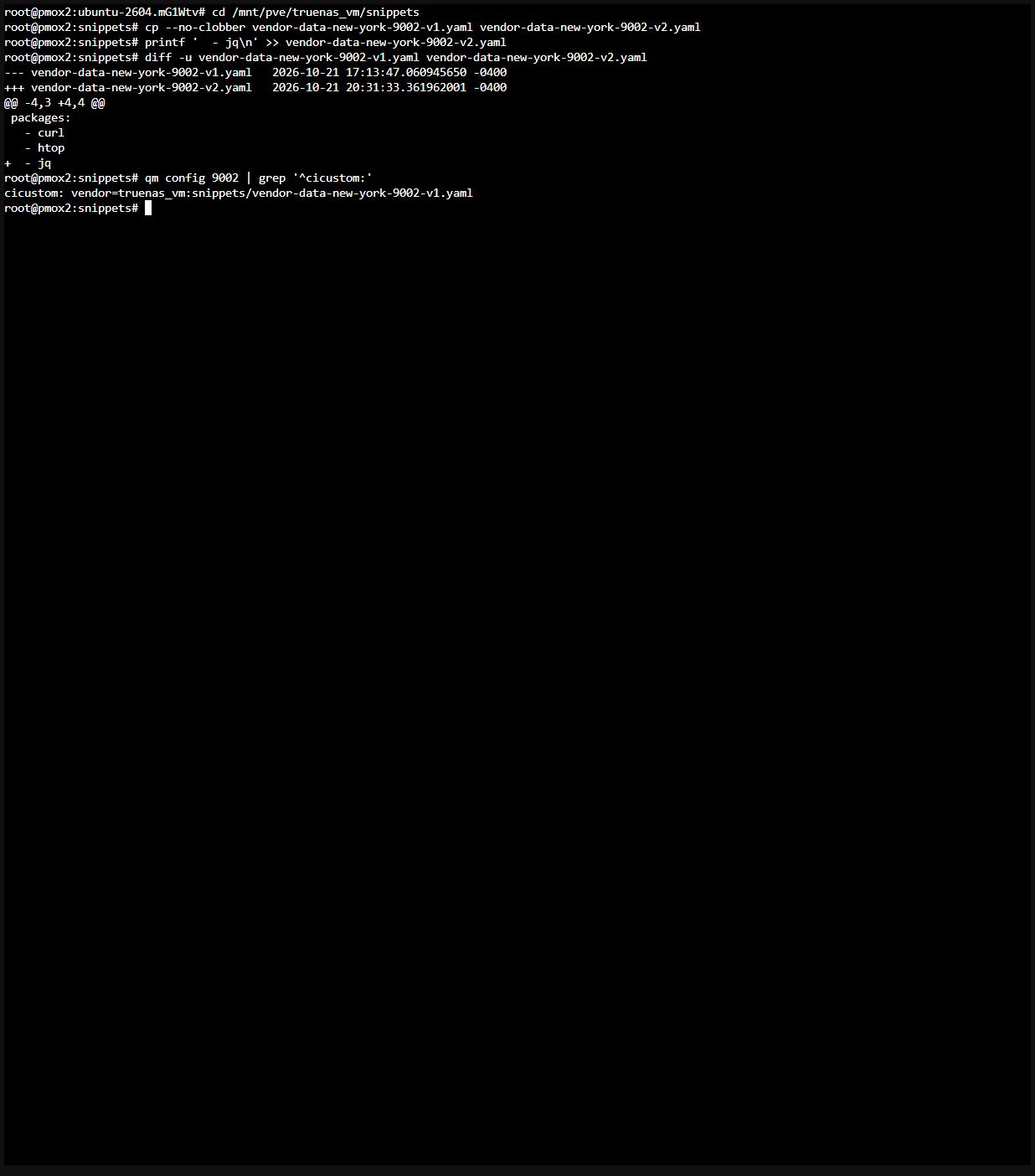
Here is an example next version adding jq. Choose an unused v2 filename before running these commands. If that file already exists, stop and choose a new version; do not append to it again. This capture stages a v2 file only. The template remains on tested v1; v2 must pass fresh-clone validation before attachment.
Day Two: copy v1 to a new v2, append jq, inspect the diff, and confirm the template still references v1. Click to view the full original capture.
diff returns 1 when it finds differences. That is the expected result here; account for it if you wrap this demonstration in a script with set -e.
Treat Rebuilds as Replacement Candidates
The image behind Ubuntu’s current URL keeps moving. Refresh the template periodically so each clone does not inherit a long package-upgrade backlog. Build the replacement under a free ID and keep the working template until the candidate passes the clone, SSH, and reboot checks above.
The earlier script deleted the existing template before creating its replacement. That creates an avoidable gap if an import or later configuration step fails. This version deliberately contains no qm destroy command. It requires a new candidate ID and preserves the build directory for inspection on failure.
Show the replacement-template build script
#!/usr/bin/env bash
# Build a replacement candidate. Never delete the working template here.
set -euo pipefail

: "${VMID:?Set VMID to a free candidate ID, for example 9003}"
NAME="ubuntu-2604-cloudinit-${VMID}"
STORAGE=truenas_vm
BRIDGE=vmbr0
VENDOR_VOLUME="${VENDOR_VOLUME:-truenas_vm:snippets/vendor-data-new-york-9002-v1.yaml}"
SSH_PUBKEY="${SSH_PUBKEY:?Set SSH_PUBKEY to your public-key file}"
BASE=https://cloud-images.ubuntu.com/resolute/current
IMG=resolute-server-cloudimg-amd64.img

command -v virt-customize >/dev/null
command -v virt-cat >/dev/null
test -r "$SSH_PUBKEY"
test -r "$(pvesm path "$VENDOR_VOLUME")"
ip link show "$BRIDGE" >/dev/null
pvesh get /cluster/nextid --vmid "$VMID" >/dev/null
pvesm status --storage "$STORAGE" |
  awk 'NR > 1 && $3 == "active" { ok=1 } END { exit !ok }'

WORK=$(mktemp -d /var/lib/vz/template/iso/ubuntu-2604.XXXXXX)
cd "$WORK"
trap 'printf "Build stopped; inspect candidate %s. Build directory retained: %s\n" "$VMID" "$WORK" >&2' ERR
wget -q "$BASE/$IMG" "$BASE/SHA256SUMS"
sha256sum --ignore-missing -c SHA256SUMS
virt-customize -a "$IMG" --install qemu-guest-agent --truncate /etc/machine-id
test -z "$(virt-cat -a "$IMG" /etc/machine-id)"

qm create "$VMID" --name "$NAME" --memory 2048 --cores 2 --cpu host --ostype l26 --net0 "virtio,bridge=$BRIDGE" --scsihw virtio-scsi-pci --scsi0 "$STORAGE:0,import-from=$WORK/$IMG,discard=on,ssd=1" --ide2 "$STORAGE:cloudinit" --boot order=scsi0 --agent enabled=1 --serial0 socket --vga serial0 --cicustom "vendor=$VENDOR_VOLUME" | tail -n 3
qm disk resize "$VMID" scsi0 10G
qm set "$VMID" --ciuser daniel --sshkeys "$SSH_PUBKEY" --ipconfig0 ip=dhcp
qm template "$VMID"
printf 'Candidate template %s created. Validate a fresh clone before retiring the old template.\n' "$VMID"
printf 'Build directory retained: %s\n' "$WORK"
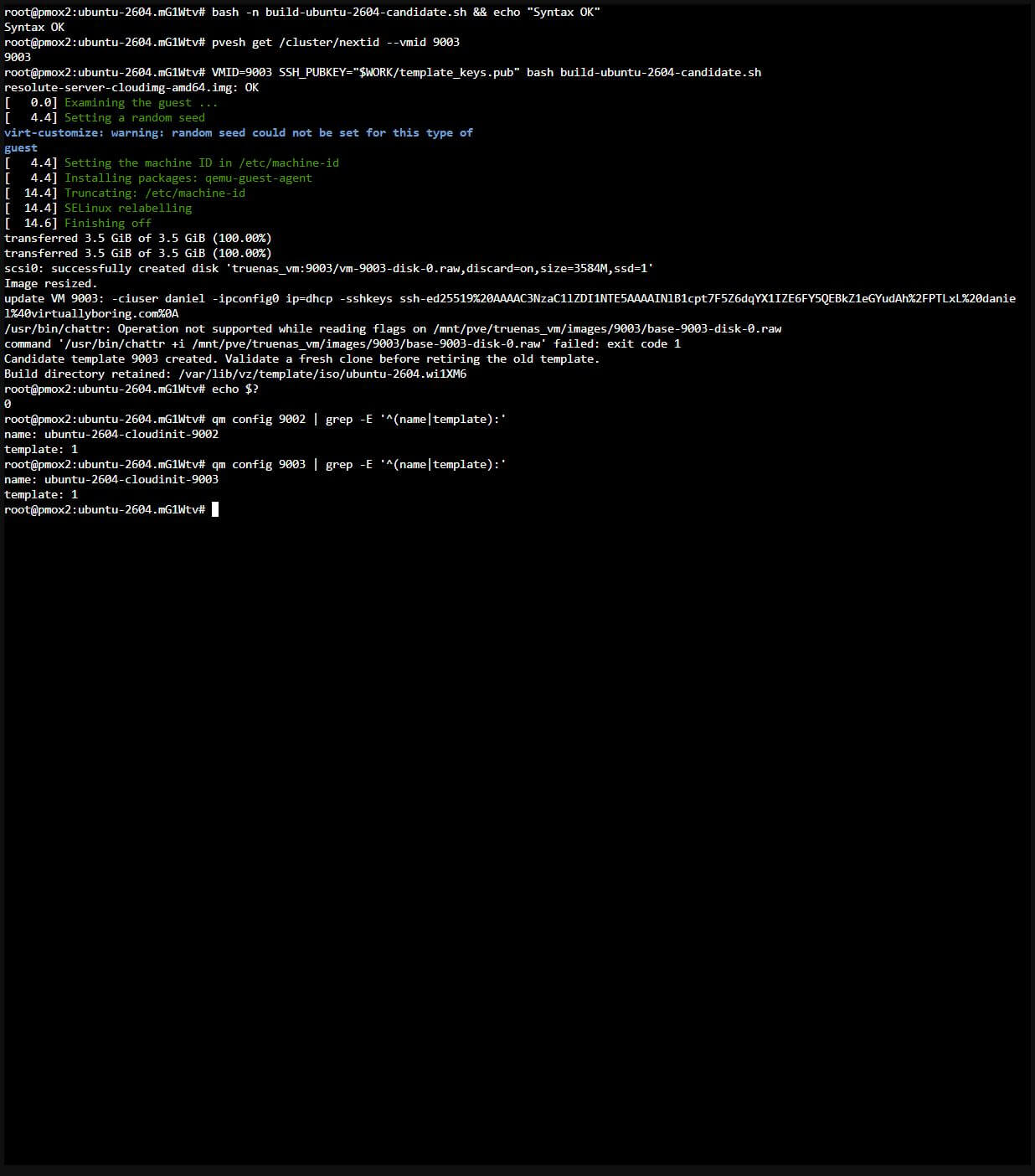
Save the script as build-ubuntu-2604-candidate.sh. Review its storage, bridge, CPU, username, and snippet choices. Run it from the directory where you saved it, supply your public-key path, and use a free candidate ID. In this shell, WORK still points to the Step 2 directory holding the public-key file. The following actual run created candidate 9003 and returned exit code 0 while retaining template 9002:
Day Two: syntax check, free candidate ID, actual replacement build with exit code 0, and both template configurations. Click to view the full original capture.
The candidate build completed, but 9003 was not promoted or separately clone-tested in this capture pass. Apply the same clone, SSH, and reboot validation before adopting any replacement. Template 9002 was the manually built and clone-tested template.
After the candidate passes validation, direct new builds to it. Retire an old template only after checking linked-clone dependencies and backups. A scheduled build can create candidates, but it should not automatically delete the last known working template. Failed or incomplete candidates should remain visible for deliberate cleanup.
Use Cloud-Init for the Base and Ansible for the App
Cloud-Init creates the guest identity and baseline. Ansible can then configure the application over SSH. Keep application configuration in a versioned repository and make the workload replaceable where practical. Before destroying any VM, account for its data and restore procedure: a second disk attached to a VM is not automatically protected from VM deletion.
For a stateless service, a fresh clone plus an application playbook can be a useful recovery path. For databases and other stateful workloads, use backups or explicitly managed persistent storage and a tested reattachment or restore procedure. Do not assume that “separate disk” means “survives every destroy command.”
The original Nginx example still fits this workflow. Use your clone’s current IP in the inventory, then apply the playbook from a control machine with Ansible installed. Use your own unlocked SSH key and verify the guest host key. The inventory below uses a sample lab IP; replace it with your clone’s current address. The screenshot run used the temporary test key/known-hosts paths described above, rather than the workstation key shown in the reusable example:
Show the example Ansible inventory and Nginx playbook
# deploy-nginx.yml
---
- name: Deploy Nginx web server
  hosts: all
  become: true

  vars:
    site_name: my-lab-app

  tasks:
    - name: Install Nginx
      apt:
        name: nginx
        state: present
        update_cache: yes

    - name: Remove the default site
      file:
        path: /etc/nginx/sites-enabled/default
        state: absent
      notify: Reload Nginx

    - name: Write site config
      copy:
        dest: /etc/nginx/sites-available/{{ site_name }}
        content: |
          server {
            listen 80;
            server_name _;
            root /var/www/{{ site_name }};
            index index.html;
          }
      notify: Reload Nginx

    - name: Enable site
      file:
        src: /etc/nginx/sites-available/{{ site_name }}
        dest: /etc/nginx/sites-enabled/{{ site_name }}
        state: link

    - name: Create web root
      file:
        path: /var/www/{{ site_name }}
        state: directory

    - name: Deploy index page
      copy:
        dest: /var/www/{{ site_name }}/index.html
        content: "<h1>Deployed via Ansible from Cloud-Init template</h1>"

    - name: Ensure Nginx is running
      service:
        name: nginx
        state: started
        enabled: yes

  handlers:
    - name: Reload Nginx
      service:
        name: nginx
        state: reloaded
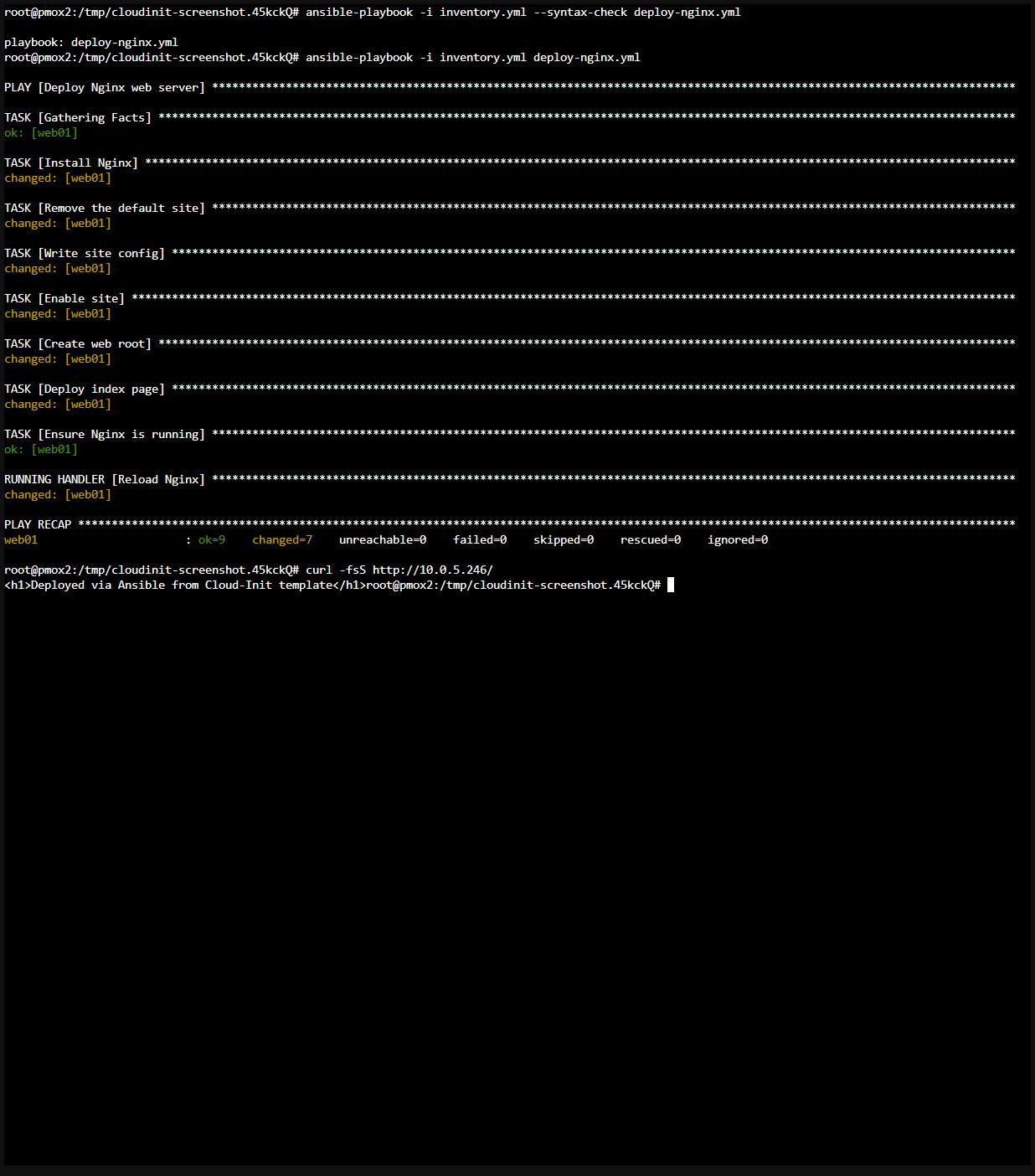
The playbook removes Nginx’s default enabled site so that the custom site serves the request. Save both files in your working directory, check the syntax, deploy, then request the page:
Day Two: actual Ansible syntax check and deployment, recap with zero failures, then curl returning the custom page. Click to view the full original capture.
This deployment was run against disposable clone 9903. The recap reported unreachable=0 and failed=0, and HTTP returned the playbook’s custom heading. Cloud-Init supplied the base; Ansible configured the application over SSH.
If you use ansible-pull for a self-bootstrap role instead, pin a reviewed repository revision with -C and manage any deploy credentials separately. Do not put repository tokens or private keys in user-data or vendor-data.
October 21, 2026: Retested on Proxmox VE 9.2.10 with shared NFS. Added explicit preflight and Linux OS type, versioned New York vendor-data, fresh walkthrough and Day Two screenshots, a Cloud-Init lifecycle diagram, actual SSH validation, ordinary-reboot identity checks, and the observed interface/DHCP transition. Added a replacement-candidate script that preserves the working template. Kept Proxmox Cloud-Init controls and documented the known username warning, with a commitment to retest and update after a Proxmox fix. Restored the complete combined-command option, documented ciupgrade 0, and folded lengthy Day Two examples for readability. Clarified NFS immutability, console versus SSH authentication, storage/HA limits, and persistent-data cleanup.
October 6, 2026: Corrections and improvements from reader feedback and retesting. Thanks to Giorgi for the detailed review.
Revised the Cloud-Init behavior explanation. The current lifecycle section clarifies that changes affecting the generated instance identity can rerun per-instance setup; an ordinary reboot does not imply a new instance.
Step 1: added SHA256 checksum verification.
Step 2: truncate /etc/machine-id after virt-customize so clones don’t share a machine ID.
Step 3: set the CPU type explicitly.
Step 4: enabled discard and SSD emulation, and grew the template disk to 10GB so the first-boot upgrade has room.
Step 6: added optional template-level Cloud-Init defaults and a one-command shortcut for Steps 3–6.
Step 8: set a password for console login, removed the manual serial console step, and fixed the Windows key path.
Day Two: removed vendor-data settings Proxmox already handles, updated the baseline and its checks, and added a template rebuild script.
Fixed formatting issues.
August 2026: Added the Day Two snippet section, then switched it from user-data to vendor-data so it no longer replaces the username, SSH key, and network settings from the Cloud-Init tab.