WS-Management: Configuration Refresh Failed — Fixing the MaxEnvelopeSizekb Limit

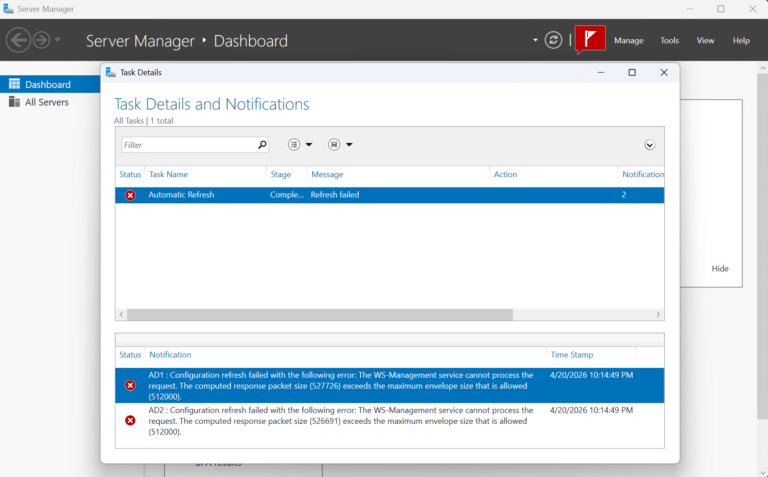
I installed Server Manager on my laptop to make it easier to manage my Active Directory Domain Controllers remotely. When I added two of my domain controllers I got the following error message: Configuration refresh failed with the following error: The WS-Management service cannot process the request. The computed response packet size (527726) exceeds the maximum envelope size that is allowed (512000). After some searching I discovered that the response the server tried to send back was bigger than WinRM was allowed to carry. The management tool asked for a configuration refresh, the server started building the response, and WinRM threw it in the trash before it ever arrived. Why It’s Happening WS-Management (WinRM) communicates using SOAP over HTTP — basically XML envelopes sent back and forth. There’s a setting called MaxEnvelopeSizekb that caps how large any single response envelope can be. Out of the box, that limit is 512 KB (512,000 bytes). The problem is that as your environment grows — more AD objects, more roles, more configuration data — the payload for a full configuration refresh eventually exceeds that cap. The two domain controllers I added were returning 527 KB and 526 KB respectively. Close, but just over the line, and WinRM doesn’t negotiate. It just refuses. This is especially common on Domain Controllers with large Active Directory configurations, or any server that …

Read more…

Azure Private Endpoints, DNS Private Resolver, and Conditional Forwarders: Private Access End-to-End

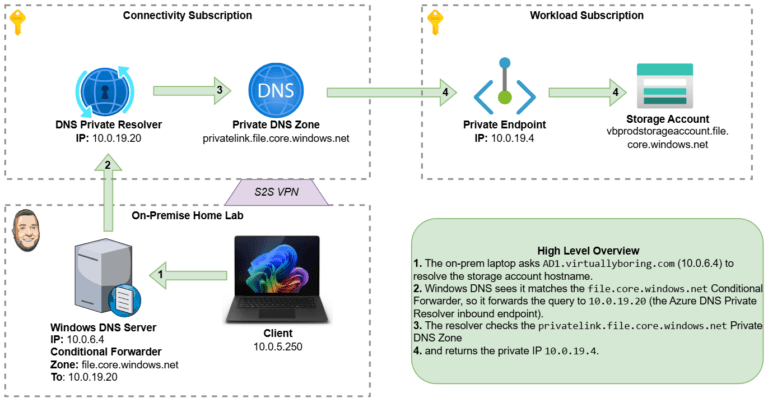
Diagram of Azure DNS with Private Resolver, Private DNS Zone, and Conditional Forwarder

By default, most Azure services — storage accounts, key vaults, SQL databases, you name it — are reachable over the public internet. That’s fine for a quick lab, but not great when you want your on-premises workloads to talk to Azure resources without any of that traffic ever leaving your private network. Prerequisite: This walkthrough assumes you already have a VPN tunnel between your on-premises network and your Azure VNet. If you haven’t set that up yet, check out my guide on Deploying an Azure Virtual Network Gateway first. That’s where Private Endpoints come in. A Private Endpoint drops a Network Interface Card (NIC) directly inside your Virtual Network, giving your Azure resource a private IP address that’s only reachable from within your network. No public internet required. The catch? DNS. Your on-premises DNS servers still resolve that storage account’s hostname to its old public IP. We need to teach them to ask Azure’s private DNS instead. To bridge that gap we’ll use Azure’s DNS Private Resolver — a fully managed, serverless DNS forwarder that lives inside your VNet — and then configure a Conditional Forwarder on your Windows DNS server to point traffic for Azure domains at it. Here’s what we’re building end-to-end: Create a Private Endpoint for an Azure Storage Account (file share). Create a DNS Private Resolver with an inbound endpoint so on-prem DNS can reach it. Configure a Conditional …

Read more…

How to setup Microsoft Active Directory Certificate Services [AD CS]

Microsoft Active Directory Certificate Services [AD CS] provides a platform for issuing and managing public key infrastructure [PKI] certificates. On top of securing application and HTTP traffic the certificates that AD CS provides can be used for authentication of computer, user, or device accounts on a network.

In this post I will be setting up a single AD CS server on my domain and configuring group policy to auto enroll my servers. For an enterprise environment you will deploy subordinate CA’s and shut down your root CA for security. For more information about this setup click here: PKI Design Options

Installing the AD CS Server Role:

Open Server Manager and click Manage -> Add Roles and Features:

PKI 1 - Add Roles and Features

Click Next:

PKI 2 - Before you Begin

Read more…

How to setup Microsoft Web Application Proxy

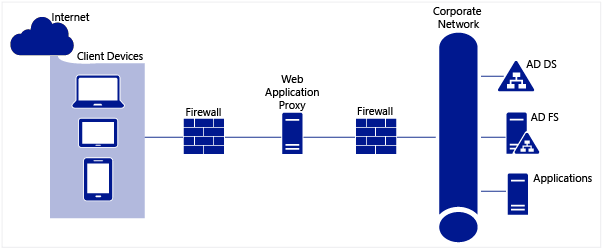
Microsoft Web Application Proxy [WAP] is a new service added in Windows Server 2012 R2 that allows you to access web applications from outside your network. WAP functions as a reverse proxy and an Active Directory Federation Services [AD FS] proxy to pre-authenticate user access.

Web Application Proxy Overview

vBoring Blog Series:

  1. How to setup Microsoft Active Directory Certificate Services [AD CS]
  2. How to setup Microsoft Active Directory Federation Services [AD FS]
  3. How to setup Microsoft Web Application Proxy

Requirements:

  • The only hard requirement of WAP is having an AD FS server. Refer to step 1 for setting that up.
  • WAP cannot be installed on a server that AD FS is installed on. They must be separate servers.

Installing the Web Application Proxy Server Role:

Open Server Manager and click Manage -> Add Roles and Features:

Microsoft Web Application Proxy 1 - Add Roles and Features

Read more…

How to setup Microsoft Active Directory Federation Services [AD FS]

In this post I will be installing and configuring the Active Directory Federation Services [AD FS] server role. AD FS is able to provide Single-Sign-On [SSO] capabilities to multiple web application using a single Active Directory account.

vBoring Blog Series:

  1. How to setup Microsoft Active Directory Certificate Services [AD CS]
  2. How to setup Microsoft Active Directory Federation Services [AD FS]
  3. How to setup Microsoft Web Application Proxy

Install the AD FS Server Role:

Open Server Manager and click Manage -> Add Roles and Features:

AD FS 1 - Add Roles and Features

Click Next:

AD FS 2 - Before you Begin

Read more…